Quick Facts
- Native Cap: Internal iPhone hardware and standard adapters are limited to 24-bit/48kHz output and input.
- Top App Pick: Shure MOTIV and RODE Capture are essential for capturing Uncompressed WAV files.
- Storage Impact: High-resolution audio is heavy; 24-bit/192kHz recording or streaming consumes about 4 gigabytes per hour.
- The Budget Hack: Original wired EarPods often outperform expensive wireless buds for vocal isolation and zero-latency monitoring.
- 2026 Tech: USB-C and USB4 integration allows for Low Latency Monitoring with sub-2ms delay when using Pro Audio Interfaces.
- Spatial Audio: The iPhone 16 series can capture immersive 3D soundscapes directly through the native camera app.
To achieve professional iphone audio recording, use an external USB-C microphone from brands like RODE or Shure paired with a dedicated utility app. Third-party apps allow for uncompressed WAV formats and 24-bit depth fidelity, overcoming the limitations of compressed native formats. Utilizing XLR to USB-C adapters further enables the use of studio-grade hardware for high-end field capture.
Professional Hardware: The USB-C Revolution
For years, those of us in the music tech world felt a bit hamstrung by the Lightning connector. It was a bottleneck, requiring bulky camera connection kits just to get a decent signal into the device. The transition to USB-C has fundamentally changed the landscape for iphone audio recording for home studio setup. We are no longer dealing with proprietary limits; we are looking at a universal standard that supports high-speed data transfer and significant power delivery.
The best way to record audio on iphone today involves leveraging this port with an external microphone for iphone recording usb c. Whether you are using a plug-and-play mic like the Sennheiser Profile or connecting a high-end interface, the stability of the connection is light-years ahead of where we were five years ago. For those with a collection of classic studio mics, using XLR to USB-C Adapters allows you to bring the warmth of a large-diaphragm condenser to your mobile sessions. This setup provides 24-bit Depth Fidelity that the internal microphones, while impressive, simply cannot replicate due to physics.
It is important to remember that while the silicon inside is powerful, the internal hardware is capped at 24-bit/48 kHz. If you are looking to monitor or record at higher sample rates, you must use an external digital-to-analog converter (DAC) or a pro interface. This keeps the signal path digital until it hits your high-end hardware, ensuring that the nuances of your performance aren't lost to the iPhone's internal processing.
Advanced Software: Choosing the Right iPhone Audio Recording App
The hardware is only half the battle. If you are still using Voice Memos for anything other than a quick grocery list, you are leaving massive amounts of quality on the table. Knowing how to record audio on iphone without voice memos is the first step toward a professional workflow. The native app applies aggressive compression and "enhancements" that can smear the stereo image and crush the dynamic range of a good performance.
Searching for a dedicated iphone audio recording app should be your priority. Apps like Shure MOTIV, RODE Capture, and Tape It provide the technical transparency required for professional work. These tools offer features such as Peak Level Metering, which is vital to ensure you aren't clipping your signal. They also offer Sample Rate Conversion and the ability to choose your iphone audio recording format settings, allowing you to opt for Uncompressed WAV instead of the lossy AAC format used by default.
| Feature | Voice Memos | Pro Audio Apps (Shure/RODE) |
|---|---|---|
| Format | Compressed AAC / ALAC | Uncompressed WAV / AIFF |
| Gain Control | Automatic Only | Manual Gain Adjustment |
| Monitoring | High Latency | Low Latency Monitoring |
| Metering | Basic Waveform | Peak Level Metering |
| Multitrack | No | Supports Multitrack Recording |
When you use a pro-grade app, you gain control over the preamp gain. This is crucial when recording in loud environments or capturing delicate acoustic instruments. By manually setting the gain, you avoid the "pumping" sound often heard in amateur recordings where the software is frantically trying to level out the volume.
Native Optimizations: iPhone 16 & Spatial Sound
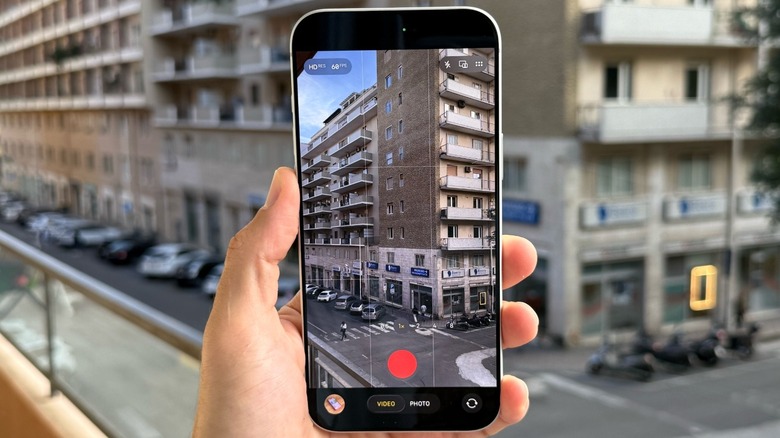
With the release of the newest hardware, we’ve seen a massive leap in how the device handles its internal microphones. Learning how to record spatial audio on iphone 16 is a game-changer for videographers and field recordists alike. By going to Settings > Camera > Record Sound, you can enable the spatial audio toggle. This configuration utilizes the internal microphone array and AI-driven processing to create Immersive 3D Soundscapes that feel remarkably lifelike when played back on spatial-capable headphones.
Apple has also integrated Voice Isolation Mode into the system level. This uses AI Noise Cancellation to strip away ambient hums, wind noise, and background chatter. While we usually suggest a clean, raw signal for studio work, this native feature is incredibly effective for interviews in coffee shops or bustling streets. It identifies the frequency of the human voice and prioritizes it, effectively acting like a digital "expander" or "noise gate" in real-time.
For music lovers, the device is also a high-end playback machine. Apple Music provides over 100 million songs in lossless quality, providing a library that rivals any audiophile's physical collection. However, users should be aware of the bandwidth requirements. Streaming at the highest 24-bit/192 kHz 'Hi-Res Lossless' quality can consume approximately 4 GB of data per hour, so ensure you are on a robust Wi-Fi connection or have a massive data plan before diving into a long listening session.
The Field Recordist’s Toolkit: Mobility vs. Quality
Sometimes the best equipment is the one you have with you. While we always advocate for a dedicated mic, there are times when you need to be discreet or mobile. Interestingly, using airpods pro as microphone for audio recording is convenient, but it is often outperformed by a much cheaper alternative. The old-school, $20 wired EarPods are a secret weapon among podcasters and field mixers. They provide surprisingly decent vocal isolation because the mic is physically closer to the speaker's mouth than most wireless sets.
If you are looking for a more robust mobile solution, the DJI Mic 2 or RODE Wireless PRO systems are excellent. These offer a Field Capture Scenario where you can record a primary signal into the iPhone via USB-C while the transmitters record an internal backup. This safety net is invaluable during high-stakes interviews where a wireless dropout could ruin a take.
The key to a successful mobile recording is Wind Protection Gear. Even the best iphone audio recording setup will fail if the wind is hitting the diaphragms directly. Small "deadcat" windjammers that slide over your USB-C mic or the internal microphones can save a recording from the low-frequency "thumping" that occurs in outdoor settings.
FAQ
Can I use my iPhone to record audio?
Yes, the hardware is capable of professional-grade capture. By utilizing the internal microphone array or an external digital interface, you can record everything from simple voice notes to high-fidelity musical performances in 24-bit resolution.
How do I record just audio on my iPhone?
While the Camera app is often the default, for audio-only tasks you should use dedicated apps. Voice Memos is the pre-installed option, but for professional results, third-party apps like Shure MOTIV or Tape It allow you to save uncompressed audio files without capturing video.
Where is the audio recording on an iPhone?
Native recordings are stored in the Voice Memos app, which is typically found in the Utilities folder. If you use third-party apps, files are usually stored within that app's local library or can be found in the Files app under the respective app's folder.
How do I record a live conversation on my iPhone?
For a clear recording of a conversation, place the phone on a flat surface between the speakers. Use Voice Isolation Mode to minimize background noise. For professional interviews, using a dual-channel wireless microphone system plugged into the USB-C port is the most reliable method.
Can you record just audio from your phone?
Absolutely. Modern iPhones support simultaneous multitrack recording and high-resolution capture. By using a specialized iphone audio recording app, you can bypass the standard phone functions to turn your device into a dedicated digital audio recorder.