Quick Facts
- Feature Name: Flash for Alerts (often confused with standard notification settings).
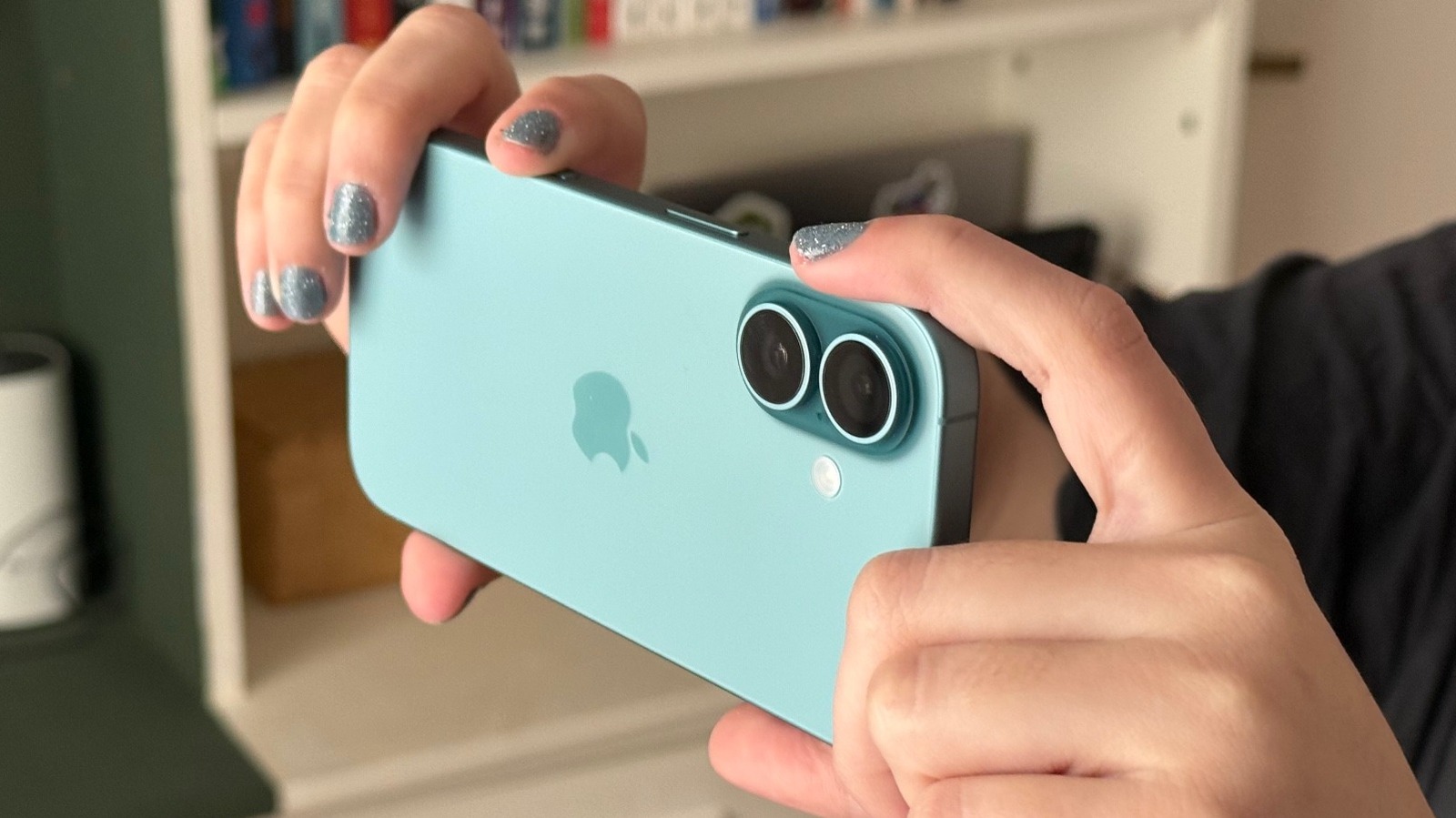
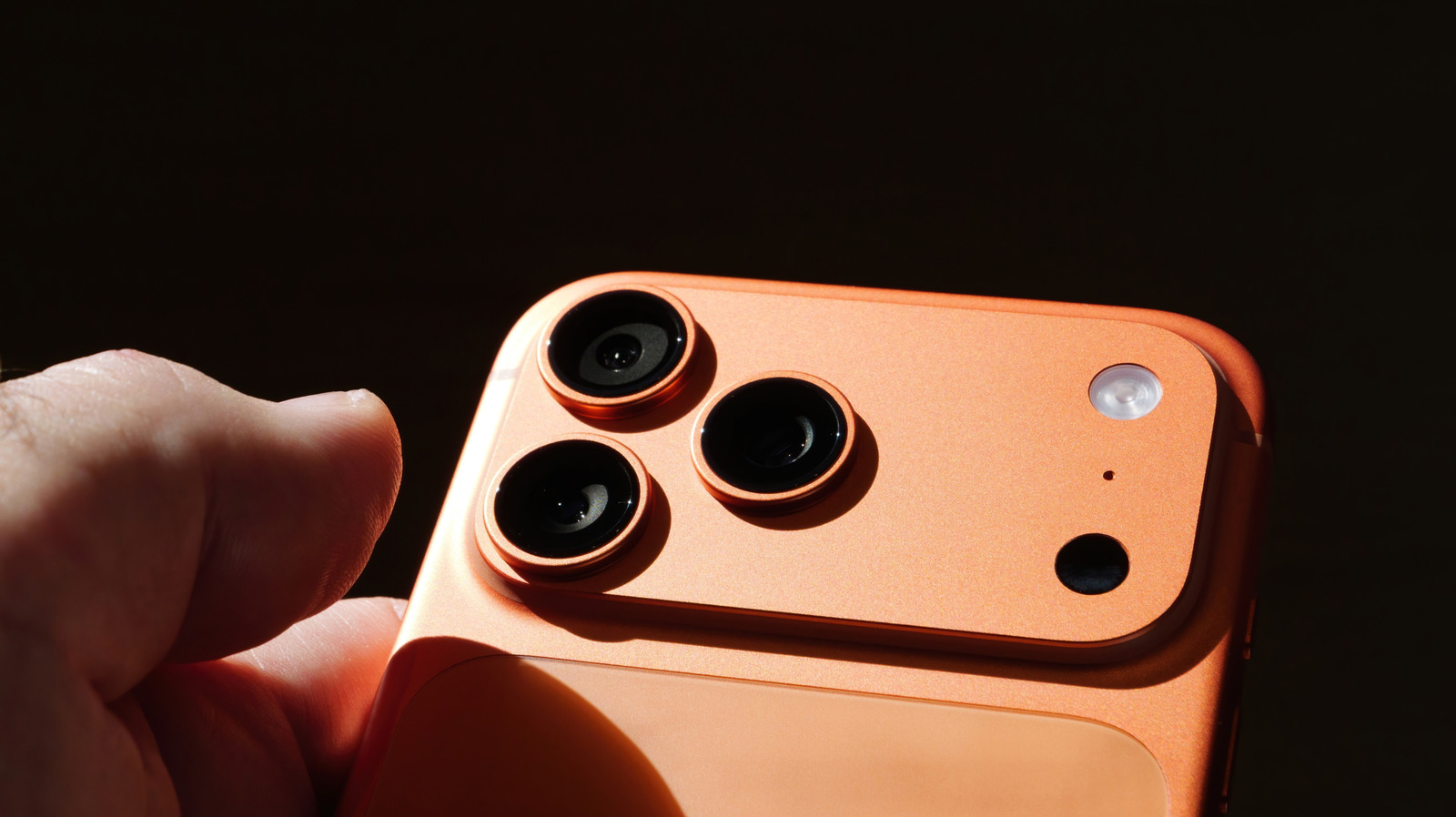
- Hardware Trigger: Utilizes the rear camera hardware LED located next to the lens.
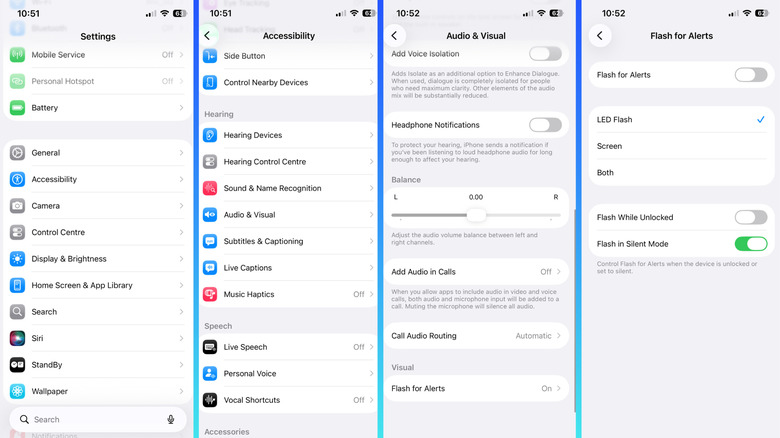
- Navigation Path: Settings > Accessibility > Audio & Visual > Flash for Alerts.
- Operational Requirement: The LED flash only triggers when the iPhone screen is locked and the device is idle.
- Customization Options: Includes specific toggles for Flash While Unlocked and Flash in Silent Mode.
- History: The LED Flash for Alerts feature has been an optional accessibility setting on the iPhone since the release of the iPhone 4.
- Modern Control: Modern versions of iOS include a specific Flash While Unlocked toggle that allows users to prevent the LED light from flashing when they are actively using their iPhone.
To disable flash notifications on your iPhone, open the Settings app and navigate to Accessibility. From there, select Audio & Visual and tap on Flash for Alerts. Toggle the switch to the off position to stop the rear LED light from blinking specifically when you receive incoming calls, messages, or other alerts. This immediately resolves the flashing light issue for all standard notifications.
Step-by-Step Guide: How to Turn Off Flash Notifications on iPhone
Whether you have transitioned to the latest flagship or are still utilizing a reliable older model, the process for managing flash notifications iphone remains remarkably consistent across the ecosystem. In my years of testing mobile hardware, I have noted that many users accidentally enable this feature while exploring the iOS Accessibility menu, leading to confusion when their device starts strobing during a dinner party or in a dark theater.
Follow these three simple steps to regain control over your device indicator light behavior:
- Open the Settings App: Locate the gear icon on your home screen. While you might be tempted to look under the Notifications menu, the flash settings are actually housed within the accessibility suite.
- Navigate to Accessibility: Scroll down until you see the Accessibility icon. Within this menu, scroll further to the Hearing section and select Audio & Visual.
- Toggle Flash for Alerts: At the very bottom of the Audio & Visual menu, you will see the Flash for Alerts option. Tap it to enter the sub-menu, then flip the master switch to the off position.
This exact path applies whether you are looking for how to turn on flash notification on iphone 16 or how to turn on flash notification on iphone 13. Apple has maintained this UI structure to ensure users don't have to relearn basic navigation with every new generation. If you are specifically trying to figure out where are accessibility flash for alerts settings on iphone, this Audio & Visual section is your one-stop destination for all visual alert modifications.
Customizing Flash Alerts: Silent Mode and Unlocked Settings
Not every user wants to disable the feature entirely. Sometimes, you might find the flashing light useful in specific contexts but annoying in others. This is where deeper device alert customization comes into play. Within the same menu where you found the master toggle, Apple provides two granular controls that significantly impact your daily experience.
The first is the iphone flash in silent mode settings. This is particularly useful for those who work in open-office environments or attend frequent meetings. When you flip the physical mute switch on the side of your iPhone (or use the Action Button on newer models), you can choose to keep the visual alert active even when the ringer is dead silent. This provides a discrete alternative to audible ringtones without the vibration noise that can often be just as distracting on a wooden desk.
The second crucial control is the ability to disable flash for alerts while iphone is unlocked. One of the most common complaints I hear from readers is that the LED flashes right in their periphery while they are already looking at the screen. By toggling Flash While Unlocked to the off position, you ensure the rear camera hardware only pulses when the phone is sitting idle, preventing unnecessary battery drain and eye strain while you are actively using the device.
From a perspective of public space etiquette, these settings are vital. A bright LED strobe in a dark room can be jarring for those around you. Being able to fine-tune when and how your phone visually communicates is a hallmark of the modern iOS user experience.
Expert Tip: If you find the LED flash too intense but still need a visual cue, consider switching to haptic alternatives. You can create custom vibration patterns for specific contacts under the Sounds & Haptics menu, which offers a more private way to stay informed.
iPhone Screen Flash vs. LED Flash: Making the Smart Choice
In recent updates, including the latest iOS 26 compatibility, Apple has expanded visual alerts beyond just the rear LED. We now see a distinction between the traditional hardware pulse and screen pulse alerts. Understanding which one fits your lifestyle—or photosensitivity concerns—is key to a better mobile experience.
The traditional LED alerts rely on the rear camera hardware. This is designed for when your phone is placed face-down on a surface. However, if you typically leave your phone face-up, the rear flash is often obscured, making it ineffective. To combat this, newer versions of iOS allow for a screen flash.
| Feature Type | Best Placement | Impact |
|---|---|---|
| LED Flash for Alerts | Face-down on table | High visibility in dark rooms; uses rear camera LED. |
| Screen Flash | Face-up on desk | Pulses the entire display colors; easier to see while working. |
| Flash While Unlocked | In-hand usage | Best kept 'OFF' to avoid distracting the user during active tasks. |
| Flash in Silent Mode | Quiet environments | Great for heavy sleepers or those with hearing impairments. |
For users looking for how to make iphone screen flash for notifications, this is handled in the same menu. Instead of the rear LED, the display itself will pulse a color to catch your eye. This is often preferred by users who find the sharp strobe of the camera flash to be too aggressive for their environment.
Troubleshooting and Model Specifics: From iPhone 13 to iPhone 16
Sometimes, even after you think you have configured everything correctly, the light might not behave as expected. The most common troubleshooting iphone flashing light for calls and messages issue is the screen status. It is a safety and usability feature of iOS: the flash will not trigger if your screen is currently on and active. If you are trying to test the feature and it won't fire, lock your device and then send yourself a message from another phone.
Device compatibility is also a frequent question in my inbox. While we often focus on phones, this feature is also available on iPad Pro and iPad mini 6, provided the hardware includes a flash. If you are trying to learn how to turn on flash notification on iphone 15 or 16, rest assured that the software triggers are identical. The only difference is the brightness and thermal management of the newer LED modules, which are more efficient than those found in the iPhone 13 era.
If you have upgraded to a new device through a backup, sometimes the accessibility settings can carry over in an "on" state by default. A quick trip to the Audio & Visual menu to verify your preferences is a standard part of my new-device setup checklist.
FAQ
How do I get my iPhone to flash when I get notifications?
To enable this, go to Settings, tap Accessibility, then choose Audio & Visual. At the bottom, tap Flash for Alerts and turn the switch to the on position. Note that your phone must be locked for the flash to trigger.
Does the iPhone still have flash notifications?
Yes, the feature is still a core part of the iOS accessibility suite. It is available on all modern iPhones that feature a rear camera LED flash, including the newest models running the latest software updates.
How do I enable flash notifications?
Navigate to Settings > Accessibility > Audio & Visual. Locate the Flash for Alerts toggle at the bottom of the list and switch it to ON. You can then choose if you want it to flash while the phone is in silent mode or when the screen is unlocked.
How to get a flash notification on iPhone?
Once you have enabled Flash for Alerts in the Accessibility menu, the rear LED will pulse several times whenever you receive a call, text, or app notification, provided your iPhone screen is currently dark and locked.
What do flash notifications mean?
Originally designed as an accessibility tool for the deaf or hard of hearing, flash notifications provide a visual light pulse to signal incoming alerts. They are also popular with users who work in loud environments or places where they cannot use sound or vibration.