Quick Facts
- Best Mode: Select the 'Sports' or 'Stadium' preset, then manually enable Dialogue Enhancement.
- EQ Strategy: Reduce frequencies below 100Hz and boost the mid-range between 90Hz and 255Hz.
- Physical Fix: Position your soundbar or speakers 6 to 12 inches away from the wall to prevent muddy reflections.
- Vocal Demand: More than 64% of sports fans regularly consume sports content through audio such as play-by-play broadcasts, requiring high vocal clarity.
- Technology Support: Spatial audio like Dolby Atmos is now supported on more than 3 billion consumer devices.
- Connection Tip: Use HDMI ARC/eARC for the highest quality uncompressed audio transmission from your TV to your sound system.
To optimize tv sound settings for live sports, start by reducing the bass levels. High-energy crowd noise and stadium ambience are often bass-heavy, which can drown out broadcast announcers. Lowering the low-end frequencies allows the mid-range frequencies of human speech to remain clear and intelligible during intense game moments. Utilizing built-in preset modes is an effective way to improve sports audio. Most smart TVs include a 'Sports' or 'Stadium' mode designed to balance crowd noise with commentary. Additionally, look for 'Dialogue Enhancement' or 'Clear Voice' features in your audio settings to prioritize the commentators' voices over the background music and sound effects.
1. Master the Preset: Sports Mode and Dialogue Enhancement
When you first dive into your smart tv sound settings, the most tempting option is the dedicated Sports mode. Most manufacturers, from Samsung to Sony, spend hundreds of hours engineering these presets to create an immersive environment. When you toggle this on, the TV often emphasizes the surround sound channels to make the stadium ambience feel like it is wrapping around your living room. It is a fantastic way to feel the energy of the crowd, but it comes with a technical trade-off: it frequently masks the play-by-play commentary.
To fix this, you should treat the preset as your foundation, not the final destination. After selecting the Sports preset, you need to look for a secondary toggle. On many models, this is hidden under accessibility shortcuts or expert audio menus. For those utilizing lg tv sound settings clear voice, you will find that this feature specifically targets the frequency bands where humans speak, lifting them above the roar of the crowd.
If you are navigating samsung smart tv sound settings, look for the 'Amplify' option or 'Active Voice Amplifier' in the newer models. These features use microphones within the TV to detect ambient noise in your room and adjust the dialogue volume dynamically. The goal is to ensure that the broadcast announcers remain the focal point of the audio mix, regardless of how intense the game becomes.
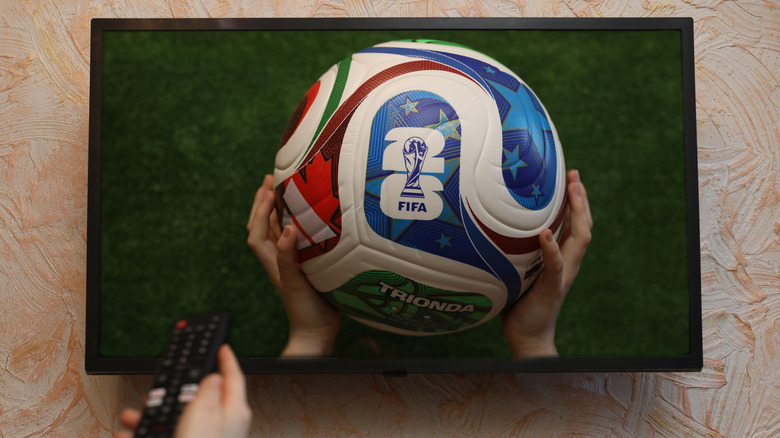
While these presets are helpful, they often apply a form of dynamic range compression. This levels out the loudest and quietest sounds, which is great for late-night viewing but can sometimes make a live broadcast feel flat. If the game feels like it has lost its "punch," it might be time to move away from the presets and dive into the manual equalizer.
2. Technical EQ: Balancing Bass vs. Mid-Range Frequencies
The biggest mistake most people make with their tv sound settings is cranking the bass to feel the "thud" of a tackle or the roar of the stadium. However, in the world of audio engineering, there is a concept called masking. When low-frequency sounds (bass) are too loud, they physically prevent your ear from hearing higher-frequency sounds (treble and mid-range). Since human speech typically sits in the mid-range frequencies between 90Hz and 255Hz, a bass-heavy mix will make your favorite announcers sound like they are talking through a thick blanket.
To achieve the best tv sound settings for dialogue, you need to take control of the frequency sliders. Most modern TVs provide a 5-band or 7-band equalizer. Here is a quick guide on how to set the best sound equalizer settings for tv for a typical sports broadcast:
| Frequency Range | Recommendation | Impact on Sports Audio |
|---|---|---|
| Low Bass (< 100Hz) | Decrease (-3 to -5 dB) | Reduces "muddiness" and booming crowd noise |
| Lower Mids (100Hz - 500Hz) | Slight Boost (+2 dB) | Adds body and warmth to announcer voices |
| Upper Mids (1kHz - 3kHz) | Boost (+4 dB) | Crucial for speech intelligibility and clarity |
| Highs (> 5kHz) | Neutral or Slight Boost | Helps hear the whistle and equipment contact |
If you are using sony tv sound settings, you can often find these sliders under 'Sound Customization.' On the other hand, vizio tv sound settings usually offer a 'Dialogue' slider that does the heavy lifting for you by automatically boosting these mid-range frequencies.
Expert Tip: If your TV does not have a full equalizer, look for a 'Treble' adjustment. Increasing the treble by two or three notches can significantly improve how well you can distinguish between different voices during a fast-paced broadcast.
Remember that speech intelligibility is the most important factor for a sports fan. If you can’t hear the stats or the play-calling, you are missing half the game. Once you have cleared up the mids, you will notice that even the stadium ambience sounds more detailed because it is no longer being drowned out by distorted low-end frequencies.
3. Audio Processing: Surround Sound vs. 2-Channel Mode
Many viewers assume that more "channels" always equal a better experience. While surround sound virtualization is great for blockbuster movies, it can sometimes backfire during live sports. Live broadcasts are mixed differently than movies; the commentary is almost always sent to the center channel, while the crowd noise is fed to the left, right, and rear channels.
In many smart tv sound settings, the 'Virtual Surround' or 'Ultra Surround' feature attempts to take a standard signal and spread it across all speakers. If the algorithm isn't perfect, it can pull the broadcast announcers away from the center and bleed their voices into the side speakers, creating a hollow, echoing effect.
If you are struggling with clarity, try switching your TV to 'Stereo' or '2-Channel' mode. This forces the TV to prioritize a direct, clean feed. However, if you have a high-end soundbar or a multi-speaker setup, you should take advantage of Next Generation Audio (NGA) technologies like Dolby Atmos. These systems treat sounds as "objects" that can be placed in a 3D space, which allows the commentary to stay perfectly centered while the stadium noise literally floats above and around you.
To get the most out of these advanced formats, ensure your hardware is connected via HDMI ARC/eARC. This connection has the bandwidth to carry uncompressed audio signals, ensuring that the treble adjustment and mid-range frequencies you tuned in the EQ aren't lost in compression.
4. The Hidden Setting: Physical Speaker Placement
No amount of digital tweaking in your tv sound settings can overcome a poorly placed speaker. Physics is the ultimate decider of sound quality. Most flat-screen TVs have downward-firing speakers, which rely on reflecting sound off the TV stand or the floor to reach your ears. This is why many TVs sound "thin" or "muffled" right out of the box.
If you are using a soundbar, follow the '12 inch rule.' For optimal tv speaker placement for sound quality, your speakers should be at least 6 to 12 inches away from the wall. When a speaker is too close to a hard surface, the sound waves bounce off the wall and interfere with the waves coming out of the front of the speaker. This creates constructive interference in the bass frequencies, leading to that "muddy" sound we want to avoid during sports.
Furthermore, ensure your soundbar is at the very front edge of your TV cabinet. If it is tucked back near the screen, the sound will bounce off the furniture surface before it reaches you, causing acoustic reflections that destroy speech intelligibility. Think of it like a flashlight; if you block the edges of the beam, the light becomes scattered and dim. Sound works the same way.
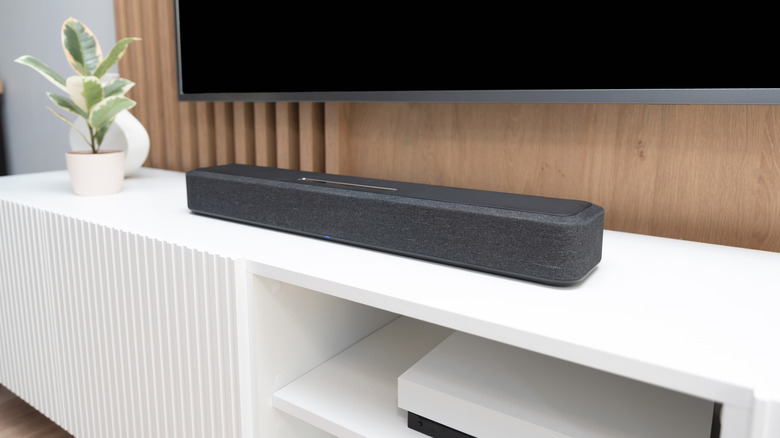
Finally, consider the line of sight. Higher frequencies—the ones responsible for the "S" and "T" sounds in human speech—are very directional. If there is a coffee table, a stack of books, or even an ottoman between the speaker and your head, those high frequencies will be absorbed or deflected. By simply clearing the path and ensuring the speakers are aimed at your seating area at ear level, you can drastically improve the clarity of the broadcast announcers without touching a single digital menu.
FAQ
Which TV sound setting is best?
The best setting for most users is a combination of the 'Sports' or 'Stadium' preset with 'Dialogue Enhancement' (or 'Clear Voice') turned on. This provides the most balanced experience between feeling the energy of the crowd and hearing the announcer clearly.
How do I adjust the sound on my TV to hear better voices?
To hear better voices, navigate to your audio equalizer and boost the mid-range frequencies (around 100Hz to 2.5kHz). You should also reduce the bass (below 100Hz), as excessive low-end noise often masks the clarity of human speech.
What sound mode should the TV be on?
For live sports, the 'Sports' mode is specifically designed to handle the unique mix of stadium noise. However, if that sounds too echoing, switching to 'Standard' or 'User Custom' mode and manually boosting the treble will often yield better results.
Why can't I hear people talking on my TV?
This usually happens because the background noise and low-frequency effects are too loud compared to the dialogue track. Modern thin TVs also have small speakers that struggle with mid-range clarity. To fix this, turn off 'Auto Volume' or 'Night Mode' and enable 'Voice Zoom' or 'Dialogue Boost.'
How can I improve my TV sound and hear dialogue better?
Beyond software settings, you can improve sound by pulling your speakers 6-12 inches away from walls and ensuring they are at the front edge of the TV stand. This reduces acoustic reflections that make dialogue sound muffled and unclear.