Quick Facts
- The Core Method: A continuous 90-second process involving three 30-second phases while holding the reset button.
- Primary Objective: Intended for NVRAM clearing and deep factory defaults restoration on older network hardware.
- Risk Advisory: Modern Wi-Fi 6 and Wi-Fi 7 devices can suffer from firmware corruption or become a bricked router if this method is used incorrectly.
- Hardware Origin: Originally popularized by the Linksys WRT54G series and the third-party DD-WRT firmware community.
- Safety First: Most modern routers from Netgear, ASUS, or TP-Link only require a 10-second button hold for a standard factory reset.
- Success Indicator: Physical LED light patterns will typically flash or change color to signal a successful bootloader reset.
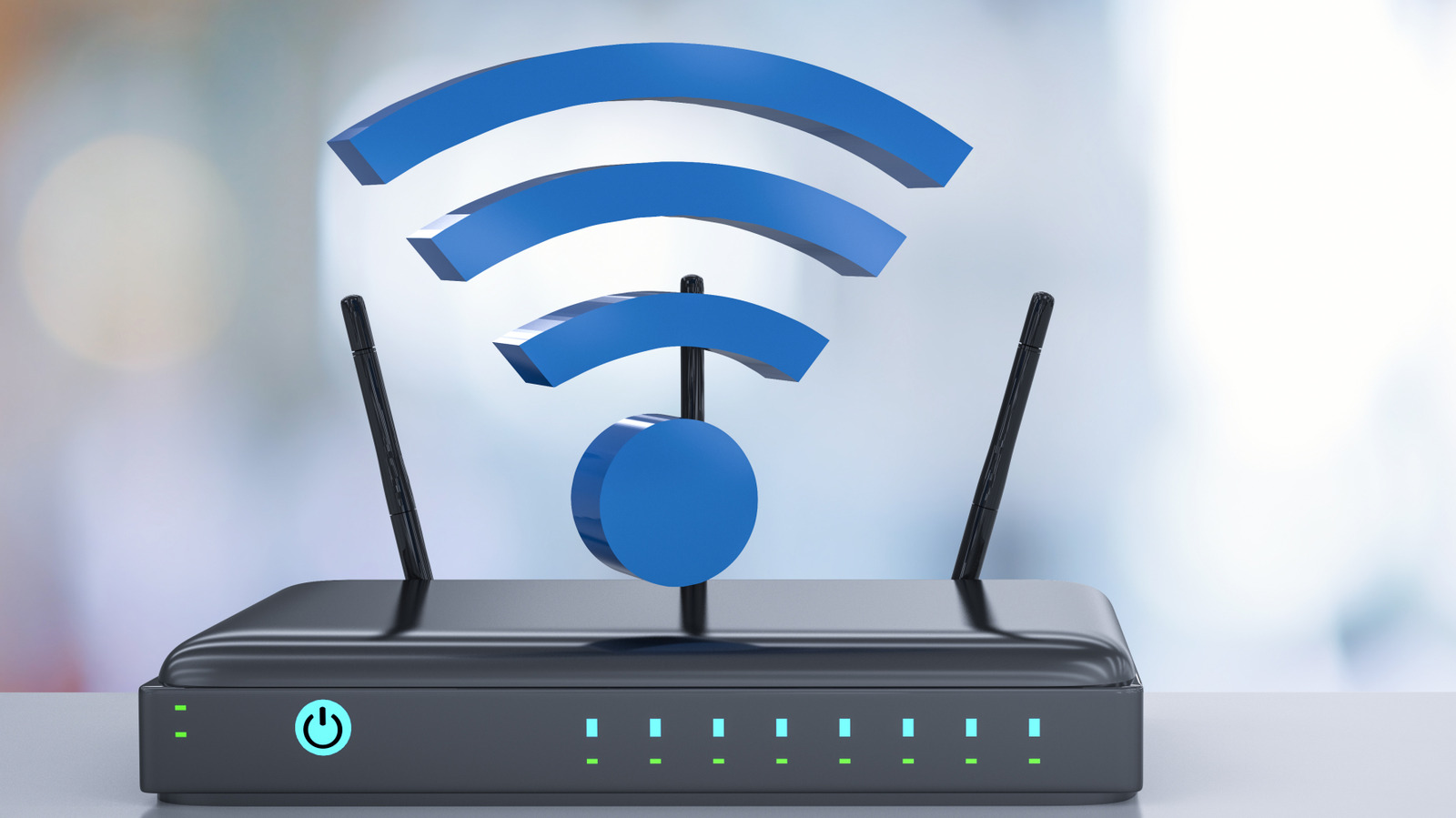
The 30-30-30 reset is the ultimate 'Nuclear Option' for fixing stubborn connectivity issues, but it is not without risk. A 30-30-30 reset is a 90-second procedure used to clear NVRAM and restore factory defaults on legacy hardware by holding the reset button while powering the router off and on in 30-second intervals.
CRITICAL WARNING: Before you proceed, check your router's age. If you are using a modern Wi-Fi 6 or Wi-Fi 7 router, the 30-30-30 rule can be dangerous. Modern hardware uses sophisticated flash memory and boot sequences. Forcing a 90-second hardware discharge can interrupt critical system checks, potentially leading to router bricking. For any device manufactured after 2018, I strongly recommend a standard 10-second factory reset unless specifically instructed otherwise by the manufacturer.
Legacy vs. Modern: Is the 30-30-30 Reset Safe for You?
In the early days of home networking, routers were far less resilient than the high-performance machines we use today. During the era of Wi-Fi 4, the 30-30-30 reset was a standard troubleshooting tool. It was specifically designed to handle the way older routers stored their configuration data. However, the networking landscape has shifted dramatically. While the technique involves a continuous 90-second procedure that was once the gold standard, modern Wi-Fi 7 standards and even Wi-Fi 6 hardware handle power states differently.
Industry experts note that while the 30-30-30 rule was effective for legacy devices, many modern routers require only a 10-second button hold for a factory reset. If you attempt the 90-second method on a newer Netgear or TP-Link unit, you might find that the 30 30 30 reset not working as expected. In some cases, these newer models can enter an unintended recovery mode that is difficult for average users to exit without specialized software.
The primary danger is firmware corruption. Modern routers often have dual-firmware partitions for safety. By holding the button through three power cycles, you might trick the device into thinking the primary firmware is failed, causing it to switch to a secondary (and potentially outdated) partition, or worse, leaving it in a state where it cannot boot at all. If you are dealing with 30 30 30 reset newer routers risks, it is often better to use the software-based factory reset found in the admin dashboard.
The DD-WRT Standard: Step-by-Step 30/30/30 Procedure
If you are working with an older device or a router running custom firmware, the dd-wrt 30/30/30 reset procedure remains a powerful tool. This technique originated with the Linksys WRT54G series and was primarily designed to clear the non-volatile random-access memory (NVRAM). This is particularly useful when a firmware upgrade goes wrong or when you cannot access the gateway due to a forgotten password.
To perform a successful 30-30-30 reset, you will need a paperclip or a dedicated reset tool to engage the pinhole button. You must maintain pressure on the button for the entire 90 seconds.
- The First 30 Seconds (Power On): While the router is plugged in and powered on, press and hold the pinhole button for 30 seconds.
- The Second 30 Seconds (Power Off): Continue holding the reset button. While still holding it, unplug the power cable from the back of the router. Maintain the hold for another 30 seconds. This allows for total hardware discharge.
- The Third 30 Seconds (Power On): Still holding the reset button, plug the power cable back into the router. Keep the button pressed for the final 30 seconds.
During this final phase, watch the lights. You will usually see a specific flash pattern indicating the bootloader is resetting. Once the full 90 seconds are up, release the button and wait about two to five minutes for the router to fully reboot into its factory defaults.
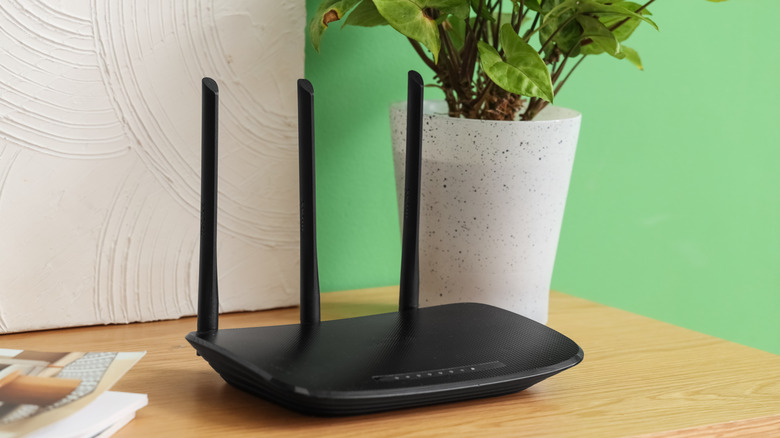
Understanding the Reset Hierarchy
Not every network issue requires the nuclear 30-30-30 reset. As a PC editor, I always suggest starting with the least invasive method first to preserve your custom settings and avoid unnecessary network troubleshooting later.
| Reset Type | Method | Preserves Settings? | Best Use Case |
|---|---|---|---|
| Soft Reset | Unplug for 30 seconds, then plug back in. | Yes | Minor lag, connection drops, or IP conflicts. |
| Hard Reset | Hold reset button for 10-30 seconds while powered. | No | Forgotten admin credentials or major configuration errors. |
| 30-30-30 Reset | The full 90-second power-cycled hold. | No | Clearing NVRAM after a bad firmware flash on legacy gear. |
Post-Reset Recovery: Accessing the Admin Panel
Once you have completed the reset, your router is essentially a blank slate. You will no longer be able to use your previous Wi-Fi name or password. The first step in recovery is connecting your PC directly to the router using an Ethernet cable, as Wi-Fi may be disabled by default or set to an open, unsecured state.
You will need to use the default admin credentials to get back in. Most legacy routers use admin for both the username and password, or root for the username and admin for the password. If you performed a factory reset router without admin password, you should look for a sticker on the bottom of the device that lists the default gateway IP address—usually 192.168.1.1 or 192.168.0.1.
Once you gain access:
- Immediately change the admin password to something secure.
- Update the firmware to the latest version to patch security vulnerabilities.
- Reconfigure your SSID (Wi-Fi Name) and WPA2/WPA3 encryption.
- Be prepared for the 20-45 minute task of reconnecting all your smart home and IoT devices to the new network.
When it Fails: Troubleshooting and Safer Alternatives
If you find the 30 30 30 reset not working, you may be dealing with frozen hardware or a failed chip. Sometimes the pinhole button itself can become stuck or lose its "clicky" feel. In these cases, pressing harder won't help; you might actually damage the internal switch.
If a standard reset fails on an ASUS router, you might need to use a different trick. Some models require you to hold the WPS button while powering on the unit to force a factory reset. This is often referred to as a cold-boot reset and is a safer alternative for modern hardware than the 30-30-30 method.
For those facing a bricked router recovery after 30 30 30 reset, you might need to use TFTP (Trivial File Transfer Protocol) to force-feed the firmware back into the device. This is a technical process that involves setting a static IP on your computer and sending the firmware file during the first few seconds of the router's boot cycle. If the router doesn't respond to TFTP, it’s likely that the hardware has suffered a permanent failure, and it may be time to consider a modern Wi-Fi 6E or Wi-Fi 7 replacement.
FAQ
What is a 30/30/30 router reset?
It is a hard reset procedure that lasts 90 seconds, designed to clear the non-volatile memory of a router. It involves holding the reset button while the device is on, then while it is unplugged, and finally while it is powered back on, with each stage lasting 30 seconds.
Is it bad to press the reset button on a router?
Generally, no. Pressing the reset button is a standard troubleshooting step. However, using the aggressive 30-30-30 method on modern routers can be risky because it may interrupt the bootloader's safety checks, potentially leading to firmware corruption.
How to force a hard reset?
To force a standard hard reset on most modern devices, ensure the router is powered on and use a paperclip to hold the reset button for about 15 to 30 seconds. You will see the status lights blink or change color when the reset has been triggered.
What happens if I hit the reset button on my router?
Hitting the reset button for a few seconds might do nothing or just reboot the device. However, holding it long enough to trigger a factory reset will wipe all your custom settings, including your Wi-Fi name, password, and port forwarding rules, returning the device to its original out-of-the-box state.
How do I force my ASUS to factory reset?
For many ASUS models, the standard way is to hold the reset button for 5-10 seconds. If that fails, you can try the cold-boot method: turn off the router, press and hold the WPS button, turn the power back on, and continue holding the WPS button until the power light goes off or starts flashing.