Quick Facts
- TV Compatibility: Samsung Smart TV models released from 2020 onwards.
- Firmware Requirement: Software version 1300 or higher, specifically 1302.5 for optimal stability.
- Controller Support: Native support for Xbox Series X|S, Xbox One (Bluetooth models), and Elite Wireless Controller Series 2.
- Gaming Access: Access to more than 3,000 console games via services like Xbox Game Pass and NVIDIA GeForce Now.
- Streaming Resolution: Cloud gaming is currently limited to 1080p at 60 frames per second on supported displays.
- Connection Methods: Supports both wireless Bluetooth pairing and low-latency wired USB connections.
To connect an Xbox controller to a Samsung TV via Bluetooth, open the Xbox app or Gaming Hub and select the Controller icon to initiate pairing. Put your controller into pairing mode by holding the sync button until the Xbox logo flashes, then select the device from the TV's Bluetooth list to finish syncing. For a wired connection, plug a compatible USB cable into your Xbox controller and connect the other end directly to a USB port on your Samsung Smart TV.
Step 1: Check Controller & TV Compatibility
Before you clear your afternoon for a Halo session, we need to ensure your hardware is up to the task. Not every Xbox peripheral is built the same, and Tizen OS requirements for Samsung displays have specific cut-off points. The most critical factor for a wireless setup is whether your controller supports Bluetooth connectivity.
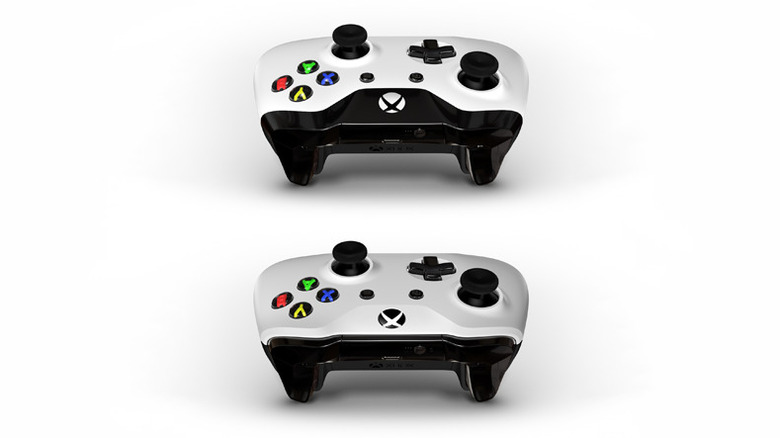
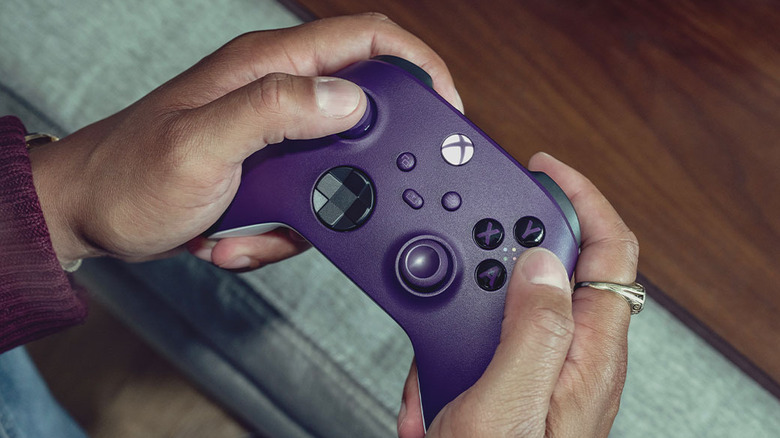
If you are using an older Xbox One controller, look at the plastic surrounding the Xbox button. On Bluetooth-enabled models, the plastic faceplate of the controller is a single piece that encompasses the button. On older, non-Bluetooth models, the Xbox button is part of a separate plastic section that mirrors the bumpers. If you find yourself with an older unit or an Xbox 360 controller, don't worry—you can still establish a connection, but it will require a physical USB cable rather than a wireless sync.
On the display side, the Xbox app is compatible with Samsung Smart TV models released from 2020 onwards that have software version 1300 or higher installed. If you are rocking a flagship from 2019 or earlier, the native app won't be available, though you can still use the TV's HDMI ports for a traditional console or a streaming stick.
Pro-Tip: Always check your TV's firmware first. Go to Settings > Support > Software Update. Even if your model is technically supported, the Samsung TV game controller compatibility often relies on the latest system patches to recognize newer Xbox Series X|S firmware.
Step 2: Connect via Samsung Gaming Hub (2022+ Models)
If you own a newer Samsung display, you likely have access to the Samsung Gaming Hub. This is a dedicated interface that aggregates your cloud gaming apps, console inputs, and streaming services into one place. The Samsung TV Xbox app setup is incredibly streamlined within this environment.
- Turn on your Samsung TV and navigate to the Gaming Hub icon on the sidebar menu.
- Look for the Controller icon located at the top of the screen and select it using your TV remote.
- Select "Pair a Controller" from the list of options. The TV will now begin scanning for nearby Bluetooth devices.
- Grab your Xbox controller and hold down the Pair button (the small circular button on the top edge) for about three seconds.
- Once the Xbox logo starts flashing rapidly, it has entered pairing mode.
- Your TV should display "Xbox Wireless Controller" on the screen. Select "Pair and Connect" to finalize the link.
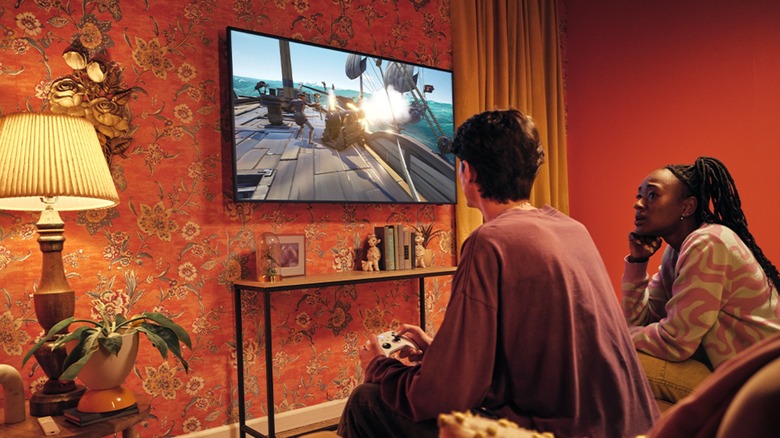
The Samsung Gaming Hub provides users with access to more than 3,000 console games without requiring a physical console, making this the most efficient way to turn your TV into a standalone gaming rig.
Step 3: Connect via Bluetooth Settings (2020-2021 Models)
For those using 2020 or 2021 models, you might not see a dedicated Gaming Hub, but the Xbox controller Samsung TV integration still works through the standard system settings. The process for how to pair xbox wireless controller to samsung tv bluetooth is slightly more hidden in these older Tizen OS versions.
First, navigate to the Home screen and select Settings. From there, follow the path: All Settings > Connection > Device Connection Manager > Bluetooth Device List. This menu is where the TV manages all wireless peripherals, from soundbars to gamepads.
Once you are in the Bluetooth Device List, put your controller into its discovery state by holding the sync button. If the device does not appear immediately, try scrolling to the bottom of the list to trigger a refresh. Sometimes, a previously paired device can "clog" the discovery list, so if you see an old headset you no longer use, removing it can help the TV find your controller faster. Once the Xbox controller is listed, select it, and you will see a confirmation message indicating the pairing is successful. You can now use the analog sticks and buttons to navigate the TV's UI.
Step 4: Wired Connection & Lag Optimization
While wireless gaming is convenient, hardcore players often worry about input latency. Cloud gaming adds a layer of delay because the signal has to travel to a server and back. When you add Bluetooth lag on top of that, it can make fast-paced shooters feel "mushy." This is where connecting xbox controller to samsung tv with usb becomes the superior choice.
| Feature | Bluetooth Connection | Wired USB Connection |
|---|---|---|
| Setup Ease | High (No cables required) | Instant (Plug-and-play) |
| Input Latency | Moderate (Wireless interference) | Minimal (Direct signal path) |
| Power Source | Requires batteries/recharging | Powered by the TV |
| Compatibility | Requires Bluetooth-enabled model | Works with all models (incl. Xbox 360) |
| Range | Up to 30 feet | Limited by cable length |
To use a wired connection, simply take a high-quality USB-C cable (for Series X|S) or Micro-USB cable (for older One models) and plug it into the controller and then into a USB port on the back or side of your TV. The TV will automatically recognize the input. This is also the only way to use an older Xbox 360 controller with a Samsung Smart TV, as those units do not have the hardware for Bluetooth syncing.
To further reduce lag, ensure your TV is in Game Mode. This setting disables heavy post-processing effects to prioritize response time. Also, since cloud gaming through the Xbox app is limited to 1080p at 60 frames per second, having a stable 20Mbps+ internet connection is more important than having a 4K display. I highly recommend using an Ethernet cable for your TV rather than Wi-Fi to ensure the smoothest streaming experience.
Expert Tip: If your controller feels unresponsive even after a successful sync, you may need to update its internal software. Use the Xbox Accessories app on a Windows PC or an Xbox console to check for a firmware update. This often fixes specific Bluetooth handshake issues with smart TVs.
Troubleshooting: Why Won't My Controller Connect?
If you are following the steps but the Xbox controller not connecting to samsung tv troubleshooting becomes necessary, there are a few common culprits. The most frequent issue is signal interference. If your TV is surrounded by other Bluetooth devices, like smart speakers or soundbars, the pairing signal can get lost in the noise.
First, try the "30-second unplug" hard reset. Turn off your TV and unplug it from the wall for at least 30 seconds. This clears the system cache and resets the Bluetooth module. While the TV is off, remove the batteries from your Xbox controller for a minute to reset its internal state as well.
If the controller is discovered but fails to "Handshake," check the LED flash speed. A slow pulse means it is looking for its last paired console; a rapid flash means it is actually in pairing mode. If the rapid flash stops before the TV finds it, you may need to move closer to the screen during the initial sync. Once connected, you can move back to your couch without losing the signal.
FAQ
How do I connect an Xbox controller to a Samsung TV?
You can connect by putting the controller in pairing mode (holding the sync button until the logo flashes) and selecting it from the Bluetooth Device List in the TV's settings or Gaming Hub. Alternatively, use a USB cable for a direct plug-and-play connection.
Which Samsung TVs support the Xbox app?
The Xbox app is compatible with most Samsung Smart TV models released in 2020, 2021, 2022, and newer. Your TV must be running software version 1300 or higher to access the app and support the necessary controller drivers.
Can I use an Xbox controller on a Samsung TV without a console?
Yes, thanks to Xbox Cloud Gaming and the Samsung Gaming Hub, you can play console-quality games directly on your TV. You only need a compatible controller and an Xbox Game Pass Ultimate subscription to stream games without owning a physical Xbox console.
Why is my Xbox controller not connecting to my Samsung TV?
Common reasons include the controller not being a Bluetooth-supported model, outdated TV firmware, or signal interference. Ensure your TV is updated to at least version 1302.5 and that the controller's firmware is updated via the Xbox Accessories app on a PC.
What Xbox controllers are compatible with Samsung Gaming Hub?
The Samsung gaming hub supported controllers list includes the Xbox Wireless Controller (Series X|S), the Xbox One Wireless Controller with Bluetooth, the Xbox Elite Wireless Controller Series 2, and the Xbox Adaptive Controller.
How do I fix input lag on an Xbox controller connected to a Samsung TV?
To minimize lag, switch your TV to Game Mode, use a 5GHz Wi-Fi band or a wired Ethernet connection for internet, and consider connecting the controller via a USB cable instead of Bluetooth to eliminate wireless latency.
Navigating the world of cloud gaming can feel like a jump into the future, but with the right setup, it’s a seamless experience. Whether you’re utilizing the native Xbox app on a newer model or sticking to a reliable wired connection on an older set, having that familiar Xbox controller in your hands makes all the difference. Just remember to keep your firmware updated and your internet connection fast, and you’ll be racking up achievements without ever needing to plug in a console.