Quick Facts
- Target Storage: PCIe Gen 4 x4 M.2 SSD with 7,000 MB/s+ read speed recommended for 2026 titles.
- Visual Standard: PSSR 2.0 AI upscaling combined with VRR for 4K 120Hz output.
- Audio Pro-Tip: Personalized 3D Audio Profiles via controller mic calibration.
- UI Update: Firmware 9.00+ allows muting the startup beep and dimming light bars.
- Storage Demand: Prepare 200GB+ for late-2026 blockbusters like GTA 6.
- HDMI Requirement: Certified Ultra High Speed HDMI 2.1 cable for full bandwidth.
Achieve the ultimate PlayStation experience in 2026. This comprehensive ps5 setup guide covers everything from PSSR 2.0 AI upscaling to M.2 SSD installation for massive titles like GTA 6. Whether you have the original, Slim, or Pro, learn to optimize ps5 system settings for pro-level performance. To expand storage, install a PCIe Gen 4 x4 M.2 NVMe SSD with a built-in heatsink into the internal expansion slot, ensuring a minimum sequential read speed of 5,500 MB/s, though 7,000 MB/s is preferred for modern AAA titles. Ensure you are using an HDMI 2.1 cable and have enabled VRR and ALLM in the system settings for the best visual performance on 4K 120Hz displays.
Physical Foundation: Stand, Cables, and Connectivity
Getting your console physically situated is the first step toward a pro-level experience. Whether you are unboxing a brand-new PS5 Pro or reorganizing your current station, the physical layout impacts both thermal management and input latency. The original PS5 models included a circular base that worked for both orientations, while the newer Slim and Pro models often require a separate purchase for the vertical stand. If you are positioning the console horizontally, ensure the plastic clips are securely attached to the rear fins to prevent any wobbling. Stability is crucial because the high-speed disc drive and cooling fans create micro-vibrations that can be noisy if the unit is not level.
Cable management is where many gamers stumble. To achieve the best ps5 system settings for 4k 120hz gaming, you must use a certified Ultra High Speed HDMI 2.1 cable. This cable provides the necessary HDMI 2.1 Bandwidth to handle 4K resolution at high frame rates without compression artifacts. If you are using an older HDMI 2.0 cable from a previous generation, you will likely find your refresh rate capped at 60Hz or lose out on critical features like HDR Tone Mapping.
On the connectivity front, the PS5 Pro hardware includes advanced standards such as Wi-Fi 7, which significantly reduces network jitter during competitive online play. However, for those on the original or Slim models, a hardwired Cat6 or Cat7 ethernet connection remains the gold standard for minimizing lag. Proper placement also involves ensuring at least four inches of clearance from walls to allow the exhaust fans to move air efficiently, preventing the thermal throttling that can occur during intense gaming sessions.
Storage Expansion: 2026 PS5 M.2 SSD Installation
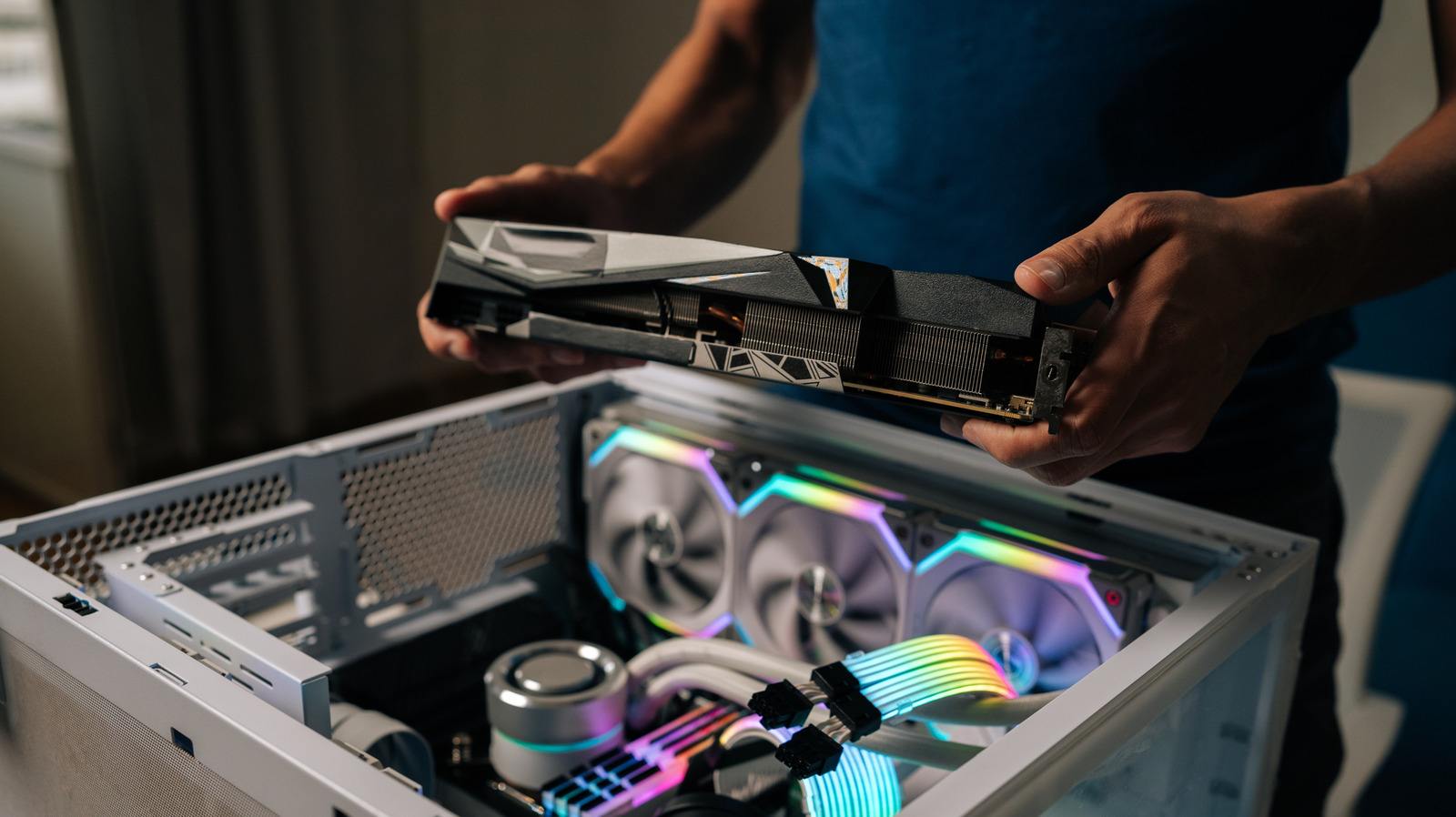
As we move deeper into 2026, game sizes have reached a breaking point. With flagship titles now frequently exceeding 200GB, the internal storage—even the 2TB internal SSD found on the Pro—can fill up incredibly fast. To expand PS5 storage in 2026, you need to perform a PS5 M.2 SSD installation using a drive that meets Sony's strict performance criteria. While the official minimum speed is 5,500 MB/s, I strongly recommend a drive capable of at least 7,000 MB/s. This ensures your console can handle the asset streaming requirements of modern open-world games without stuttering.
The technical requirements are specific. You need a PCIe Gen 4 NVMe drive in the 2280 form factor. Critically, the drive must have a built-in heatsink or you must install an aftermarket one yourself. The total height of the drive and heatsink cannot exceed 11.25mm. In the current market, we have seen a significant hike in NAND costs, making it tempting to opt for budget DRAM-less drives. However, because the console does not support Host Memory Buffer technology, a drive with an independent DRAM cache is essential for maintaining sustained write speeds during large game transfers.
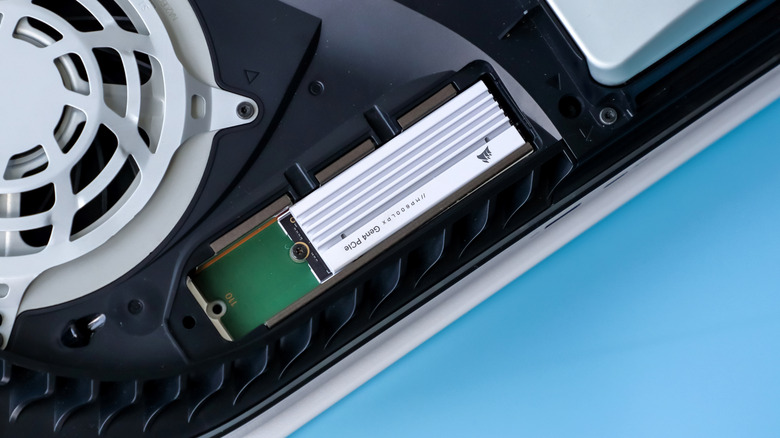
The physical process is straightforward: power down the console, remove the side plate, and unscrew the expansion slot cover. Once the drive is seated and the console is rebooted, the system will format the drive and provide a read-speed benchmark. In my testing, a high-quality 7,450 MB/s drive can move an 86GB game file in under a minute, which is a massive quality-of-life improvement for those who frequently rotate their library.
Visual Excellence: Optimize PS5 System Settings for 4K 120Hz
Visual fidelity in 2026 is no longer just about resolution; it is about the intelligence of the image. The PlayStation 5 Pro delivers up to 45% faster rendering and two to three times the ray-tracing performance of the original console, largely thanks to PSSR AI Upscaling. PSSR, or PlayStation Spectral Super Resolution, uses machine learning to upscale lower-resolution images to a crisp 4K, allowing for high frame rates without the "blur" associated with older upscaling methods.
To truly optimize ps5 system settings, start with your display configuration. Navigate to Settings > Screen and Video and ensure that VRR (Variable Refresh Rate) and ALLM (Auto Low Latency Mode) are set to Automatic. VRR is essential for eliminating screen tearing by syncing the display's refresh rate with the console's output, which is particularly useful in "unlocked" frame rate modes that hover between 70 and 100 FPS.
When calibrating ps5 hdr settings for oled gaming tvs, avoid the temptation to set HDR to Always On. Instead, select On When Supported. This ensures that SDR content, such as older titles or specific media apps, retains its original artistic intent and avoids the "washed out" look that occurs when the console forces an HDR container on SDR metadata. When you run the system's three-step HDR calibration tool, pay close attention to the instructions: adjust the brightness until the symbol is "barely visible." For OLED users, this is the key to maintaining perfect OLED Black Levels and avoiding crushed shadows.
Audio Immersion: PS5 3D Audio Setup for Pros
Sound is half the experience, and the Tempest 3D AudioTech is a powerhouse that many users underutilize. In recent firmware updates, Sony has introduced the ability to create a custom 3D audio profile. By using the DualSense controller’s built-in microphone, the system can analyze the acoustics of your room or the specific fit of your headphones to tailor the spatial audio map to your ears. This is a game-changer for optimizing ps5 3d audio for competitive gaming headsets, as it allows for much more precise directional cues.
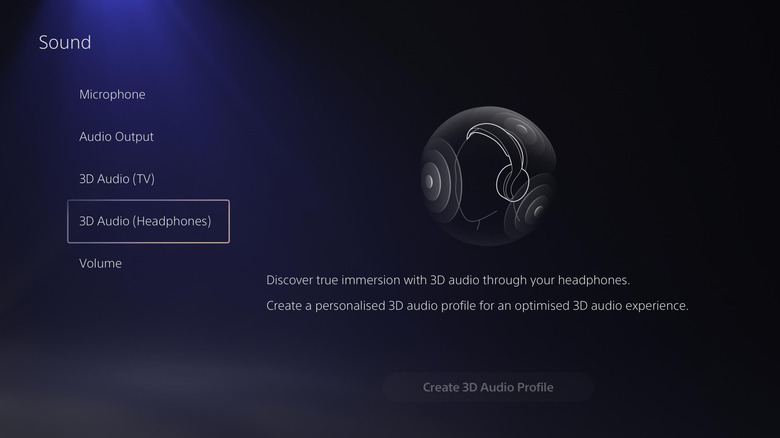
To access this, go to Settings > Sound > 3D Audio. If you are using TV speakers, the console will play a series of tones and use the controller mic to measure how sound bounces around your living space. For headphone users, the setup involves a listening test where you select the sound profile that feels most "level" with your ear canal. This personalized PS5 3D audio setup ensures that footsteps in a shooter or environmental effects in an RPG sound like they are coming from a specific point in 3D space rather than just "left" or "right."
Quality of Life: Game Presets and UI Management
One of the most overlooked features in any ps5 setup guide is the Game Presets menu. Located under Save Data and Game/App Settings, this tool allows you to set universal preferences that apply to every new game you install. You can set the console to always prioritize Performance Mode over Resolution Mode, choose your preferred difficulty level, and even decide if subtitles should be on by default.
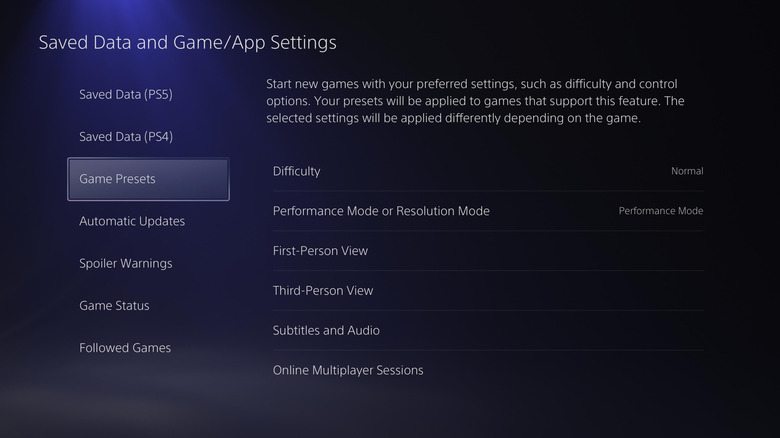
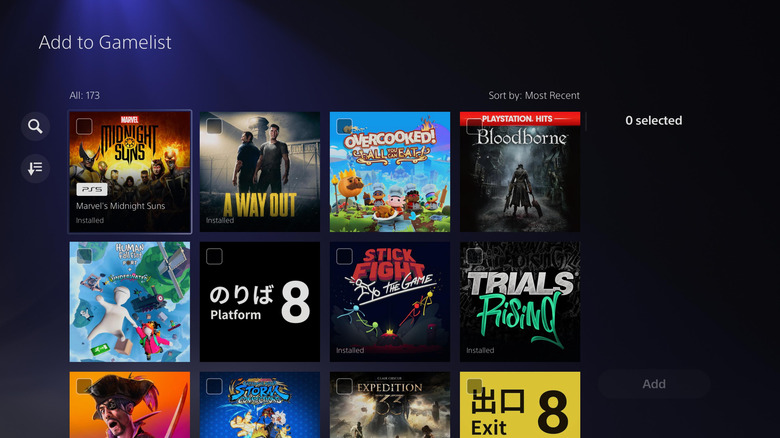
This automation saves significant time, especially as we see more titles launching with complex graphics toggles. Instead of digging through menus every time you start a new game, the console handles the heavy lifting for you. This is also the place to manage how you are organizing ps5 library with gamelists and folders. As your collection grows with your new M.2 SSD, creating Gamelists—effectively folders for your home screen—allows you to categorize your games by genre, completion status, or multiplayer focus.
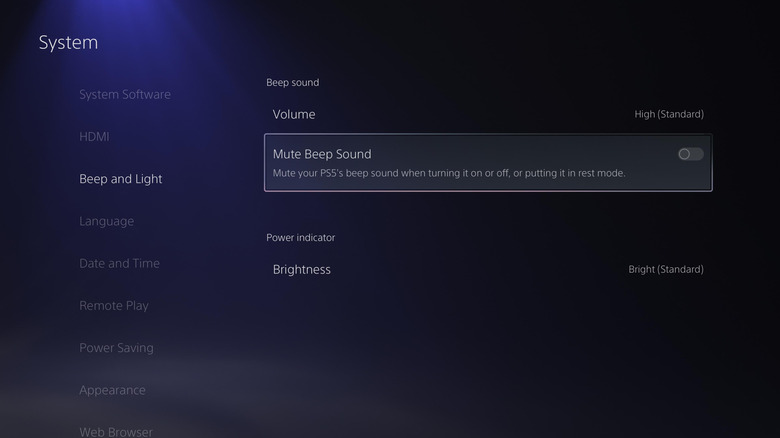
Finally, for the stealth gamers out there, the 2026 firmware allows you to eliminate hardware distractions. Under Settings > System > Beep and Light, you can finally mute the startup beep sound that has signaled the start of a gaming session for years. You can also dim the brightness of the light bars on the console itself, reducing glare in a dark home theater environment.
| Feature | 2020 Launch Standard | 2026 Pro Standard |
|---|---|---|
| Internal Storage | 825GB Gen 4 | 2TB Gen 4 |
| Target SSD Speed | 5,500 MB/s | 7,000+ MB/s |
| Upscaling Tech | Linear Scaling | PSSR 2.0 AI Upscaling |
| Wireless | Wi-Fi 6 | Wi-Fi 7 |
| Ray Tracing | Basic | 2x-3x Performance |
FAQ
How to enable HDR and 120Hz on a PS5?
To enable these features, navigate to Settings > Screen and Video > Video Output. Set 120Hz Output to Automatic and HDR to On When Supported. Ensure your TV's HDMI port is configured for 'Enhanced' or 'Gaming' mode to allow the 32Gbps to 48Gbps bandwidth required for these high-performance settings.
Do I need a specific HDMI cable for 4K on PS5?
Yes, for 4K at 120Hz, you specifically need an Ultra High Speed HDMI 2.1 cable. While a standard High Speed (HDMI 2.0) cable can handle 4K at 60Hz, it lacks the bandwidth for 120Hz or features like VRR. Always use the cable included in the box or a certified third-party HDMI 2.1 cable.
How to install the PS5 base stand correctly?
For vertical orientation on the original model, use the screw found inside the base to secure it to the bottom of the console. For the Slim or Pro models, the vertical stand is a separate ring that twists into place. For horizontal placement, use the included clips to snap onto the marked sections of the rear faceplate to ensure the console is level and stable.
How to update PS5 system software during initial setup?
During the initial "out of the box" setup, the console will automatically prompt you to connect to the internet. Once connected, it will check for the latest firmware. You can also manually trigger this by going to Settings > System > System Software > System Software Update and Settings to ensure you have the latest features like PSSR support and the muted beep option.
How to connect a PS5 controller to the console?
For the initial sync, connect the DualSense controller to the PS5 using the included USB-C cable and press the PlayStation button in the center. Once paired, you can disconnect the cable and use the controller wirelessly. If you are pairing a second controller, you can do so through the Bluetooth settings menu without a cable.