Quick Facts
- OS Version: Vega OS (2026 Update)
- Performance Gain: 30% UI responsiveness boost via code optimization
- Market Lead: 36% US market share for connected TV
- Connectivity: WiFi 6E support on 4K Max and Cube models
- Storage: 16GB (Max/Cube) vs 8GB (Lite/Standard)
- Gaming: Integrated Amazon Luna cloud streaming with 4K HDR support
- Smart Home: Full Alexa+ integration for natural language IoT control
You can transform your Fire TV Stick into a smart home hub by utilizing Alexa+ integration to control compatible devices like lights and security cameras directly from your TV. Utilizing natural language voice commands and Alexa smart home routines allows you to manage your entire ecosystem while streaming content. By leveraging the Home screen discovery hub, you can unify your media and smart device management into one seamless interface.
Transform your Fire TV Stick into a complete home media center hub using these expert tips. In 2026, the shift to Vega OS and Alexa+ has redefined what this streaming dongle can do, moving it far beyond a simple app launcher. As of late 2024, Amazon has sold more than 250 million Fire TV devices globally since the platform's launch ten years ago, and that massive user base is now seeing the most significant software evolution in the product's history.
Optimizing for Speed: The Vega OS Transition
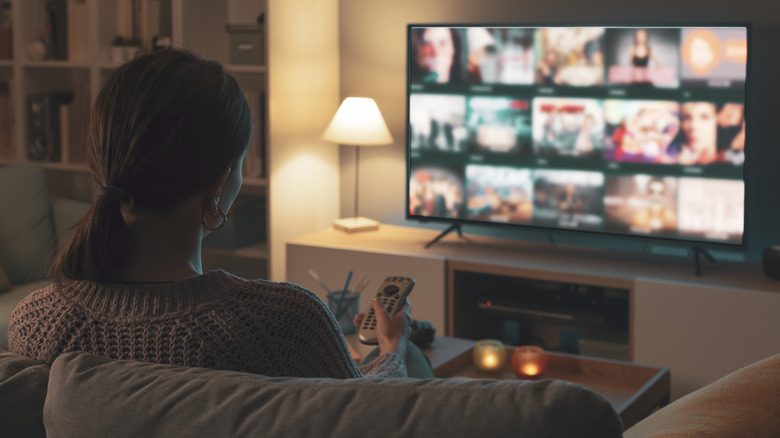
The biggest change for users in 2026 is the departure from Android-based software to the new Linux-based Vega OS. This transition isn't just a cosmetic update; it represents a fundamental shift in how the device handles resources. For those looking for Fire TV 2026 interface speed tips, the transition brings a 30% UI responsiveness boost. This efficiency allows the hardware to focus on content delivery rather than background process management. Approximately 36% of connected TV users in the United States access streaming content through Amazon Fire TV devices, and for these millions of users, the move to Vega OS means less lag when scrolling through heavy 4K content libraries.
To truly master your device, you should explore some Amazon Fire TV hidden settings that are often tucked away from the average user. One of the most effective ways to maintain high speeds is to manage your device storage optimization manually. While Vega OS is better at clearing caches, you can still find yourself slowed down by unused apps. I recommend the 7-click trick: navigate to Settings, go to My Fire TV, then About, and click on your device name seven times. This unlocks Developer Options, allowing you to tweak background process limits and window animation scales, which can make the UI feel instantaneous.
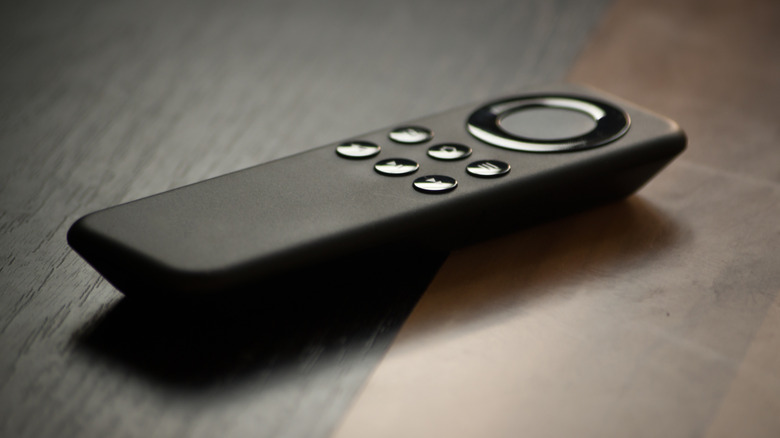
Pro-tip: If your remote becomes unresponsive or you need a quick system refresh, hold the Select and Play/Pause buttons simultaneously for five seconds to force a hardware restart.
Another way to ensure your hub stays fast is to disable the video and audio autoplay in the Featured Content section. By turning these off, the device doesn't have to pre-load heavy video files while you are simply trying to navigate the menu. Furthermore, manually putting the device into Sleep mode by holding the Home button is a much more efficient way to manage background resources than simply leaving the device idle and waiting for it to time out.
The Alexa+ Control Center: Smart Home Hub Secrets
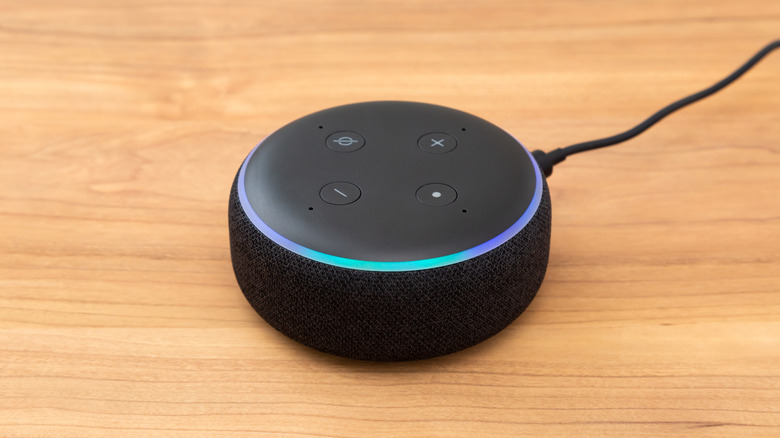
With the introduction of Alexa+, the Fire TV Stick has evolved into a sophisticated command center for your IoT devices. The Fire TV Stick Alexa navigation has been redesigned to be less intrusive; instead of taking over the whole screen, Alexa+ now uses a transparent overlay that allows you to continue watching your show while managing your home. You can use natural language voice commands to perform complex tasks, such as asking Alexa to dim the living room lights and show the front door camera feed simultaneously.
The integration with smart home routines is where the Fire Stick truly shines as a hub. You can set up Alexa smart home routines that trigger when you open a specific app. For example, opening Netflix can automatically lower your smart blinds and switch your soundbar to movie mode via HDMI CEC device control. This level of automation turns a simple streaming stick into a central processor for your environment. The global smart TV sticks market was valued at approximately $20 billion in 2025 and is projected to reach over $51 billion by 2035, and this growth is largely driven by this kind of integrated home automation.
Monitoring security is also more seamless than ever. If you use Nest, Hive, or Ring cameras, you can use a Picture-in-Picture mode to keep an eye on the nursery or the front porch while you are in the middle of a movie. The Alexa+ dashboard provides a quick-glance view of all your connected sensors, from thermostats to leak detectors, ensuring that your media center is truly the heart of your smart home ecosystem.
Beyond Streaming: Cloud Gaming and Peripherals
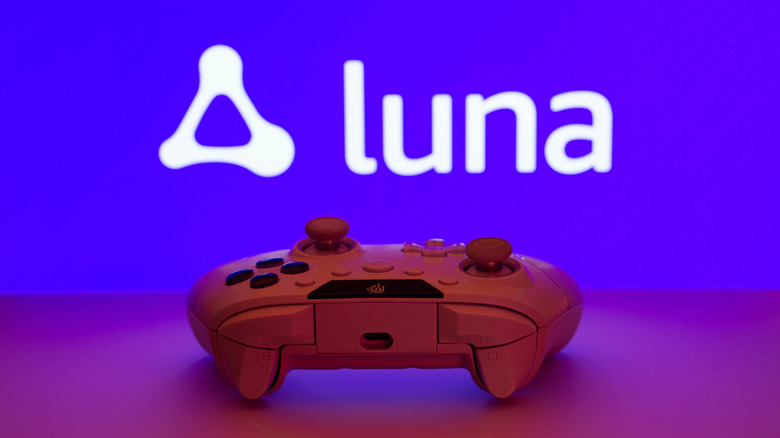
In 2026, you no longer need a bulky console to enjoy high-end gaming. Fire TV Sticks now support console-quality gaming through the Amazon Luna cloud service. This service allows you to stream demanding titles like Assassin's Creed without the need for local downloads or massive internal storage. To make this work effectively, you should know how to use Fire Stick for cloud gaming by leveraging the 4K HDR resolution support and a stable WiFi 6E connection found on the newer 4K Max models.
The key to a console-like experience is the Fire Stick Bluetooth support. By navigating to the Controllers and Bluetooth Devices menu, you can pair a wireless gaming controller, such as the Luna Controller or a PlayStation DualSense. But gaming isn't the only area where peripherals matter. You can also use Echo spatial audio pairing to create a wireless home theater system. By linking two Echo speakers and an Echo Sub to your Fire TV Stick, you can enjoy a full Dolby Atmos experience without running a single speaker wire across your floor.
This setup leverages the device's cloud computing power to provide a high-definition experience that was previously impossible on such a small form factor. Whether you are playing a fast-paced shooter or a cinematic RPG, the combination of low-latency Bluetooth and cloud streaming makes the Fire TV Stick a legitimate gaming hub for the modern living room.
Advanced Customization: Media and Web Browsing
Personalization is a major focus of the 2026 Vega OS update. You can move beyond the standard stock photos and start personalizing Fire TV screensavers with Amazon Photos. By selecting your favorite albums, your TV becomes a rotating digital art gallery when not in use. This integrates perfectly with the Home screen discovery hub, which uses AI to suggest not just shows, but personal memories and smart home shortcuts based on the time of day.
For those who want to venture outside the walled garden of streaming apps, browsing the web with Fire TV Silk remains a powerful tool. The Silk browser has been optimized for the Vega OS, offering faster page loads and better compatibility with web-based video players. Furthermore, advanced users often look into APK sideloading to expand their device's capabilities. While Vega OS is more secure, you can still install third-party applications like TiviMate or Kodi 22 to gain AV1 support and manage local media libraries. This flexibility ensures that your media hub isn't just limited to what is available on the official Amazon Appstore.
Managing the experience for the whole family is also easier with the updated Fire Stick parental control setup. You can create individual profiles with specific content ratings and even set "screen time" limits that turn off the device after a certain hour. These tools ensure that while the Fire TV Stick is a powerful media hub, it remains a safe environment for every member of the household.
FAQ
How can I make my Fire Stick faster?
You can increase speed by updating to Vega OS, which offers a 30% UI responsiveness boost. Additionally, go to settings to disable video and audio autoplay in the featured content section, and regularly use the manual Sleep mode by holding the Home button to clear background resources.
Are there any hidden features on a Fire TV Stick?
Yes, many features are hidden in the Developer Options. You can unlock these by clicking the device name seven times in the About menu. This allows you to adjust animation speeds and monitor system X-ray overlays to see how your CPU and network are performing in real-time.
How do I sideload apps on a Fire TV Stick?
To sideload apps, you first need to enable Install Unknown Apps in the Developer Options. Once enabled, you can use the Downloader app to enter the URL of the APK file you wish to install. This is a common method for adding specialized media players or web tools not found in the official store.
Can I use a Fire Stick without a subscription?
Yes, you can use a Fire Stick without an Amazon Prime subscription. You will still have access to free streaming services like Freevee, Pluto TV, and YouTube. However, you will need a basic Amazon account to register the device and access the Appstore.
Can I control my Fire Stick with my phone?
You can control your device using the Fire TV app on any smartphone. The app acts as a remote, provides a keyboard for easier typing, and even allows you to use voice commands. It is especially useful for navigating the web browser or entering long passwords.