Quick Facts
- OS Requirement: Samsung Adaptive Clock requires One UI 8.0 or a later version to function correctly.
- Essential Plugin: You must update the LockStar module within the Good Lock app to version 7.0.1.10 or higher.
- Key Feature: The clock utilizes real-time digit warping and depth-aware design to wrap around wallpaper subjects.
- Supported Subjects: The AI engine performs best with humans, pets, and distinct digital characters.
- Best Devices: Fully optimized for the Galaxy S24 series, Z Fold 6, and Z Flip 6.
- Setup Path: Accessible via the Wallpaper and style menu or directly through the Samsung Gallery app.
- Troubleshooting: Most issues are resolved by ensuring foreground subject isolation and disabling Auto Blocker for manual updates.
To enable the Samsung Adaptive Clock, long-press your home screen and select Wallpaper and style, then tap your lock screen preview. Select the clock to edit its font and choose the second font option, which features an icon with digits of varying sizes. This allows the clock to dynamically stretch and wrap around the subject of your wallpaper in real-time.
Samsung has always been a leader in mobile personalization, but with the release of the new operating system, they have truly raised the bar for how we interact with our devices. As an editor who spends most of my day looking at high-end displays, I have found that the introduction of the Samsung Adaptive Clock on One UI 8.0 is one of the most visually satisfying updates in years. It moves beyond static widgets and introduces a layer of depth that makes your lock screen feel alive. This guide will walk you through the technical requirements and the creative steps needed to master this feature on your Galaxy device.
Compatibility and LockStar Requirements
Before you dive into the customization menus, it is vital to understand the software prerequisites. The dynamic behavior of the clock is not just a simple overlay; it is a complex interaction between the system UI and the AI engine. Consequently, the Samsung Adaptive Clock is officially part of the One UI 8.0 ecosystem. If your device is still running an older version, you will not see the specific font option required for the digit-warping effect.
Beyond the base operating system, the most important component is the Good Lock suite. Specifically, the proper functionality of the Adaptive Clock feature on compatible Galaxy devices may require updating the Samsung LockStar module to version 7.0.1.10 or later. Samsung often pushes these updates through the Galaxy Store, but they can occasionally be delayed by region. If you do not see the update, you might consider manually installing the APK, though you must ensure your device settings allow for this.
For those who have enabled the Auto Blocker security feature, you may find that manual updates for Good Lock modules are restricted. To ensure the Samsung Galaxy Lock Star requirements are met, you might need to temporarily toggle Auto Blocker off in your security settings to allow the version compatibility check to pass. Once LockStar is updated to the correct version, the system-level updates will recognize the new depth-aware design capabilities, allowing the clock to interact with your wallpaper in a way that feels seamless and high-end.
Step-by-Step Setup Guide
Setting up the Samsung Adaptive Clock is a straightforward process, but it requires selecting very specific options that are easy to miss if you are rushing. There are two primary ways to initiate this: the Settings menu path and the Gallery path. I personally prefer the Gallery method because it allows the AI engine to begin subject recognition the moment you select a photo.
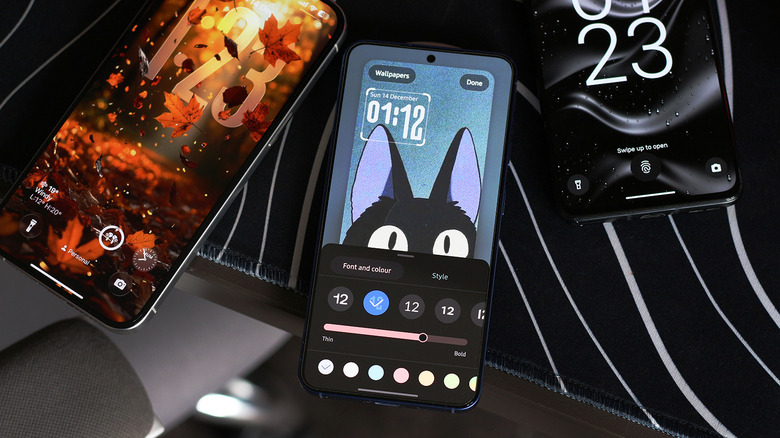
To start, long-press on an empty area of your lock screen to enter the edit mode. Tap on the clock widget to bring up the customization toolbar. Here, you will see a variety of fonts and styles. The secret to the adaptive effect lies in the second font option. This icon is distinct because it shows digits of varying sizes rather than a uniform font. When you select this, you are telling the system to use its real-time rendering engine to analyze the background.
Once the font is selected, you can begin the One UI 8.0 lock screen customization process by choosing a wallpaper. If you are using a photo of a person or a pet, the clock will automatically detect the foreground and background layers. You will notice the numbers slightly shifting or "warping" to tuck behind the subject. This is how to enable adaptive clock on samsung one ui 8.0 correctly. You can then further refine the look using the samsung adaptive clock font and color settings, perhaps choosing a color that complements the dominant tones of your image. The digital typography is designed to maintain visual readability even when partially obscured.
Wallpaper Tips for the Best Depth Effect
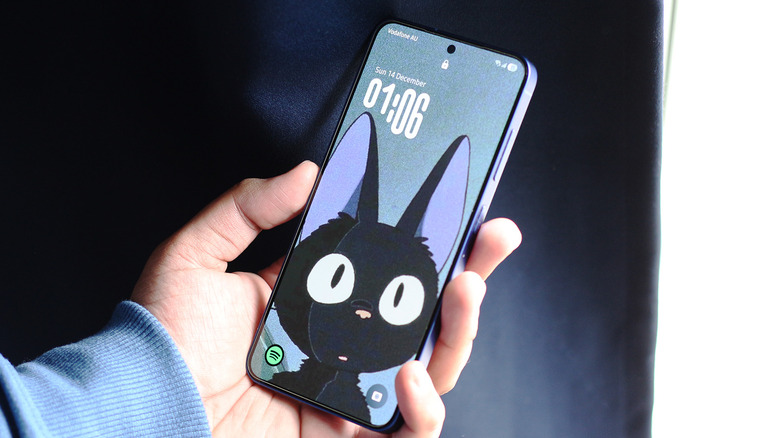
Not every photo is destined to look great with a dynamic clock. To get the most out of the Samsung Adaptive Clock, you need to think like a photographer. The underlying technology relies on foreground subject isolation, which means the AI needs to clearly distinguish where a person or object ends and where the background begins. High-contrast images work best; for example, a bright portrait against a darker background makes it much easier for the subject recognition engine to do its job.
When selecting your image, look for high-positioned subjects. If your pet or the person in the photo is located at the very top of the frame, the clock will have more room to interact with their silhouette. If the subject is too low, the clock might just sit above them like a standard widget, defeating the purpose of the depth-aware design. You should also consider the frame composition; leaving a bit of "headroom" at the top of the photo gives the clock digits more space to stretch and wrap naturally.
One common mistake I see users making is using low-resolution images from third-party wallpaper apps. While apps like Zedge are popular, they often provide compressed images that lack the metadata or clarity required for the AI engine to perform precise subject recognition. For the best samsung adaptive clock wallpaper tips, I recommend using your own high-quality portrait mode photos. These already contain depth data that the One UI 8.0 system can leverage. If the effect isn't quite right, you can learn how to adjust adaptive clock position and size by dragging the corners of the clock box in the editor to ensure it overlaps perfectly with the subject's edges.
Troubleshooting: Samsung Adaptive Clock Not Working
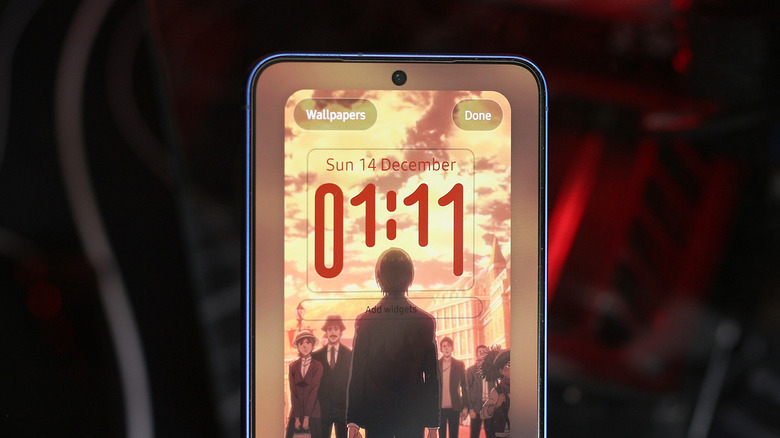
It can be frustrating when a highly anticipated feature doesn't work as advertised. If you find the samsung adaptive clock not working fix is usually tied to software versions. Samsung's Adaptive Clock feature, introduced with One UI 8, utilizes algorithms to dynamically reposition and 'stretch' the lock screen clock to avoid obstructing humans or pets featured in the wallpaper. If the clock is simply sitting on top of your subject without any warping, your first step is to double-check the LockStar version in the Galaxy Store.
Another common issue is the samsung adaptive clock digits overlapping subject fix. If the digits overlap in a way that looks messy rather than artistic, it is likely because the AI is struggling with the edges of your subject. This often happens with frizzy hair or busy backgrounds. Try a different photo with cleaner lines to see if the real-time rendering improves. Also, ensure that you haven't moved the clock too far to the edge of the screen, as the "stretch" effect needs room to breathe within the layout boundaries.
If the clock is appearing but you notice the samsung adaptive clock is not changing color or seems stuck in a specific hue, check your system-wide Dark Mode settings. Sometimes, the adaptive color toggle can be overridden by high-contrast accessibility settings or specific Good Lock themes. Turning off "Apply Dark Mode to Wallpaper" can sometimes refresh the color engine, allowing the clock to pull a more vibrant palette from your background image. Maintaining visual readability is the system's priority, so it may occasionally choose a safer white or black font if it deems the background too complex.
FAQ
What is the Samsung adaptive clock feature?
The Samsung adaptive clock is a dynamic lock screen widget introduced in One UI 8.0 that uses artificial intelligence to recognize subjects in your wallpaper. It allows the clock digits to stretch, warp, and layer themselves behind people or pets, creating a 3D depth effect that makes the lock screen feel more personalized and integrated with your photography.
How do I enable the adaptive clock on my Samsung Galaxy?
To enable the feature, long-press your lock screen and enter the edit menu. Tap on the clock and scroll through the font options until you find the second choice, which depicts numbers of varying sizes. Once selected, the clock will automatically attempt to wrap around the primary subject of your wallpaper, provided the image has a clear foreground and background.
Which Samsung devices support the adaptive clock feature?
This feature is currently available on flagship Galaxy devices running One UI 8.0 or later. This includes the Galaxy S24 series, the Galaxy S23 series, and the latest foldables like the Z Fold 6 and Z Flip 6. Older devices may receive the feature via software updates, but it requires significant processing power for real-time subject recognition.
How can I customize the adaptive clock style on my lock screen?
Within the lock screen editor, you can tap the clock to change its font, color, and size. While the adaptive effect is tied to a specific font option, you can still manually choose colors or allow the system to pick a color based on your wallpaper. You can also drag the clock to different positions to see how it interacts with different parts of your photo.
How do I fix the adaptive clock if it stops working?
If the clock stops warping or layering, first check that the LockStar module in the Good Lock app is updated to version 7.0.1.10 or higher. If it is updated and still not working, try changing your wallpaper to a high-contrast portrait. Sometimes the AI needs a very clear subject to trigger the depth effect. A simple device restart can also resolve minor glitches in the rendering engine.
Why is my Samsung adaptive clock not changing color?
The clock usually pulls colors from your wallpaper using the Material You palette. If it stays one color, check if you have an active Theme from the Galaxy Themes store, as these can sometimes lock the UI colors. Additionally, ensure that your transparency and contrast settings in the accessibility menu aren't forcing the clock to a high-visibility mode like solid white or black.