Quick Facts
- Top Budget Pick: Netgear GS305 (approx. $14).
- Entry Level Pick: TP-Link LS1005G (available for as low as $9.99).
- Port Count: A standard 5-port switch adds 4 usable slots to your existing network.
- Setup Time: Under 2 minutes with no software configuration required.
- Case Material: Metal housing is preferred for superior heat dissipation and longevity.
- Compatibility: Works with any standard router and supports gigabit speeds for modern fiber and cable internet.
To increase the number of available Ethernet ports on your router, connect an unmanaged network switch to one of the router's existing LAN ports. Using a standard Ethernet cable, plug the router into any port on the switch, which then acts as a power-strip-like expander for your network. This setup allows multiple devices, such as gaming consoles and smart home hubs, to share a wired connection without complex configuration.
The Power Strip Analogy: What is an Ethernet Switch?
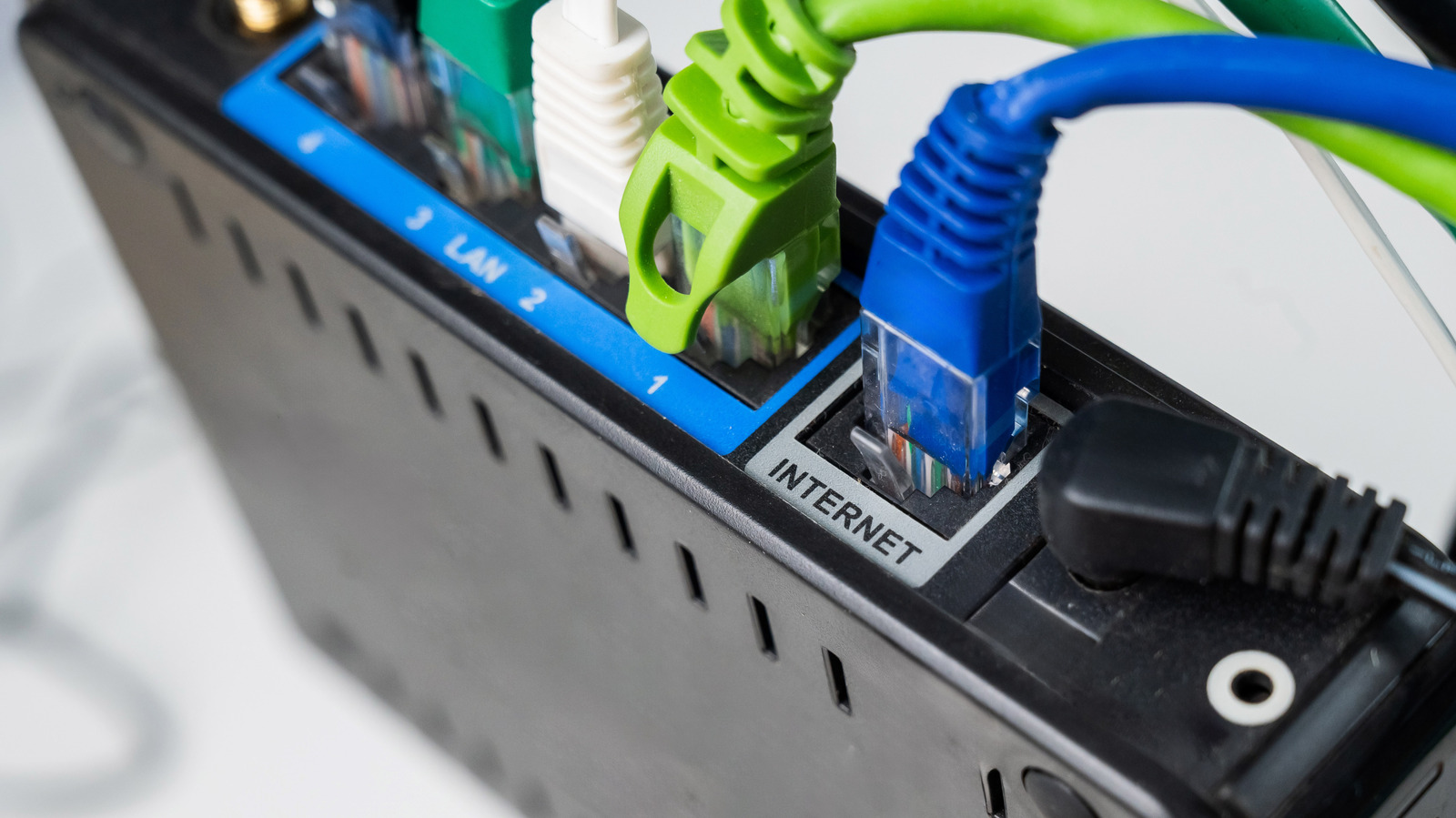
If you have ever run out of wall outlets behind your desk and reached for a power strip, you already understand the concept of an ethernet switch. In the world of home networking, your router is the wall outlet. Most consumer routers come with four yellow RJ45 ports on the back. Once you have plugged in a desktop PC, a smart home hub, a network-attached storage (NAS) drive, and a game console, you are officially out of real estate.
An ethernet switch is a simple expansion device designed to solve this exact problem. While a router is a sophisticated piece of equipment that manages your internet connection, assigns IP addresses, and provides a firewall, the network switch for home use is much humbler. It is unmanaged hardware, meaning it does not require any setup, software, or IP management. It simply takes the data coming from one port on your router and intelligently directs it to the multiple devices plugged into the switch.
For the vast majority of users, an unmanaged switch is the way to go. Unlike a managed switch, which is designed for IT professionals to configure virtual networks and monitor traffic, an unmanaged ethernet switch vs managed for home networking comes down to simplicity. You want something that you can plug in and forget about for the next five years. This plug-and-play nature is what makes expanding your network so affordable, often costing less than a large pizza.
The Correct Setup Topology: Modem > Router > Switch
One of the most common mistakes I see when people try to expand ethernet ports on router setups is the order of operations. It is tempting to think that because a switch has more ports, you should plug your modem directly into it and then plug your router into the switch. This will not work.
The correct sequence is Modem > Router > Ethernet Switch.
Your modem brings the internet into your home, but it usually only provides a single public IP address. Your router takes that one address and creates a private network for all your devices. If you put the switch before the router, only the first device you plug into the switch will get an internet connection, and the rest will be left in the dark. By placing the switch after the router, you ensure that every device connected to the switch receives a private IP address and sits safely behind your router's firewall.
Using a gigabit ethernet switch setup ensures that you aren't creating a bottleneck. Even if you have several devices sharing one port on the back of the router, a gigabit switch provides enough data throughput that you won't notice a performance drop in everyday tasks. Modern switches are designed for full-duplex transmission, meaning they can send and receive data at the same time without the collisions that plagued older networking hubs.
Best Budget Ethernet Switches Under $15
Finding a reliable ethernet switch does not require a massive investment. In fact, some of the most durable and high-performing options are remarkably cheap. When you are looking for a cheap 5 port gigabit ethernet switch under 15 dollars, you primarily have two choices: plastic or metal housing.
In my testing, I always lean toward a fanless design with a metal housing. Metal acts as a natural heat sink, drawing heat away from the internal components, which is vital if the switch is tucked away in a cramped media cabinet or a dusty home office environment.
| Feature | Netgear GS305 | TP-Link LS1005G |
|---|---|---|
| Case Material | Metal | Plastic |
| Port Count | 5 Gigabit Ports | 5 Gigabit Ports |
| Design | Fanless / Silent | Fanless / Silent |
| Typical Price | $13 - $15 | $10 - $12 |
| Best For | Durability & Heat Dissipation | Absolute Lowest Price |
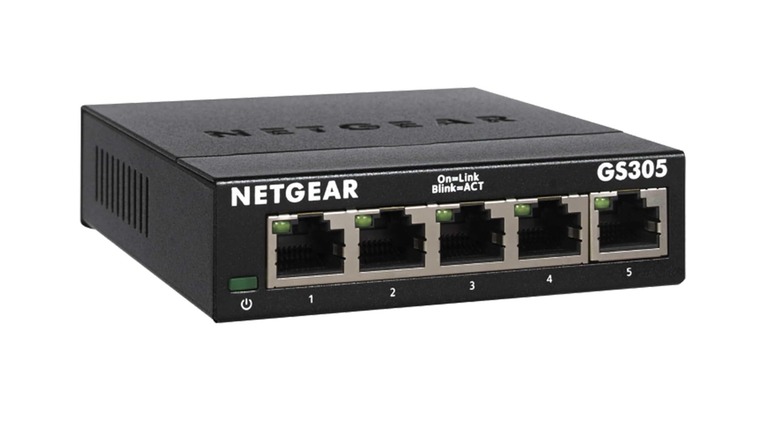
The Netgear GS305 is frequently cited as the best budget ethernet switch for home use because of its rugged build quality. It is a heavy little box that stays where you put it, even when weighted down by five thick cables. On the other hand, the TP-Link LS1005G is often the price leader. While its plastic shell feels a bit lighter, it performs identically in terms of speed and is a perfectly valid choice for someone trying to save every possible dollar.
Step-by-Step: How to Setup Your New Switch
Setting up your new hardware is a remarkably fast process. You don’t even need to turn off your router to do it. Here is the 2-minute guide on how to setup netgear gs305 with existing router (or any other unmanaged model):
- Provide Power: Connect the included power adapter to your switch and plug it into a wall outlet or power strip.
- Establish the Uplink: Take a standard Ethernet cable (Cat5e or Cat6 is fine) and plug one end into any LAN port on the back of your router. Plug the other end into any port on your new switch. There is no specific "input" port; all ports on an unmanaged switch are equal.
- Connect Your Devices: Now, take the devices that were previously plugged into your router (or new devices like a PS5 or a smart hub) and plug them into the remaining ports on the switch.
- Verify Connection: Look at the LED status indicators on the front or back of the switch. A solid or blinking light usually indicates a successful connection and active data transfer.
By following this order, you have successfully used one router port to gain four additional ports. Your router now sees the switch as a single device, but it manages the traffic for everything connected to that switch seamlessly.
Why Wired Connections Still Win for Gaming and Streaming
Even in an age where Wi-Fi 6 and Wi-Fi 7 are making headlines, wired stability remains the gold standard for anyone serious about performance. If you are a gamer, you know that raw speed isn't as important as ping. Wireless signals are susceptible to interference from microwave ovens, neighboring networks, and even the physical structure of your home.
By using an ethernet switch to hardwire your gaming console or PC, you achieve low latency gaming that Wi-Fi simply cannot match. A wired connection eliminates the jitter and packet loss that can cause "lag" during a critical match. Furthermore, for those streaming 4K HDR content from a local media server or a service like Netflix, a wired connection ensures a consistent bit rate without the buffering that occurs when a wireless signal momentarily dips.
Wired connections are also essential for home office connectivity and smart home hubs. Devices like the Philips Hue Bridge or a Lutron Caseta hub require a physical connection to function reliably. Instead of cluttering the back of your router with these small bridges, you can move them all to a switch hidden inside a cabinet, keeping your desk clean and your network congestion at a minimum.
FAQ
What is an ethernet switch and what does it do?
An ethernet switch is a networking device that allows you to connect multiple wired devices to a single network port on your router. It acts like a power strip for data, distributing the internet connection from your router to several devices simultaneously by directing data packets to their intended destination.
Is an ethernet switch better than a hub?
Yes, absolutely. Ethernet hubs are an outdated technology that broadcasts incoming data to every single port, which causes network congestion and collisions. A modern ethernet switch is much smarter; it "learns" which device is on which port and only sends data where it needs to go, resulting in much higher efficiency and speed.
Do ethernet switches reduce internet speed?
Generally, no. As long as you are using a gigabit ethernet switch and your internet plan is 1,000 Mbps (1 Gbps) or less, the switch will not be a bottleneck. While all devices connected to the switch share the bandwidth of the single cable going back to the router, it is rare for a typical home user to saturate that 1 Gbps link across multiple devices at the exact same moment.
What is the difference between a managed and an unmanaged switch?
An unmanaged switch is a plug-and-play device that requires no configuration and is ideal for home use. A managed switch offers advanced features like VLANs, traffic prioritization, and remote monitoring. For the purpose of simply adding more ports to a home router, an unmanaged switch is cheaper and easier to use.
Does an ethernet switch need to be connected to a router?
Yes. An ethernet switch does not have the ability to assign IP addresses or connect directly to the internet via a modem. It must be connected to a router (which handles the "brains" of the network) to provide internet access to the devices plugged into it.
Do ethernet switches require a power supply?
Yes, virtually all ethernet switches require their own power source. They usually come with a small AC power adapter that must be plugged into a wall outlet to power the internal circuitry that manages the data switching.