Quick Facts
- Security Risk: A staggering 81% of respondents have never changed their home router admin password.
- Critical Action: Change the default router password immediately to block unauthorized dashboard access.
- Time Required: Less than 5 minutes for most modern hardware.
- Success Rate: Proactively changing credentials prevents approximately 90% of automated home cyberattacks.
- 2026 Standard: Implement WPA3 Encryption and disable legacy features like WPS.
- Advanced Tip: Disable UPnP and WPS to close easy entry points for malicious scripts.
Your router admin password is the master key to your digital home. While 81% of users never change their default credentials, securing your router is the most critical step in network hardening. To change your router admin password, enter your router's IP address into a web browser to access the management interface. Log in with the default username and password found on the device sticker or in the manual. Once inside, navigate to the administration or security tab, select the option to modify the admin credentials, and save a new, strong password to secure the control panel.
Why Your Default Router Admin Password is a Security Risk
In the landscape of 2026, your home network is only as strong as its weakest link. For most of us, that link is the router admin password. Most people confuse their Wi-Fi password with their admin login, but the latter is far more dangerous if compromised. If a hacker gains access to your admin panel, they can reroute your traffic, monitor every site you visit, and even hijack your connected cameras or smart locks.
The statistics are sobering. Routers serve as the primary gateway for approximately 75% of all cyberattacks targeting Internet of Things (IoT) devices. Because these devices often lack robust built-in security, they rely entirely on the router to act as a shield. Unfortunately, many of these shields are already cracked. A security analysis of 186 home WiFi routers found that 83% of the devices contained known network vulnerabilities, with an average of 103 flaws per router.
Changing the default router admin password is a critical security measure because manufacturers often use the same simple logins (like admin/admin) for thousands of units. These default logins are public information indexed in databases across the web. If you leave these settings as they are, you are essentially leaving your front door wide open with a sign that says "Welcome." By practicing basic cyber hygiene and creating a unique, complex password, you ensure that only authorized administrators can modify network configurations or view sensitive data.
How to Access and Change Your Router Admin Settings
Gaining access to your router admin settings is a straightforward process, even if you aren't a tech expert. Most modern routers use a web-based management interface that you can reach through any standard browser on your laptop or smartphone.
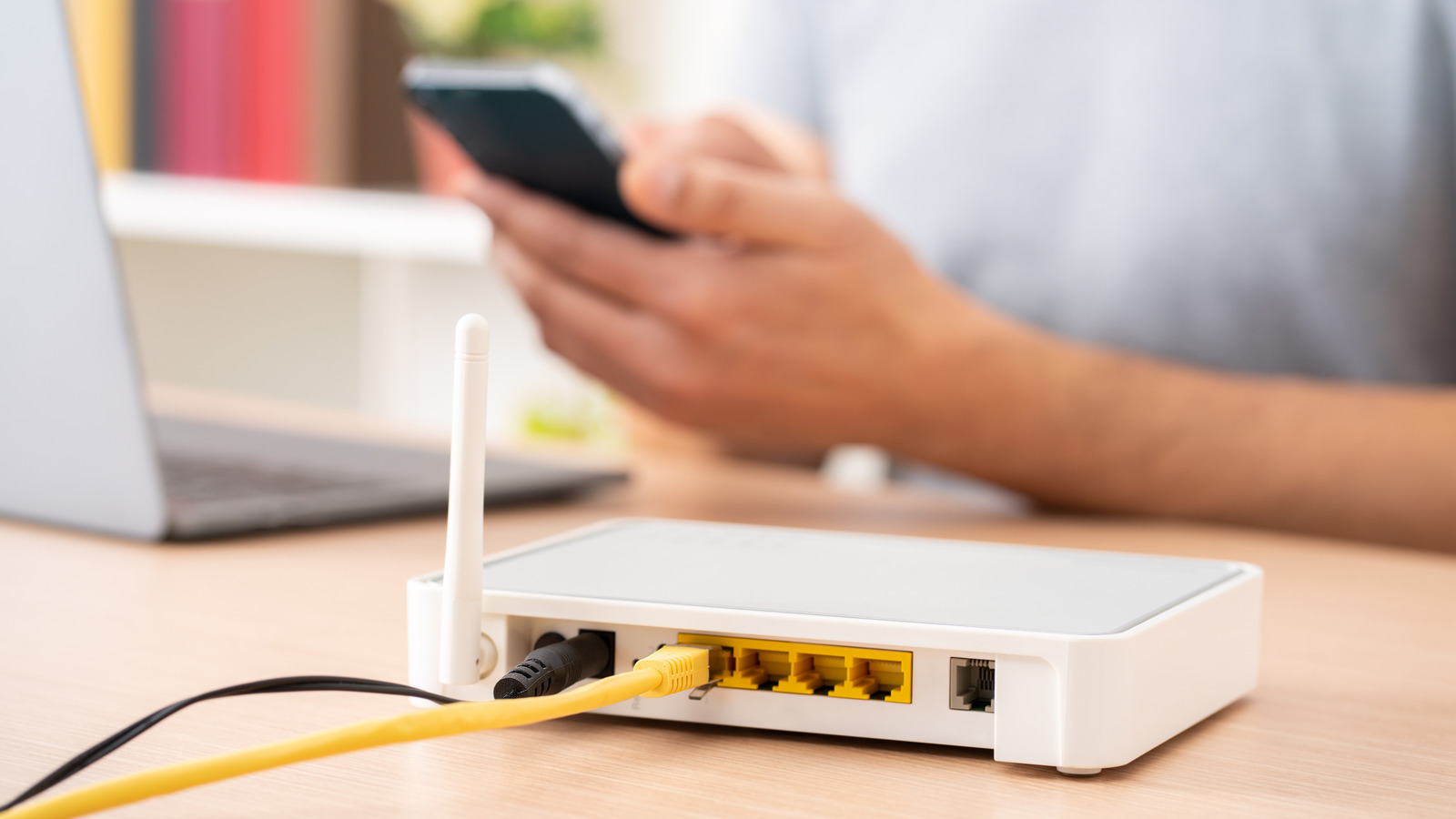
To get started, you need to find your Default Gateway IP. For the majority of consumer routers, this address is 192.168.1.1 or 192.168.0.1. Type this into your browser’s address bar. You will be greeted by a login screen asking for a username and password. This is where you use the factory-set credentials, which are usually printed on a sticker on the back or bottom of the router itself.
Once you are logged in, follow these steps to change default router admin password:
- Locate the menu labeled Administration, System Tools, or Security.
- Look for a sub-menu named Password or Admin Account.
- Enter your old (default) password once, and then enter your new, strong password twice to confirm.
- Click Save or Apply. Your router may reboot, and you will need to log back in using the new credentials.
For securing router admin for iot device safety, I recommend using the 3-word password strategy. Instead of a hard-to-remember string like P@ssw0rd123, choose three random, unrelated words (e.g., Purple-Toaster-Gravity). This creates high entropy, making it much harder for a brute force attack to succeed while remaining easy for you to memorize. Remember, this is different from your Wi-Fi password; this is about protecting the router's brain.

Troubleshooting: What to Do if You Can't Log In
If you find that the standard IP addresses aren't working, or you simply forgot router admin password what to do next can feel frustrating. Don't panic; there are built-in ways to recover.
If you are on a mobile device, you can often find your router's address by going to your Wi-Fi settings. On an iPhone, tap the "i" next to your network name and look for Router. On Android, tap the gear icon next to your network and look for Gateway. This is the exact address you need to type into your browser.
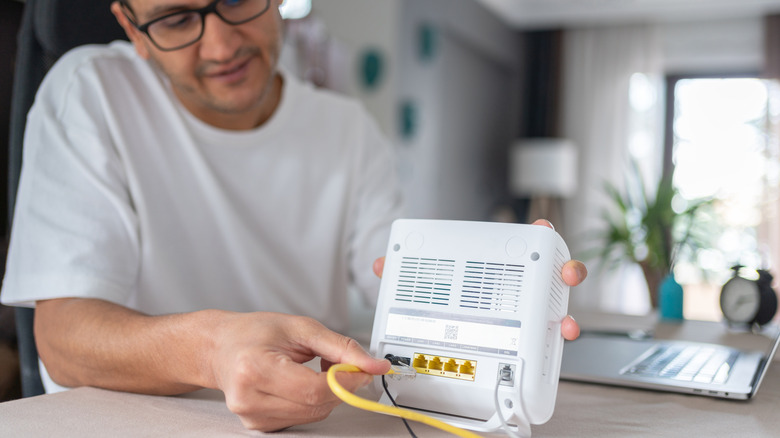
If you have tried every combination of how to find default router admin login details and still can't get in, you may need to perform a Factory Reset Procedure. On the back of your router, look for a tiny hole labeled Reset. Use a paperclip to press and hold the button inside for about 10 to 15 seconds while the router is powered on. This will wipe all your custom settings—including your Wi-Fi name and password—and return the admin login to the factory defaults printed on the sticker. This is a last resort, but it is a foolproof way to regain control.
Beyond Passwords: 3 Steps to Harden Your Home Network in 2026
While a strong router admin password is your first line of defense, modern network hardening requires a multi-layered approach. As smart homes grow more complex, the surface area for attacks increases. Here are three essential steps to take once you are inside your admin panel.
1. Enable WPA3 Encryption WPA3 is the latest security protocol and provides significantly better protection than the aging WPA2 standard. It offers better protection against password guessing and encrypts the connection for every device on your network more robustly.
| Feature | WPA2 (Older Standard) | WPA3 (2026 Standard) |
|---|---|---|
| Encryption Strength | 128-bit | 192-bit (Enterprise grade) |
| Brute Force Protection | Vulnerable to offline attacks | Protected via SAE handshake |
| Public Wi-Fi Safety | Limited | Individualized Data Encryption |
2. Disable UPnP Protocol and WPS UPnP (Universal Plug and Play) allows devices on your network to discover each other and open ports automatically. While convenient for gaming, it is a major security hole that malware can exploit. Similarly, disabling wps in router admin panel for security is vital. WPS (Wi-Fi Protected Setup) often uses an 8-digit PIN that is incredibly easy for hackers to crack using automated scripts.
3. Implement Network Segmentation Most modern routers allow you to create a Guest Network. Use this for your IoT devices like smart bulbs, fridges, and cheap cameras. By isolating these devices, you ensure that if a smart bulb is compromised, the attacker cannot jump from the bulb to your laptop or phone where your sensitive data lives.
FAQ
How do I find my router's admin password?
You can usually find the default admin password on a physical sticker located on the bottom or back of the router. If it is not there, check the user manual or the manufacturer's website for the default credentials associated with your specific model. Common defaults include admin, password, or simply leaving the field blank.
How can I reset my router admin password if I forgot it?
To reset the password, you must perform a factory reset. Locate the small reset button on the back of the device, hold it down with a paperclip for 10-15 seconds, and wait for the lights to flash. This will revert all settings, including the admin password, back to the original factory defaults.
Is the router admin password the same as the Wi-Fi password?
No, they are two separate credentials. The Wi-Fi password is what you share with guests to allow them to access the internet. The router admin password is used to log into the internal settings of the hardware to change network names, update firmware, or modify security protocols.
How do I change the admin password for my router?
Log into the web-based management interface by entering your router's IP address into a browser. Navigate to the system, administration, or maintenance tab. Look for an option to change the administrator password, enter your new credentials, and click save to apply the changes.
Why should I change the default router admin password?
Keeping the default password is a major security risk because these logins are widely known and publicly listed online. Hackers use these defaults to gain control of home networks, monitor traffic, and compromise connected IoT devices. Changing it ensures that only you have control over your home's digital gateway.