Quick Facts
- Security Risk: Extreme. Devices connected without a router are exposed directly to the public internet without a firewall.
- IP Address Limit: Most ISPs provide only one Public IP address per account, meaning only one device on a switch will function at a time.
- The Golden Rule: The connection order must always be Internet to Modem to Router to Switch.
- Critical Component: A router is required for Network Address Translation and DHCP server functionality to manage multiple devices.
- Hardware Advice: Use Cat6 cabling for any modern network switch setup to ensure full gigabit data throughput.
- User Ease: For home use, an unmanaged switch is preferred as it offers plug-and-play simplicity without complex configuration.
Should you connect a network switch directly to a modem? The short answer is no. While it might seem like an easy way to expand your home network ethernet setup, skipping the router exposes your devices to major security threats and connectivity issues. This guide explains why the router is the essential middleman in your network switch setup.
Understanding the Hardware: Modems vs. Routers vs. Switches
In my years of testing hardware, I have seen plenty of DIY networking projects go south because of a simple misunderstanding of what each box does. To understand why your network switch setup requires a router, you have to look at the job description of each device.
A modem is your bridge to the outside world. It translates the signal from your Internet Service Provider into a format your local hardware can understand. However, the modem is not designed to be a traffic controller for multiple devices. It is a one-lane road.
A router is the brain of your home network. Its primary job is to take that single connection from the modem and share it among your various laptops, desktops, and smart TVs. It acts as a traffic cop, ensuring that data meant for your PC doesn't end up on your tablet.
A network switch is essentially a port expander. Think of it like a power strip for your internet. It takes one ethernet connection and turns it into four, eight, or even twenty-four ports. However, like a power strip, it does not generate its own "power"—or in this case, its own IP addresses. It simply passes along what it is given. If you connect a switch directly to a modem, you are asking a power strip to function without a circuit breaker or a transformer.
Why a Direct Connection Fails: The IP Address Problem
The most immediate reason a network switch setup will fail when plugged directly into a modem is the IP address limitation. When you sign up for internet, your Internet Service Provider usually assigns you a single Public IP address. This is your digital home address that the rest of the world uses to find your network.
Because most residential internet service providers assign only one public IP address per customer account, a standard network switch cannot provide internet access to more than one device if connected directly to a modem. The switch is a "dumb" device in terms of addressing; it does not have the intelligence to take that one Public IP and split it up.
When you use a router, it utilizes DHCP server functionality to create a whole range of Private IP assignment values for your internal devices. Through a process called Network Address Translation, the router takes the data packets coming from the internet and figures out which internal device they belong to. Without a router in the middle, the first device you plug into your switch will grab that one available Public IP, and every other device plugged into the switch will be left in the dark, unable to communicate with the web. If you have been wondering does a switch work without a router, the answer is technically yes for local data, but for internet access, it is a functional dead end.
The Security Risk: Life Without a Firewall
If the connectivity issues weren't enough to stop you, the security risks should. This is the part of the guide where I have to be blunt: connecting a network switch directly to a modem is a massive security oversight.
Warning: Extreme Security Vulnerability Devices connected directly to a modem are assigned public IP addresses. This means they are sitting on the front lines of the public internet without a NAT firewall to protect them. Every open port on your PC or gaming console becomes a target for hackers worldwide.
Standard routers provide a hardware-level NAT firewall. This firewall acts as a shield, hiding your internal devices from the outside world. When you bypass the router, your devices are effectively standing naked in the middle of a digital battlefield. Cybersecurity research indicates that unprotected internet-facing devices are often discovered and probed by automated scanners within minutes of being connected to the public internet.
Automated bots are constantly scanning every possible IP address for vulnerabilities. Without the Network Address Translation and firewall services provided by a router, devices connected directly to a modem via a switch are assigned public IP addresses and are immediately visible to external attackers. Your printer, your file storage, and your personal computer's local ports are all exposed to the WAN port side of the internet. This creates significant network security vulnerabilities that could lead to data theft, malware infections, or your hardware being recruited into a botnet.
The Correct Setup: Modem to Router to Switch
To build a network that is both functional and secure, you must follow the correct modem to router to switch order. This ensures that the router can do its job of protecting your hardware and managing your traffic before the switch expands your available ports.
Here is the step-by-step process for expanding home ethernet ports with a network switch properly:
- The Modem Connection: Connect the coaxial or fiber cable from your ISP to your modem. Ensure the modem is powered on and synced.
- The Gateway Connection: Run an ethernet cable from the modem to the WAN port on your router. This is the only device that should ever be connected directly to the modem.
- The Expansion Connection: Take another ethernet cable and connect one of the router's LAN port openings to any port on your network switch.
- The Device Connections: Now, you can plug your PCs, consoles, and smart home hubs into the remaining ports on the switch.
For the best performance, I always recommend using Cat6 cabling throughout this chain. While Cat5e can handle gigabit speeds over short distances, Cat6 cabling provides better shielding and ensures you get the maximum data throughput without interference, especially if you are running cables near power lines or other electronics.
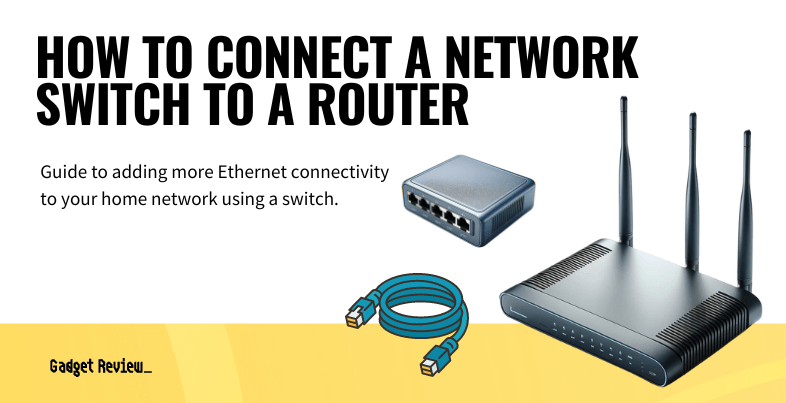
When it comes to the hardware itself, setting up unmanaged gigabit switch for home network environments is the way to go. Managed switches are great for IT professionals who need to segment traffic or monitor individual ports, but for 99% of readers, an unmanaged switch is better. It is a plug-and-play solution that requires zero software setup. You just provide power, plug in the cables, and it starts moving data at gigabit speeds instantly.
Performance and Latency Benefits
One reason people often look into how to connect modem to router to switch properly is to reduce their reliance on Wi-Fi. While modern Wi-Fi 6 and 6E are impressive, they still suffer from interference and latency spikes that can ruin a gaming session or a high-stakes video call.
A wired network switch setup provides a stable, dedicated lane for your data. By connecting your stationary devices—like your work desktop or your PlayStation 5—to a gigabit switch, you free up wireless bandwidth for mobile devices like phones and tablets. This hybrid approach is the hallmark of a professional-grade home network. It ensures that your most important devices have the lowest possible pings and the highest possible download speeds.
Troubleshooting Common Setup Mistakes
If you have followed the best order for modem router and switch connection but still aren't getting a signal, there are a few things to check. First, verify the lights on the switch. Most unmanaged switches have link lights that flicker when data is being transferred. If the light for the port connected to the router isn't lit, you may have a bad cable.
Second, ensure you aren't creating a "switching loop." This happens when you accidentally plug two cables from the same switch into the same router, or connect a switch to itself. This can crash your entire network. Stick to a simple daisy-chain: one cable from the router to the switch, and then cables from the switch to your end devices.
FAQ
Can I use a network switch without a router?
You can use a switch without a router to connect devices to each other for local file sharing or LAN gaming, but you will not have internet access. Without a router to provide DHCP server functionality and a NAT firewall, your devices won't know how to communicate with the outside world, and they will be left vulnerable to security threats if you try to bridge them to a modem directly.
How do I connect a network switch to my router?
The process is straightforward: take an ethernet cable and plug one end into a LAN port on the back of your router. Plug the other end into any available port on your network switch. The switch will automatically detect the connection and begin distributing the internet signal to any other devices plugged into its remaining ports.
Does a network switch require configuration?
For most home users, the answer is no. If you purchase an unmanaged switch, it is entirely plug-and-play. You do not need to install drivers or log into a web interface. The switch manages the hardware addresses of your devices automatically. Managed switches do require configuration, but these are typically reserved for complex office environments.
Does a network switch slow down internet speed?
A modern gigabit switch will not slow down your internet speed. These devices are designed to handle data at 1,000 Mbps, which is faster than most residential internet plans. In fact, using a switch can often improve your overall network performance by offloading traffic from your router's internal processor and reducing the congestion on your Wi-Fi bands.
Can you daisy chain two network switches together?
Yes, you can daisy chain switches if you need even more ports. You would connect the router to the first switch, and then run a cable from the first switch to the second switch. However, keep in mind that all devices on that second switch will be sharing the bandwidth of the single cable connecting back to the first switch and the router. For most home setups, this isn't an issue, but for heavy data users, it is something to keep in mind.
Final Thoughts on Your Network Layout
Building a robust home network doesn't have to be complicated, but it does have to follow the rules of networking logic. By respecting the modem to router to switch hierarchy, you protect your personal data from automated scanners and ensure that every device in your home has a stable, high-speed connection.
If you are looking to expand your setup, start by picking up a reliable unmanaged gigabit switch. It is a one-time investment that will serve your home for years, providing the wired backbone necessary for modern computing. Just remember: keep that router in the middle, use quality Cat6 cabling, and you will have a network that is both fast and secure.