Quick Facts
- Optimal Viewing Distance: Maintain 20-28 inches between your eyes and the iPad screen.
- Ergonomic Angle: Position the device 15-20 degrees below eye level for natural posture.
- The 20-20-20 Rule: Every 20 minutes, look at something 20 feet away for at least 20 seconds.
- Blue Light Management: Use Night Shift to shift color temperature toward the warmer end of the spectrum.
- Ambient Sync: Enable True Tone to match the display’s white balance with your current environment.
- Brightness Control: Lowering overall brightness is more effective for melatonin protection than color shifting alone.
- Hidden Feature: Use Reduce White Point in Accessibility settings to dim the screen for reading in total darkness.
To reduce eye strain while reading on an iPad, enable True Tone and Night Shift in the Display & Brightness settings and maintain a 20-28 inch viewing distance. Using ipad reading settings effectively also involves advanced tools like 'Reduce White Point' for low-light environments, which lowers the intensity of bright colors to provide a more comfortable experience.

As someone who spends more time looking at tablets than at the horizon, I know exactly how digital eye strain feels. It starts as a slight dryness, then a dull ache behind the temples, and before you know it, your evening reading session is cut short. While the iPad’s Liquid Retina and OLED displays are engineering marvels, they are still backlit glass panels. If we want to enjoy our digital libraries without sacrificing our long-term vision, we need to treat digital wellness as a priority.
Transitioning your iPad from a high-productivity workstation to a comfortable digital reader requires more than just opening an ebook. It involves a mix of physical adjustments, software tweaks, and a bit of discipline. Let’s walk through how to transform your device into the ultimate eye-friendly reading companion.
Step 1: Physical Ergonomics and Screen Distance
Before we touch a single toggle in the software, we have to talk about how you are physically holding the device. Most of us have the "tablet slouch"—head down, neck bent, and the iPad held just inches from our face. This is a recipe for visual fatigue and neck pain.
Modern digital eye strain prevention starts with ipad screen distance tips for eye health. The sweet spot is keeping the device between 20 and 28 inches away from your eyes. At this distance, the muscles in your eyes don't have to work nearly as hard to maintain focus. If you find yourself pulling the device closer to see small text, the solution isn't to bring the iPad closer; it's to increase the font size in your reading app.
Visual ergonomics also dictate that the angle of your device matters. You should aim for the iPad to be situated about 15-20 degrees below your eye level. This helps keep your eyelids slightly lowered, which reduces the surface area of the eye exposed to air and helps prevent dryness. Using a dedicated stand or a folio case with multiple viewing angles can help you maintain this position without straining your arms.
Step 2: Essential Display & Brightness Settings
The most immediate way to improve your experience is by diving into the display menu. If you’ve ever felt like your screen was "too blue" or "too harsh," these are the settings you need to master.
Go to Settings > Display & Brightness. Here, you will find True Tone and Night Shift. True Tone uses advanced sensors to measure the color temperature of the light in your room. It then adjusts the white balance of your display so that white pages look like physical paper under that same light. This white balance synchronization is vital for reducing the "glow" effect that makes digital text feel unnatural.
Then there is the debate of ipad dark mode vs true tone for reading. While Dark Mode is great for system navigation, many readers find that "light mode" with a sepia background is actually easier on the eyes for long-form text because it mimics the contrast levels of a physical book.
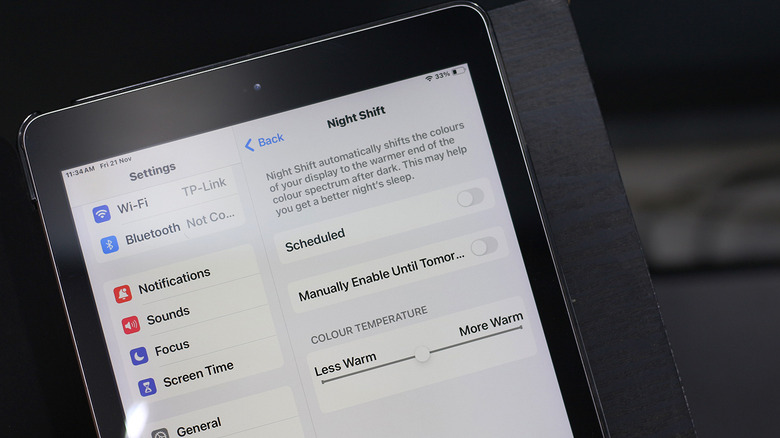
Next, let's address blue light exposure. Blue light has a shorter wavelength and higher energy, which can interfere with your circadian rhythm. You should configure ipad night shift settings for reading to activate automatically from sunset to sunrise. This shifts the display to a warmer color temperature, which is much more soothing in the evening.
However, keep in mind that color temperature is only half the battle. A 2018 study by the Lighting Research Center found that while features like Night Shift reduce blue light, lowering overall screen brightness is a more effective method for minimizing the suppression of melatonin. Don't just rely on the "warm" look; make sure your brightness slider is set as low as comfortably possible for your environment.
Step 3: Advanced Accessibility for Night Reading
Sometimes, even the lowest standard brightness setting on an iPad feels like a flashlight in a dark room. This is where expert-level ipados accessibility features come into play. There is a "hidden" setting that most users never find, which is essential for anyone who reads in bed.
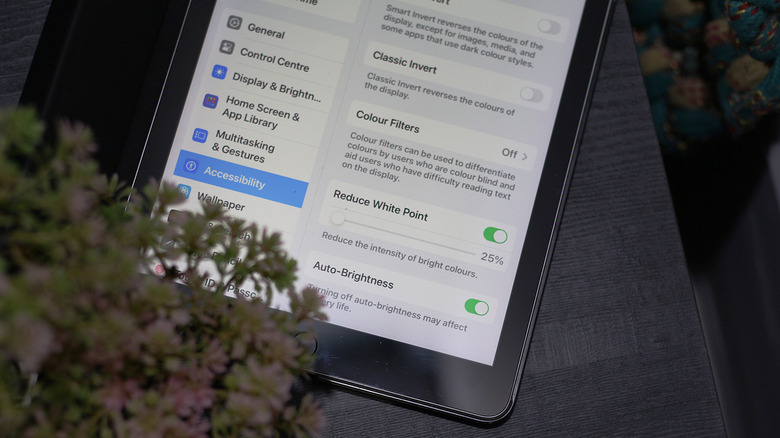
To find the best ipad brightness for reading at night, navigate to Settings > Accessibility > Display & Text Size. Look for the option titled Reduce White Point. When you toggle this on, it reduces the intensity of bright colors. You can move the percentage slider to make the screen significantly dimmer than the standard brightness slider allows.
Using ipad reduce white point for e-books is a game-changer for late-night sessions. To make this easy to use, go to Settings > Accessibility > Accessibility Shortcut and select Reduce White Point. Now, you can triple-click the top button (or home button on older models) to instantly dim your screen to your preferred reading level without digging through menus every time. This provides much-needed screen glare reduction when the lights are off.
Step 4: Apple Books and App-Specific Customization
The hardware is now calibrated, but the software interface where you actually read needs attention too. Apple Books customization options are incredibly deep, allowing you to tailor the text to your specific visual needs.
Open any book in the Apple Books app and tap the menu icon (the small circle with three lines or dots) at the bottom right. Tap on Themes & Settings. From here, you can choose various background color themes. I highly recommend the Sepia or Gray themes. Pure white backgrounds can be too high-contrast, while pure black (Dark Mode) can sometimes cause "ghosting" or "halation" for readers with certain types of astigmatism.
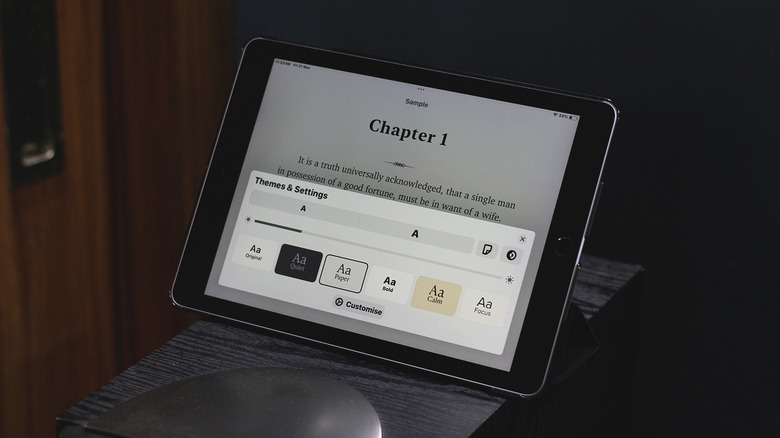
Within this menu, you can also perform apple books customization for comfortable reading by:
- Increasing the font size to reduce the need for squinting.
- Toggling Bold Text for better clarity if the default font feels too thin.
- Adjusting line and character spacing to give your eyes more "breathing room" between sentences.
Taking five minutes to adjust these settings ensures that your ipad reading settings are optimized for your specific vision, rather than the "one size fits all" factory defaults.
Step 5: Eliminating Distractions with Reading Focus Mode
Reading is a cognitive process that requires deep focus. Every time a notification pings or a social media alert flashes at the top of your screen, your eyes have to refocus and your brain has to switch gears. This constant shifting contributes significantly to mental and visual fatigue.
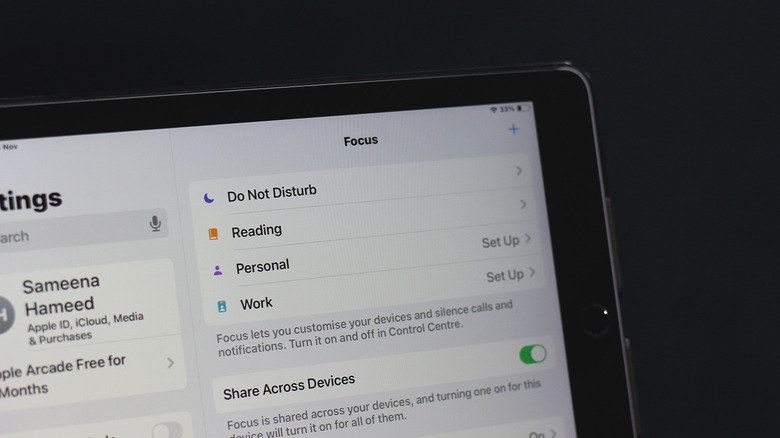
To combat this, you should learn how to set up ipad reading focus mode. Go to Settings > Focus and tap the + icon to add a new Focus. Choose Reading. You can configure this mode to silence all notifications except for emergency contacts.
The best part about the ipad reading focus mode is automation. You can set it to turn on automatically whenever you open your favorite reading apps like Apple Books, Kindle, or Libby. This creates a "Kindle-like" experience where your tablet becomes a dedicated e-reader the moment you start a book, protecting your digital wellness from the constant noise of the internet.
Hardware Upgrades: Matte Protectors and Stands
If you have optimized your software and you still find yourself struggling with glare, you might want to look at physical accessories. The iPad's screen is highly reflective. In a room with overhead lights or near a window, these reflections force your eyes to work harder to "see through" the glare to the text.
One of the most effective ways to achieve screen glare reduction is by installing a matte screen protector. These are often marketed as "paper-like" protectors because they add a bit of texture and diffuse light reflections. While they can slightly reduce the absolute sharpness of the screen, the trade-off for eye comfort is often worth it for dedicated readers.
Additionally, how to reduce eye strain reading on ipad often comes down to stability. If you are holding the iPad with your hands, it is constantly moving slightly, forcing your eyes to make micro-adjustments. Using a high-quality magnetic stand or a stable case like a Zugu can lock the device in place, allowing your eyes to settle into a rhythm.
While an iPad will never be exactly like an E-ink display found on a Kindle, following these steps brings it as close as possible. The iPad offers a level of versatility and speed that E-ink can't match, and with the right configuration, it can be a perfectly healthy way to consume your favorite literature.
FAQ
How can I reduce eye strain while reading on an iPad?
To reduce eye strain, you should combine software settings with physical habits. Enable True Tone and Night Shift to manage color temperature, and use the Reduce White Point setting for dimming. Physically, ensure you are following the 20-20-20 rule and keeping the device at least 20 inches from your face.
What are the best iPad settings for reading at night?
The best combination for night reading is a warm Night Shift setting, the Reduce White Point accessibility feature set to roughly 50%, and a Sepia or Dark background theme in your reading app. Most importantly, keep the overall brightness as low as possible to prevent melatonin suppression.
What is the difference between Night Shift and True Tone for reading?
True Tone is a reactive feature that changes the display's white balance based on the light in your current room so that "white" looks natural. Night Shift is a scheduled feature that manually removes blue light to make the screen look warmer, which is intended to help you sleep better after using the device in the evening.
How do I turn on reading mode on an iPad?
You can create a custom Reading Focus mode by going to Settings > Focus. Once set up, you can automate it to activate whenever you open a specific app. This silences notifications and helps you stay immersed in your book without digital distractions.
How do I change the text size and font for reading on an iPad?
In apps like Apple Books or Kindle, tap the screen to bring up the menu and look for a 'Aa' or 'Themes & Settings' icon. From there, you can adjust the font size, choose different typefaces, and increase line spacing to make the text more legible and less taxing on your eyes.