Quick Facts
- Core Benefit: HDMI eARC provides significantly more bandwidth than standard ARC, allowing for lossless audio formats like Dolby TrueHD and DTS-HD Master Audio.
- Bandwidth Data: The protocol offers a maximum audio bandwidth of 37 Mbps, a massive jump from the 1 Mbps limit found on standard HDMI ARC connections.
- Audio Quality: It supports up to 32 channels of uncompressed audio, including high-resolution 24-bit/192kHz data streams.
- Hardware Requirement: While standard High Speed cables might work, an Ultra High Speed HDMI cable is recommended to guarantee full performance.
- Compatibility: HDMI eARC is backward compatible with ARC, though you will be limited to the lower bandwidth features of the older standard.
- Feature Set: Mandatory lip-sync correction is built into the HDMI 2.1 specification for eARC, ensuring your audio and video stay perfectly aligned.
HDMI eARC (Enhanced Audio Return Channel) is a high-bandwidth connection within the HDMI 2.1 specification that transmits high-quality audio from a TV to a soundbar or receiver. To set it up, connect an Ultra High Speed HDMI cable to the eARC-labeled ports on both devices and ensure eARC or passthrough mode is enabled in your TV's sound settings.
What is HDMI eARC and How Does It Work?
In the early days of home theater, connecting a TV to an external sound system required a messy web of optical cables or multiple HDMI leads. The original HDMI ARC (Audio Return Channel) changed that by allowing a single HDMI cable to send video to the TV and "return" audio to a soundbar. However, as our audio formats evolved into complex, object-based systems like Dolby Atmos, the original ARC simply ran out of room.
This is where HDMI eARC comes into play. Introduced as part of the HDMI 2.1 specification in 2017, the "Enhanced" version functions as a massive highway for digital sound. It acts as the central hub for your living room, allowing your TV to receive high-quality video from gaming consoles or streaming apps and then pass the full-fat, uncompressed audio signal down to your soundbar or AV receiver.
Technically speaking, the protocol supports a much wider frequency range and higher bitrates. It can handle up to 32 channels of uncompressed audio, including 8-channel data streams at 24-bit resolution. This ensures that even the most complex soundtracks are delivered without the "choking" effect that compressed formats often suffer from. Furthermore, it addresses common frustrations like audio latency by making lip-sync correction a mandatory requirement for manufacturers, rather than an optional feature.
HDMI ARC vs. eARC: The Key Differences
The most common question I hear from readers is: "I already have ARC, do I really need the 'e'?" The answer depends entirely on your content source. If you primarily stream movies from Netflix or Disney+, you might not notice a massive difference immediately. This is because streaming services use a compressed version of Dolby Atmos (Dolby Digital Plus) that fits within the narrow 1 Mbps bandwidth of standard ARC.
However, if you are a physical media enthusiast or a high-end gamer, the difference is night and day. Standard HDMI ARC is limited to compressed surround sound, whereas eARC can transmit lossless high-resolution audio formats such as Dolby TrueHD, DTS-HD Master Audio, and object-based metadata for Dolby Atmos and DTS:X.
When we look at the raw numbers, the HDMI eARC provides a maximum audio bandwidth of 37 Mbps, which is significantly higher than the 1 Mbps limit of standard HDMI ARC. This extra headroom is what allows for a 4K Blu-ray disc to deliver that bone-shaking, cinematic sound that compression usually strips away.
| Feature | HDMI ARC | HDMI eARC |
|---|---|---|
| Max Bandwidth | 1 Mbps | 37 Mbps |
| Compressed 5.1 | Supported | Supported |
| Uncompressed 5.1/7.1 | Not Supported | Supported |
| Dolby Atmos (Lossy) | Supported | Supported |
| Dolby TrueHD / DTS:X | Not Supported | Supported |
| Mandatory Lip-Sync | No | Yes |
The Hardware Checklist: Cables and Ports
Before you start digging behind your entertainment center, you need to ensure your hardware is up to the task. Not every HDMI port on your TV is eARC-enabled. Usually, only one port (often HDMI 2 or HDMI 3) will be designated for this task. Look for the small text printed next to the HDMI input; it must explicitly say eARC.
Then there is the question of the cable. Many people ask, "do i need a special cable for HDMI eARC?" While the HDMI 2.1 specification technically allows for some older High Speed HDMI cables with Ethernet to work, it is far from a guarantee. To ensure you aren't experiencing dropouts or handshake issues, I always recommend using an Ultra High Speed HDMI cable. These are designed to handle the 48Gbps total bandwidth required for 4K/120Hz video and the high-resolution audio return simultaneously.
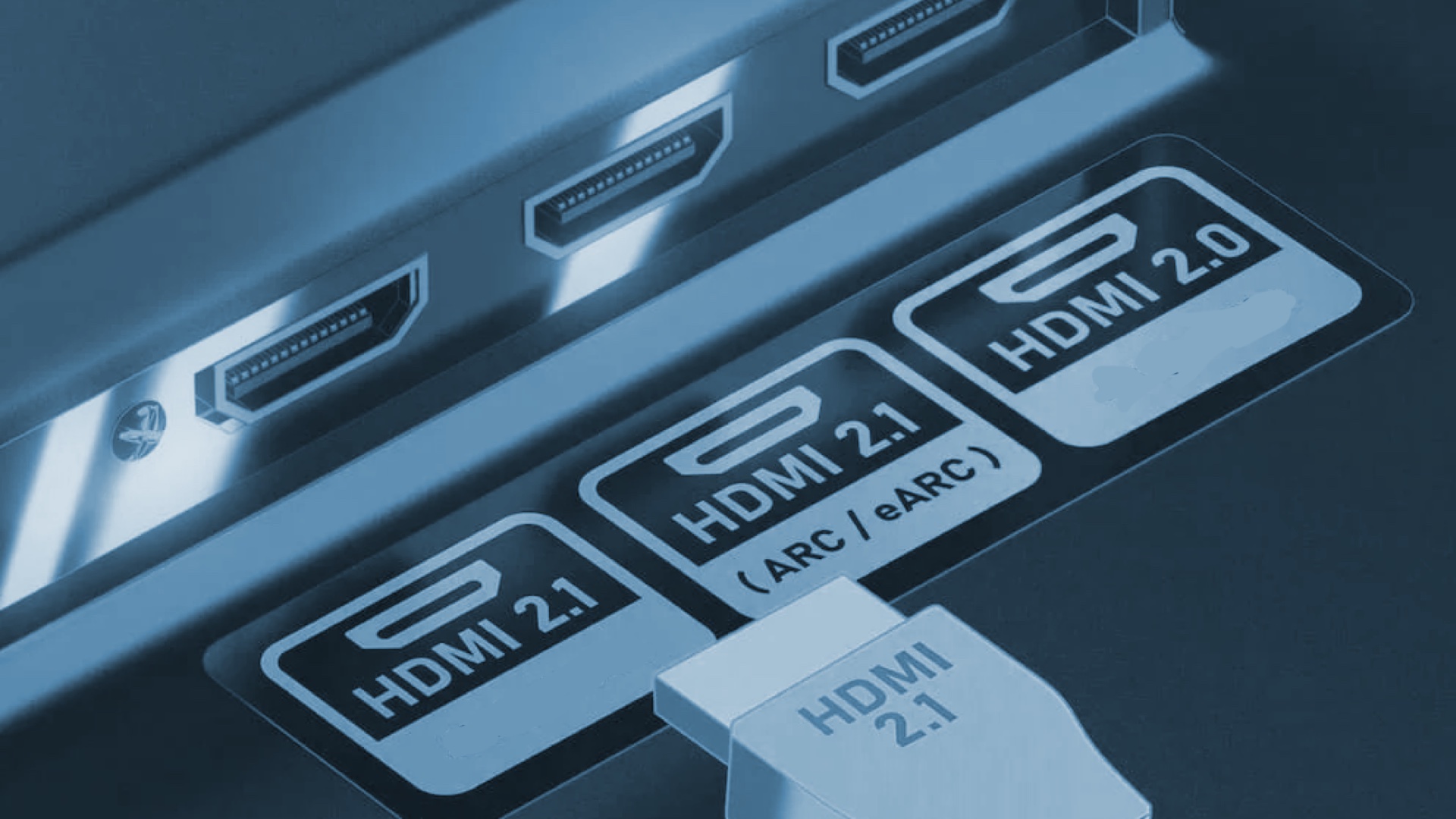
A specific warning for gamers: many modern TVs only have two HDMI 2.1 ports. If one is taken up by your eARC soundbar and you have both a PS5 and an Xbox Series X, you might find yourself in a port-management pickle. In these cases, check if your soundbar has an HDMI 2.1 "Passthrough" port, which allows you to plug the console into the soundbar instead of the TV.
Step-by-Step: Setting Up HDMI eARC on Your TV
Setting up the connection is relatively straightforward, but there are a few software hurdles that often trip people up. Follow these steps to ensure you are getting the best possible sound.
- Connect the Hardware: Plug your Ultra High Speed HDMI cable into the HDMI eARC port on your TV and the corresponding HDMI Out (eARC) port on your soundbar or receiver.
- Enable HDMI-CEC: This is the technology that allows your TV remote to control your soundbar volume. Each manufacturer has a different name for this, which can be confusing.
- Samsung: Anynet+
- LG: Simplink
- Sony: BRAVIA Sync
- Vizio: CEC
- Philips: EasyLink
- Panasonic: VIERA Link
- Configure TV Audio Output: Navigate to your TV's sound settings. Look for Audio Output or Speakers and change it from Internal Speakers to HDMI Receiver or Optical/HDMI.
- Turn on eARC Mode: Within the expert or advanced sound settings, you will often see a toggle for eARC Mode. Ensure this is set to On or Auto.
- Set Digital Output Format: This is a critical step. If you want your soundbar to do the heavy lifting, set the digital output to Passthrough. This tells the TV to send the raw audio signal directly to the soundbar without processing it. If Passthrough is not available, select Auto.
Troubleshooting Common eARC Issues
Even with the best gear, HDMI handshake issues can occur. This is where the TV and soundbar fail to "talk" to each other properly upon startup. If you encounter no sound or intermittent audio, the first step is a hard reset. Unplug both the TV and the soundbar from the power outlet, wait 60 seconds, and plug them back in. This often forces a new, clean handshake.
Another common complaint involves HDMI eARC lip sync correction explained. While eARC is supposed to fix this automatically, some processing delays in the TV can still cause a gap. Check your TV’s sound menu for an Audio Delay or Lip Sync slider. If you are experiencing audio latency specifically while gaming, ensure your TV is in Game Mode, which reduces all forms of processing to prioritize speed.
Lastly, if you are using an eARC soundbar with ARC only TV, remember that your system will still work, but it will be limited to the lower quality of the ARC standard. You won't get lossless Dolby TrueHD, but you will still get basic surround sound. If you absolutely must have lossless audio from an older TV, you may need a specialized HDMI audio extractor to bypass the TV's limitations.
FAQ
What is the difference between HDMI ARC and eARC?
The primary difference is bandwidth and speed. While standard ARC is limited to about 1 Mbps and supports compressed 5.1 audio, eARC supports up to 37 Mbps, allowing for uncompressed 7.1 audio and lossless formats like Dolby TrueHD and DTS:X.
Do I need a special cable for HDMI eARC?
Yes, it is highly recommended to use an Ultra High Speed HDMI cable. While some older High Speed cables with Ethernet might work, the Ultra High Speed version is the only one guaranteed to support the full 48Gbps bandwidth required for all HDMI 2.1 features, including lossless audio.
Does HDMI eARC support high-resolution audio formats like Dolby Atmos?
Yes, but it is important to distinguish between versions. Both ARC and eARC support Dolby Atmos, but ARC can only handle the lossy version used by streaming services. eARC is required to transmit the lossless Dolby Atmos found on 4K Blu-ray discs.
Are ARC and eARC devices compatible with each other?
Yes, they are backward compatible. You can connect an eARC soundbar to an ARC TV, but the system will default to the standard ARC capabilities. You will lose the ability to play lossless audio, but the basic connection and volume control will still function.
Does my TV need a specific HDMI port for eARC?
Yes, usually only one HDMI port on a TV is eARC-compatible. You must look for the specific label on the back or side of your television to ensure you are plugging your soundbar into the correct input.
Why is there no sound coming through my HDMI eARC connection?
This is often caused by a handshake issue or incorrect settings. Ensure HDMI-CEC is enabled on both devices, the TV's audio output is set to HDMI/Receiver, and that you have toggled the eARC Mode to on in the TV's advanced sound menu.