Quick Facts
- Feature Name: Lens Cleaning Hints
- Core Function: Uses real-time sensor analysis to identify smudges, dirt, or oil on camera lenses.
- Notification Message: Triggers a Clean Back Camera warning on the camera UI.
- System Requirements: Apple devices running iOS 26 or later.
- Hardware Support: Limited to iPhone 15 Pro, iPhone 16 series, and subsequent releases.
- Primary Benefit: Ensures image clarity and prevents hazy photo quality before the shot is taken.
- Navigation Path: Settings > Camera > Photo Capture > Lens Cleaning Hints.
Lens Cleaning Hints is an iOS 26 camera feature that uses real-time sensor analysis to detect smudges, dirt, or fingerprint grease on your iPhone's camera lens. When the system identifies reduced light transmission or haze that could degrade photo quality, it triggers a Clean Back Camera notification on the screen. This tool helps ensure image clarity by alerting you to clean the lens before capturing a shot.
We have all been there. You are at a concert, a wedding, or simply capturing a gorgeous sunset, only to realize later that every light source has a weird, streaky glow and the entire image looks like it was shot through a layer of wax. As someone who tests mobile devices for a living, I can tell you that fingerprint grease is the number one enemy of mobile photography. Our phones live in our hands, pockets, and bags, picking up oils and debris constantly. With the release of the iOS 26 update, Apple has finally introduced a software-based solution to this very physical problem. The Lens Cleaning Hints system is designed to act as your digital assistant, peering through the glass before you do to ensure the optical path is clear.
How to Enable Lens Cleaning Hints in iOS 26
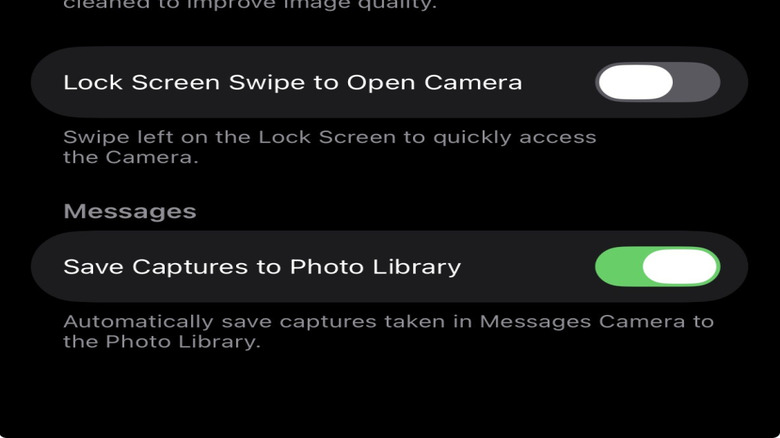
Setting up this feature is straightforward, but it is tucked away in the deeper layers of your configuration menus. Unlike some basic toggles, Apple has placed this within the capture-specific settings to ensure it does not interfere with users who prefer a completely manual experience. To turn on this functionality, follow these steps:
- Open the Settings app on your iPhone.
- Scroll down and tap on the Camera menu.
- Once inside the Camera settings, look for the Photo Capture section.
- Locate the toggle labeled Lens Cleaning Hints.
- Tap the switch so it turns green, indicating the feature is active.
When you are in this menu, you might notice other familiar toggles like Macro Control or Apple ProRAW. Keeping Lens Cleaning Hints active alongside these professional-grade tools ensures that even if you are shooting in high-resolution formats, your physical hardware is not holding the software back. Once enabled, the automatic lens smudge detection iphone feature works silently in the background whenever the Camera app is open. If you ever feel like the notification is appearing too frequently, you can return here to toggle it off, though I highly recommend keeping it on for daily use to maintain peak photo quality.
Why Your iPhone is Warning You: The Technology Behind Smudge Detection
It might seem like magic that a phone can "see" a fingerprint on its own lens, but the process is rooted in sophisticated real-time sensor analysis. The iOS 26 camera features leverage the massive power of the A-series Neural Engine to scan incoming light patterns. When a lens is clean, light travels in straight lines to the sensor. When a smudge is present, light scatters, creating a specific type of diffraction and a drop in overall contrast that the software can recognize instantly.
The system is constantly monitoring light transmission. It looks for "haze" patterns that do not match the expected metadata of the scene. For instance, if you are in a brightly lit environment but the sensor detects a uniform "fog," the Neural Engine concludes that the obstruction is on the glass rather than in the atmosphere. This is crucial because physical obstructions like droplets can reduce image sharpness by up to 80%, which essentially turns your thousand-dollar flagship into a budget phone from a decade ago. Furthermore, for those who rely on the phone for more than just photos, studies show that lens contamination can decrease the accuracy of object detection algorithms by as much as 90%, affecting everything from augmented reality apps to focus tracking.
By providing a UI alert system through the ios 26 clean back camera notification, the device empowers you to perform quick optical maintenance. It is a proactive approach to hazy photo prevention. Instead of losing a once-in-a-lifetime moment to a blurry mess, you get a gentle nudge to wipe the glass. This real-time analysis is so fast that the alert often appears the moment you launch the app, giving you just enough time for a quick buff before you hit the shutter button.
Compatibility: Why Isnt It Showing Up?
If you have updated to the latest software and find that the iphone lens cleaning hints not showing up in your settings, it likely comes down to hardware limitations. While Apple often brings new software features to older models, the Lens Cleaning Hints functionality requires specific integration between the camera sensor and the latest generation of the Neural Engine. This feature is not just about the software; it is about the hardware's ability to process high-resolution frames for artifacts without causing lag in the viewfinder.
Currently, the feature is compatible with the iPhone 15 Pro and newer models. This includes the entire iPhone 16 series and any subsequent releases. If you are using an iPhone 14 Pro or an older model, the toggle simply will not appear in your settings, even if you are running iOS 26. This is because the older A-series chips may not have the dedicated throughput to handle the constant real-time sensor analysis required for smudge detection without draining the battery or heating up the device during long camera sessions.
| iPhone Model | Lens Cleaning Hints Support | Reason |
|---|---|---|
| iPhone 16 / 16 Pro / 16 Pro Max | Full Support | Advanced A18/A18 Pro Neural Engine |
| iPhone 15 Pro / 15 Pro Max | Full Support | A17 Pro Hardware Integration |
| iPhone 15 / 15 Plus | Limited / No Support | Depends on specific regional firmware |
| iPhone 14 Pro and Older | Not Supported | Hardware bandwidth limitations |
Users with compatible devices will generally find the setting enabled by default after upgrading their operating system. However, if you did a clean install or restored from an old backup, it is worth checking the menu manually to ensure you are getting the full benefit of your iPhone 15 Pro hardware.
Pro Tips for Maintaining Your iPhone Lens
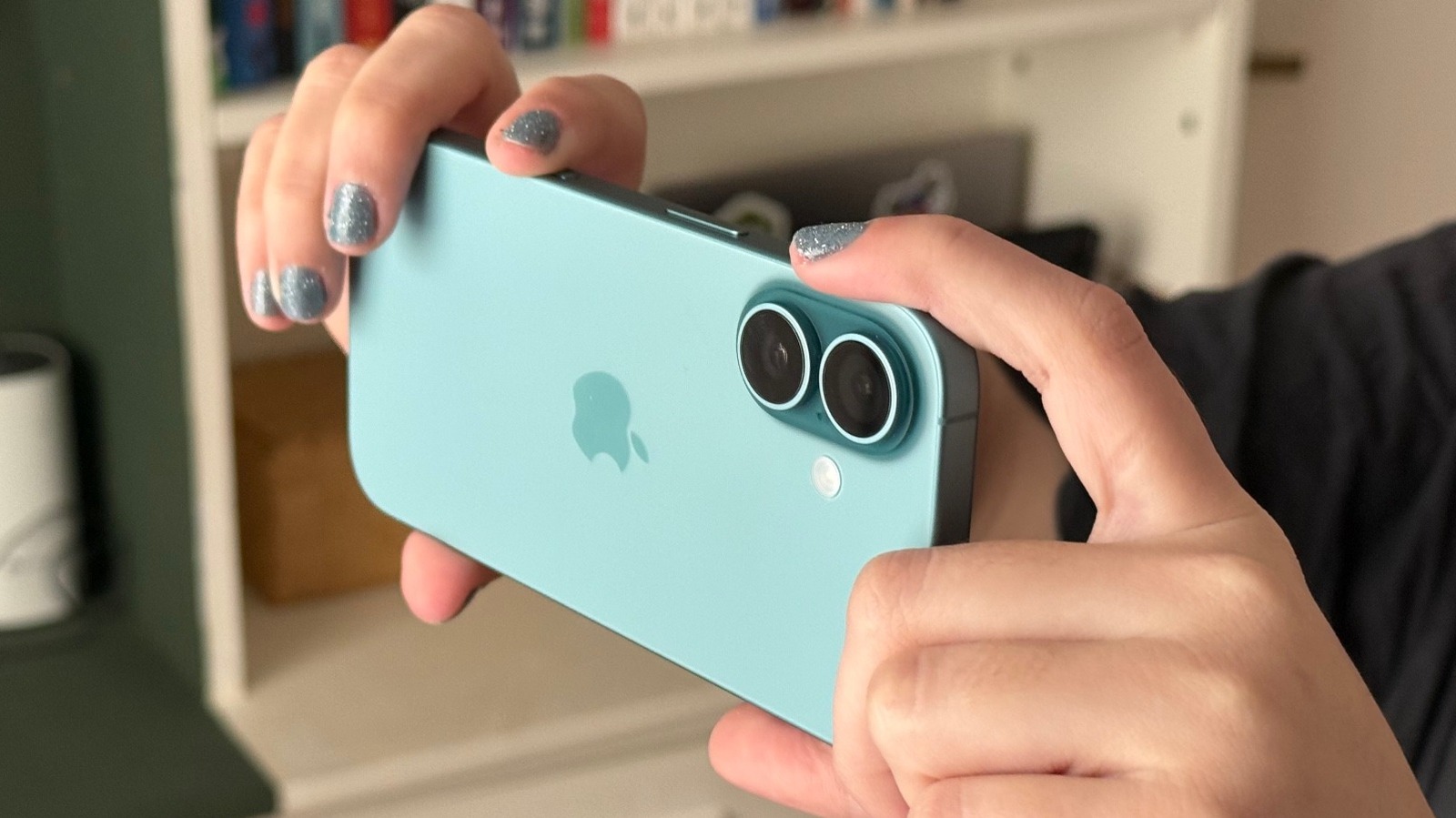
Once you get that Clean Back Camera warning, the next step is actually cleaning the device. It sounds simple, but how you clean your lens matters just as much as how often you do it. Using the wrong material can actually lead to more smears or, worse, micro-scratches on the sapphire crystal lens covers.
The gold standard for optical maintenance is a clean microfiber cloth. I always tell my readers to keep a small one in their wallet or phone case. A quick, circular motion is usually enough to lift fingerprint grease and restore image clarity. If you find yourself in a pinch without a cloth, a soft cotton t-shirt is a better alternative than paper towels or napkins, which are surprisingly abrasive and can leave behind lint or dust that further triggers the camera sensor obstruction alert.
Avoid using harsh chemicals like window cleaner, rubbing alcohol, or dish soap. Modern iPhone lenses have oleophobic coatings designed to repel oil; aggressive chemicals can strip this coating away, making the lens even more prone to smudges in the future. If you encounter stubborn debris, a tiny drop of water on the cloth is all you need.
It is also worth noting that while the focus is often on the rear cameras, you should not forget the front camera lens cleaning hints ios 26 support if you are a frequent selfie-taker or use FaceTime often. The front-facing camera is even more prone to oils because it sits right against your ear during phone calls. Developing a habit of wiping the top of your phone screen can dramatically improve your video call quality. Think of this software feature as a windshield wiper sensor in a car—it tells you when the view is obstructed, but you still have to take the manual step to clear the path.
FAQ
What is the best way to clean a camera lens without scratching it?
The safest method is to use a clean, dry microfiber cloth designed specifically for optics or eyewear. Before wiping, gently blow on the lens to remove any loose grit or sand that could cause scratches during the rubbing process. Use light, circular motions rather than pressing down hard. If the smudge is stubborn, a dedicated lens cleaning solution or a tiny amount of moisture on the cloth is sufficient.
How often should you clean your camera lenses?
For a device like an iPhone that is handled constantly, you should ideally give the lenses a quick wipe once a day. However, with the new Lens Cleaning Hints feature, you can simply wait for the system to notify you. If you are shooting in environments with high humidity, dust, or near salt water, you should clean the lenses more frequently to prevent residue buildup that could lead to long-term photo quality degradation.
What tools should be included in a basic lens cleaning kit?
A portable kit for a smartphone user should include a high-quality microfiber cloth, a small air blower (to remove dust without touching the glass), and perhaps a lens cleaning pen which has a soft brush on one end and a carbon-based cleaning tip on the other. Avoid carrying bulky liquid cleaners unless you are a professional photographer; for most users, dry tools are safer and more convenient for on-the-go hazy photo prevention.
How do you remove dust and fingerprints from a lens safely?
To remove dust, use a puffer or a soft-bristled brush to whisk away particles. For fingerprints, which are composed of skin oils, a microfiber cloth is essential as it absorbs the oil rather than just spreading it around. If you notice a fingerprint, try to clean it as soon as possible; if left for too long, the acids in skin oils can theoretically affect the lens coating, though modern sapphire glass is extremely durable.
The introduction of smudge detection is a perfect example of how Apple uses the iOS 26 update to solve real-world frustrations. It is a bridge between the high-tech world of computational photography and the low-tech reality of a dirty pocket. By taking a few seconds to enable Lens Cleaning Hints, you are essentially giving your iPhone the ability to look out for you, ensuring that the next time you go to capture a memory, it is as crisp and clear as the moment itself. Go ahead and check your settings now—your future photos will thank you.