Quick Facts
- Bulk Transfer Winner: Dedicated Card Reader (up to 25x faster for 64GB transfers).
- Mobile Workflow Winner: USB-C Cable (best for direct-to-phone social media sharing).
- Speed Benchmark: 64GB RAW offload takes ~6 mins via USB 3.2 reader vs hours over legacy USB connections.
- Compatibility Check: UHS-II cards require specific readers to utilize the second row of contact pins.
- Critical Risk: Using USB-C for large transfers can cause significant camera battery drain.
While modern cameras feature high-speed USB-C ports, dedicated SD card readers often provide significantly faster transfer speeds for bulk ingestion. Professional workflows benefit from card readers that support UHS-II or CFexpress interfaces, which typically outperform direct camera-to-computer connections. Using a card reader also prevents unnecessary camera battery drain and wear on the camera's internal port during large file transfers. For the best camera photo transfer experience, use a dedicated SD card reader for high-volume RAW files and a high-quality USB-C cable for on-the-go mobile edits or tethered shooting.
Speed Showdown: SD Card Reader vs USB-C Cable Transfer Speed
When you are coming back from a long day of professional photography, the last thing you want is a workflow bottleneck at your desk. The debate between sd card reader vs usb-c cable often comes down to the architecture inside your camera. While your camera might have a USB-C port, the internal bus—the digital highway that moves data from the card to the port—is often slower than the card's potential.
In a direct comparison, the camera data transfer speed often lags behind because the camera's processor has to handle the file system overhead. Statistics show that transferring 64GB of raw images via a standard USB 2.0 connection can take approximately 3.5 hours, whereas a dedicated USB 3.2 Gen 2 card reader can complete the same task in about 6 minutes.
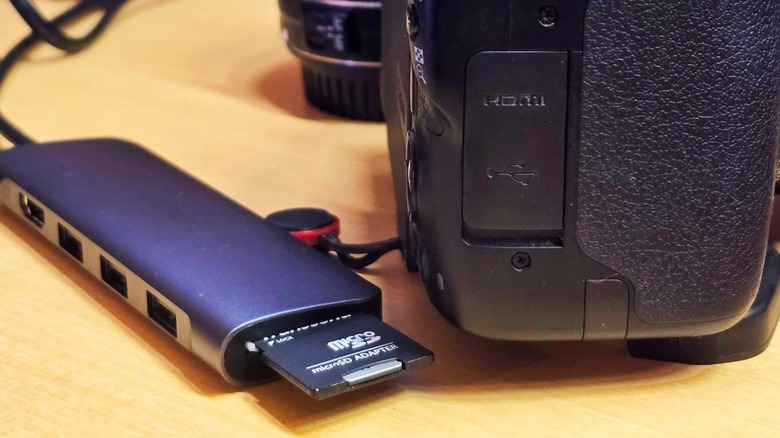
For those using modern memory standards, the gap widens. Dedicated UHS-II SD card readers can achieve real-world video transfer speeds of up to 252 MB/s, significantly outperforming many direct camera-to-computer connections that are often throttled by the camera's internal processing overhead. If you have moved to professional-grade storage, high-end CFexpress Type B card readers using a USB 4.0 interface can reach sustained read speeds of over 2,500 MB/s, providing a significant performance advantage for professionals compared to direct USB-C camera transfers.
| Transfer Method | Typical Interface | 64GB Transfer Time | Max Theoretical Speed |
|---|---|---|---|
| Camera (Legacy USB 2.0) | USB 2.0 | ~210 minutes | 480 Mbps |
| Camera (Modern USB-C) | USB 3.2 Gen 1 | ~15-20 minutes | 5 Gbps |
| UHS-II SD Reader | USB 3.2 Gen 2 | ~6 minutes | 312 MB/s |
| CFexpress Type B Reader | USB 4.0 | ~1 minute | 2,500 MB/s+ |
The sd card reader vs usb-c cable transfer speed difference is not just about the cable itself but the UHS-II interface pins. A reader has the physical hardware to utilize the second row of pins on a UHS-II card, whereas many mid-range cameras only have the physical pins for UHS-I speeds even if they have a USB-C port.
The Mobile Workflow: Transfer Photos Without Card Reader
There are times when convenience outweighs raw speed. If you are in the field and need to post to social media immediately, you can transfer photos without card reader intervention. Most mirrorless cameras today allow you to connect directly to an iPad, iPhone, or Android device.
This mobile workflow relies on the camera acting as an external drive. When you use a high-quality USB-C cable to connect your camera to a tablet, the device usually recognizes the camera instantly. This is the fastest way to transfer photos from camera to phone for quick edits in Lightroom Mobile.
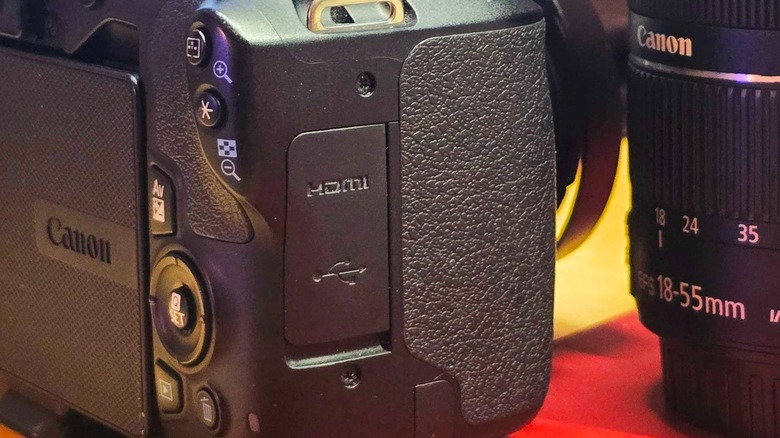
To achieve a seamless transfer photos from camera to phone without card reader setup, follow these steps:
- Ensure your camera is set to Mass Storage mode or MTP in the setup menu.
- Use a USB-C data-rated cable (avoid cables that are charge-only).
- Connect the camera to your phone or tablet.
- Open your preferred asset management app, such as the native Files app or Lightroom.
- Select the files and begin the import.
While the transfer latency might feel low because you are only moving a few files, avoid this for bulk ingestion. For professional photography, moving hundreds of RAW files this way will quickly become a headache.
Technical Risks: Port Wear and Battery Management
One often overlooked aspect of camera photo transfer is the physical health of your gear. Every time you plug a cable into your camera, you are putting a small amount of stress on the internal port. Over hundreds of read/write cycles, this can lead to port failure, which is a much more expensive repair than replacing a $20 card reader.
Furthermore, camera battery drain during usb-c data transfer is a real concern. When a camera is transferring data, its processor is running at a high state, and the rear LCD is often active. This can deplete a battery quickly, potentially cutting your shooting day short if you haven't finished your backups.

Transferring large raw files via camera usb port also generates heat. In high-performance mirrorless cameras, heat is the enemy of data integrity and component longevity. If the camera gets too hot during a massive file dump, it may throttle the speed even further or, in rare cases, cause a connection drop. Using an external reader keeps the heat away from your camera's sensitive sensor and internal circuitry.
Pro Tips for Maximum Efficiency
If you are looking for the fastest way to transfer photos from camera to macbook, look for a reader that supports Thunderbolt 4 or USB 4.0. These readers bypass the limitations of standard USB hubs and provide a direct, high-bandwidth path to your computer’s NVMe storage.
Another tip for a clean workflow is to manage your card slot durability by avoiding constant insertion and removal of cards if you are only moving a few files. However, for a full day of shooting, the "card out" method is still the industry standard.
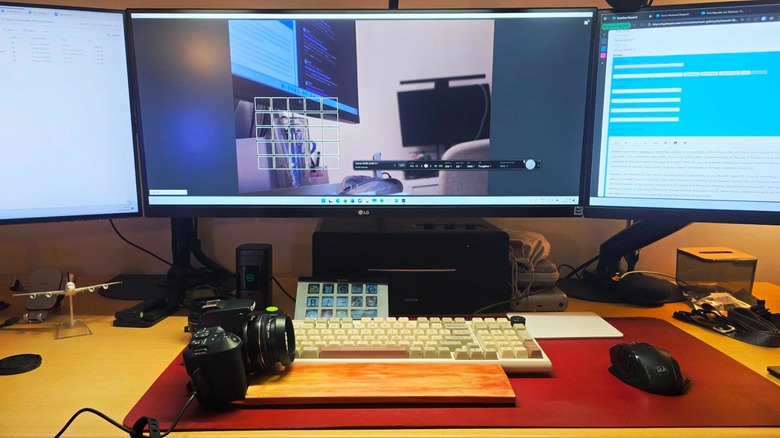
In a studio environment, your USB-C port is better utilized for tethered shooting. This allows for real-time image review on a large monitor, which is far more valuable than using the port for data dumps. If your camera is not showing up on computer via usb, it is often due to a cable that doesn't support high-speed data or a firmware installation that needs updating. Always use the original cable provided by the manufacturer or a certified 10Gbps rated cable.
FAQ
How do I transfer photos from a digital camera to my computer?
You can either remove the memory card and insert it into a card reader connected to your computer, or connect the camera directly using a USB-C cable. Once connected, your computer should recognize the device as an external drive, allowing you to drag and drop files into your local folders.
What is the fastest way to transfer photos from a camera to a phone?
The fastest way for a few files is using a direct USB-C to USB-C cable connection. This bypasses the slow speeds and pairing issues often found with Wi-Fi or Bluetooth transfers. For large batches, using a small mobile card reader is still the most efficient method.
Do I need an SD card reader to transfer photos to my laptop?
No, you do not strictly need one if your camera supports direct USB transfers. However, a reader is highly recommended for faster speeds, protecting your camera's battery life, and reducing wear and tear on the camera’s internal USB port.
Why is my computer not recognizing my camera during a photo transfer?
This is usually caused by using a charge-only USB cable that lacks data wires, or having the camera set to the wrong USB mode. Check your camera's setup menu and ensure it is set to Mass Storage or MTP mode, and try a different, data-certified cable.
How can I transfer high-resolution raw files from a camera to my tablet?
Connect the camera to the tablet using a compatible USB-C cable. Open an app like Lightroom or the native Files app, select the camera under the locations or import tab, and choose the high-resolution raw files you wish to bring over for editing.