Quick Facts
- Compatibility: Requires an Apple device with LiDAR scanner technology, specifically iPhone 12 Pro/Max or newer, and iPad Pro 4th generation or later.
- Setup Time: The room scanning process is remarkably efficient, typically requiring only about one minute per room to complete.
- Region Availability: Currently available primarily for US-based accounts, though global expansion is planned for future updates.
- Visual Interface: Provides a 3D digital floor plan that replaces traditional list-based device management with an interactive map.
- Device Status: Features real-time UI signals like exclamation marks to indicate when specific smart home devices are offline or require attention.
- Centralized Hub: While scanning requires an iPhone, the resulting map can be synchronized and used on the Amazon Echo Hub for a fixed wall-mounted control center.
- Future Readiness: Built to integrate with upcoming Alexa+ agentic AI features and advanced augmented reality interface capabilities.
To set up Alexa Map View, open the Amazon Alexa app on a compatible iOS device and navigate to the Devices tab. Tap the pin-drop icon in the top right corner to begin the guided setup. You will use your device's camera and LiDAR hardware to scan each room, creating a 3D digital floor plan that allows you to visually place and manage your smart home devices. This innovative approach utilizes digital twin technology to offer a seamless smart home experience that moves beyond simple text lists.
Managing a modern home can feel overwhelming when you have dozens of connected products scattered across different rooms. As of late 2023, Amazon reported that customers have connected more than 400 million smart home devices to Alexa, highlighting the urgent need for more intuitive visual management tools like Alexa Map View. By creating a 3D spatial mapping representation of your living space, you can finally see exactly where your lights, plugs, and cameras are located in real-time.
Hardware Check: iPhone LiDAR Requirements for Alexa Map View
Before you start clearing clutter for the scanning process, it is vital to verify that your hardware is up to the task. The Alexa app digital floor plan relies heavily on LiDAR scanner technology to measure distances and create an accurate 3D model of your home. Unlike standard camera-based apps, LiDAR sends out laser pulses to map the indoor spatial data of your environment with high precision.
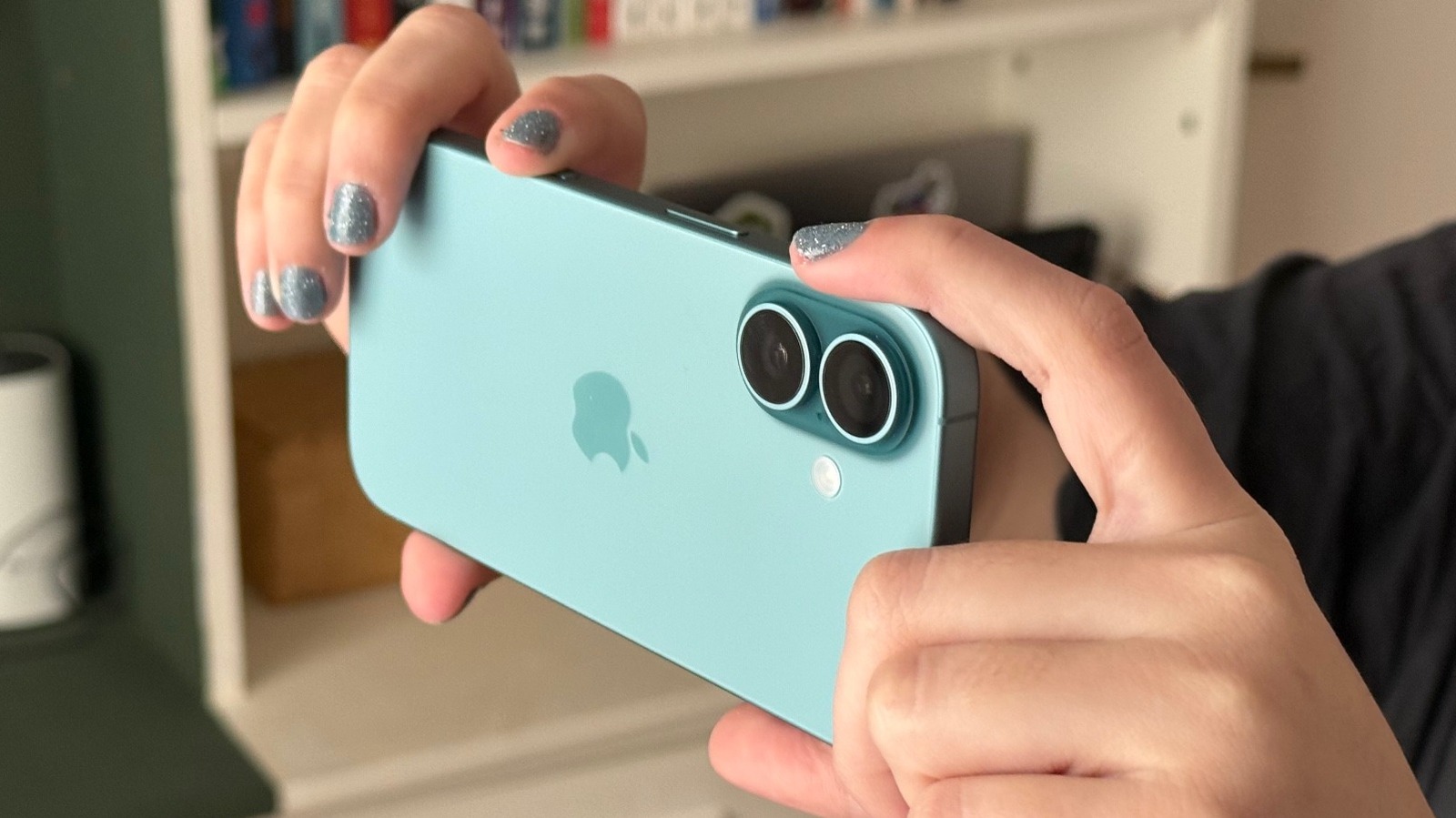
The Alexa Map View scanning process requires LiDAR-enabled Apple hardware, specifically the Pro and Pro Max models of the iPhone 12 through iPhone 15, or even the newer iPhone 16 and 17 Pro series as they enter the market. If you are using a standard iPhone 13 or iPhone 14 without the Pro designation, you will not see the option to initiate a scan because these models lack the necessary depth-sensing sensors.
| Device Category | Compatible Models for Alexa Map View |
|---|---|
| iPhone | iPhone 12 Pro, 12 Pro Max, 13 Pro, 13 Pro Max, 14 Pro, 14 Pro Max, 15 Pro, 15 Pro Max, 16 Pro, 16 Pro Max, 17 Pro, 17 Pro Max |
| iPad Pro | iPad Pro 11-inch (2nd Gen or newer), iPad Pro 12.9-inch (4th Gen or newer) |
| Control Hardware | Amazon Echo Hub (for viewing and interaction only) |
If you own an iPhone LiDAR requirements for Alexa Map View compatible device, you are ready to begin. Keep in mind that while you need these specific Apple devices to create the map, you don't necessarily need to carry them around forever to use it. Once the Alexa smart home map configuration is saved to your account, it becomes accessible on other supported hardware like the Echo Hub, which serves as a dedicated smart home dashboard for the whole family.
Step-by-Step Alexa Map View Setup Guide
Creating your digital twin starts with a bit of preparation. Ensure your rooms are well-lit and that large obstacles are moved away from the walls so the sensors can clearly see the floor-to-wall boundaries. Setting up the digital floor plan for Alexa Map View involves a room scanning process that typically takes approximately one minute per room using a compatible iPhone.

- Launch the Correct App: Open the standard Amazon Alexa app on your iPhone. Do not confuse this with the Amazon shopping app, as the mapping features are built exclusively into the smart home ecosystem interface.
- Locate the Map Icon: Head to the Devices tab at the bottom of the screen. Look for the small pin-drop or map-style icon in the top right corner. If it is not there, double-check your iPhone LiDAR hardware requirements and ensure your app is updated.
- Begin the Scan: Follow the on-screen prompts. You will be asked to point your camera at the floor and then slowly pan around the room. You will see a grid pattern begin to cover your furniture and walls, indicating that the 3D spatial mapping is capturing data.
- Define the Boundaries: As you move from room to room, the app will stitch the spaces together. This is how you create multi-level floor plans if you live in a multi-story house.
- Finalize and Name: Once you have scanned all the desired areas, tap Finish. You can then name each room (e.g., Living Room, Primary Bedroom) to match your existing Alexa groups.
This step-by-step Alexa Map View setup guide ensures that the foundation of your visual interface is accurate. If you find that a wall is misplaced or a room looks skewed, it is often easier to delete that specific room and re-scan it rather than trying to fix it later.
Managing Your Smart Home: Pinning & Monitoring Devices
Now that your digital floor plan is ready, it is time to populate it with your IoT products. This is where the visual device management truly shines. Instead of scrolling through a long list of "Smart Plug 1" or "Kitchen Light 4," you can simply drag and drop icons onto their physical locations on the map.
When you enter the editing mode, a tray of your connected devices will appear at the bottom. You can tap and hold a device, then slide it to the exact spot in your living room where that lamp or camera actually sits. This spatial awareness makes it much easier for guests or family members to control the home without needing to memorize specific device names.
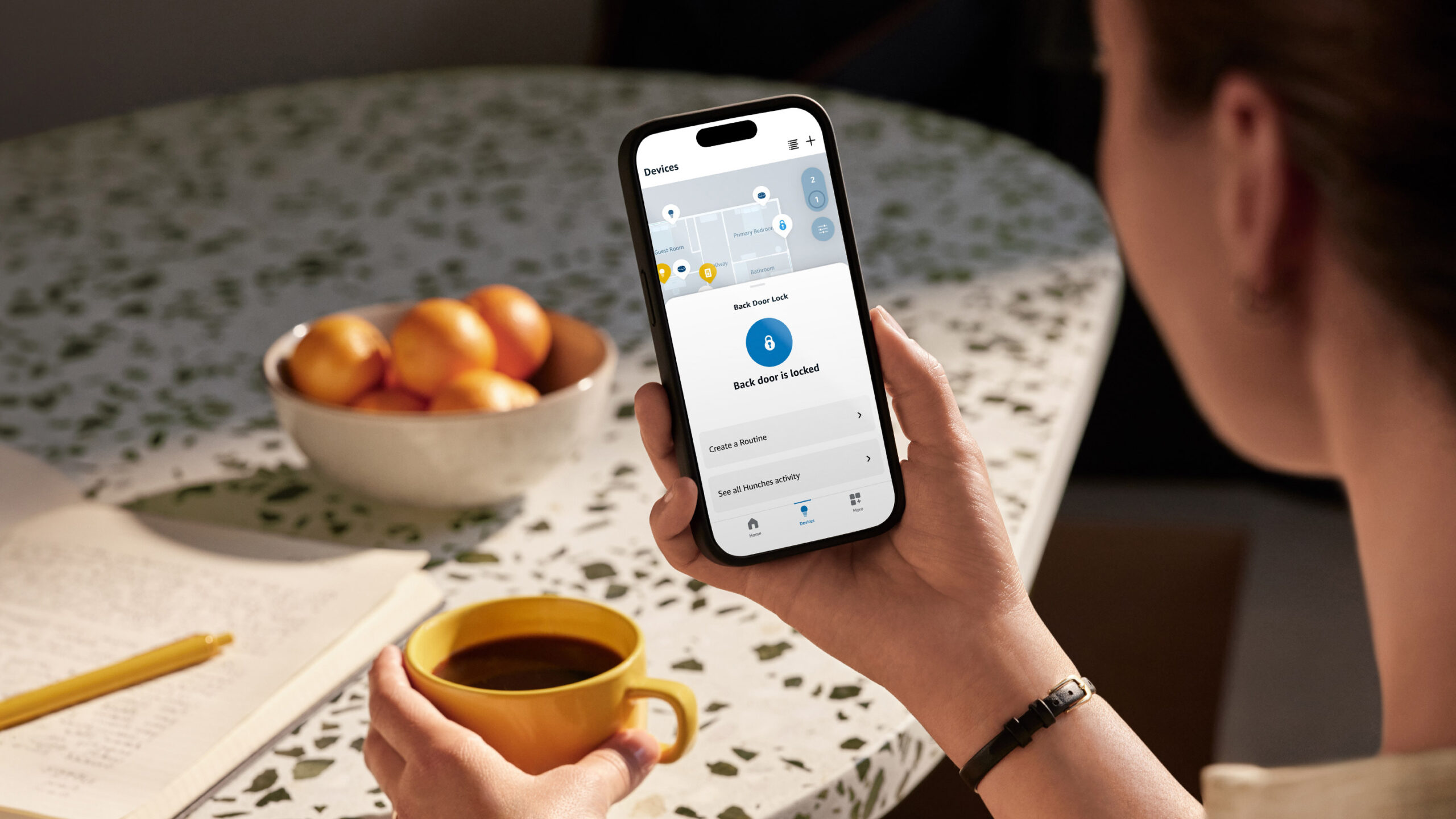
The map isn't just a static image; it is a live augmented reality interface. If a smart lock is currently engaged, you will see a locked icon on the map. If a light is on, that room will appear illuminated. One of the most helpful features is the "exclamation mark" UI signal. If a device loses its Wi-Fi connection or the battery dies, a small badge will appear over its icon on the Alexa Map View, allowing you to troubleshoot immediately without having to test each device manually.
For those who want a permanent viewing station, using Alexa Map View on Echo Hub is the ultimate setup. You can mount the Echo Hub in a central location like the kitchen or entryway, providing everyone in the house with a bird's-eye view of the entire smart home ecosystem.
Privacy and Security for Your Home Floor Plan
As a smart home editor, I am often asked about the security implications of uploading a floor plan of your house to the cloud. Amazon has implemented several data encryption protocols to ensure that your Alexa Map View privacy settings for home floor plans remain under your control.
The spatial data captured by the LiDAR scanner is processed to create a simplified 3D model, not a photographic 1:1 recreation of your interior decor. This map is tied specifically to your Amazon account and is only accessible to authorized users who are logged in. If you ever decide you no longer want the map, you can delete the entire floor plan or individual rooms directly within the Alexa app settings.
Furthermore, as we look toward the 2026 landscape of smart homes, these maps will play a crucial role in the Alexa+ subscription tier. This agentic AI will use the spatial data to understand context better—such as knowing that when you say "turn on the light over there," you are pointing toward a specific corner of the map. Rest assured that Amazon maintains strict access control over who can view these digital twins.
Troubleshooting: Why Alexa Map View Isn't Showing
If you have followed all the steps but still can't find the map icon, there are a few common reasons why the feature might be hidden.
- Region Restrictions: Currently, Alexa Map View is a US-only feature for the initial rollout. If your Amazon account region is set to the UK, Canada, or elsewhere, the map icon may not appear even if you have a compatible iPhone.
- Hardware Limitations: This is the most common issue. If you aren't using a Pro or Max model with a LiDAR sensor, the feature is disabled. Standard iPhones do not have the depth-sensing hardware required for 3D spatial mapping.
- App Version: Ensure you are running the latest version of the Alexa app from the Apple App Store. Older versions do not include the map interface.
- Account Type: In some cases, "Teen" accounts or restricted profiles under a household may not have the permissions to create or edit floor plans.
If you have verified all of the above and are still troubleshooting Alexa Map View not showing in app, try signing out and signing back into the Alexa app to refresh your account's feature flags.
FAQ
What is Alexa Map View and how does it work?
Alexa Map View is a visual interface within the Alexa app that uses a 3D digital floor plan to help you manage your smart home. It works by utilizing LiDAR technology on compatible mobile devices to scan your rooms, creating a digital twin of your home where you can pin and control your smart devices.
Which devices are compatible with Alexa Map View?
To create the map, you need a LiDAR-enabled Apple device such as the iPhone 12 Pro/Max or newer Pro models, or an iPad Pro 4th generation or later. Once created, the map can also be viewed and used on the Amazon Echo Hub.
How do I set up a floor plan in the Alexa app?
Navigate to the Devices tab in the Alexa app and tap the map/pin-drop icon. Follow the guided scanning process by pointing your iPhone camera at the floor and walls of each room until the grid covers the space, then save and name your rooms.
Do I need a LiDAR-enabled phone to use Map View?
Yes, a LiDAR-enabled device is strictly required for the initial scanning and creation of the floor plan. Standard iPhones and Android devices currently lack the specific hardware sensors needed to generate the 3D map accurately.
Why is Alexa Map View not showing in my app?
The most likely reasons are that you are not using a Pro/Max iPhone with LiDAR, your app needs an update, or your account is registered outside of the United States. Ensure you are looking in the Devices tab for the pin-drop icon.
How does Alexa Map View protect my privacy?
Amazon uses encryption to protect your spatial data and ensures that the floor plan is only accessible to authorized users on your account. Users have full control to delete their floor plans at any time through the app settings.