Quick Facts
- Standard for PC Gaming: DisplayPort 1.4 or 2.1 is preferred for high-refresh monitors and NVIDIA G-Sync stability.
- Standard for Consoles: HDMI 2.1 is the required choice for PlayStation 5 and Xbox Series X to enable 4K at 120Hz.
- Max Bandwidth: DisplayPort 2.1 leads with up to 80 Gbps, while HDMI 2.1 offers 48 Gbps.
- Home Theater: HDMI is the clear winner thanks to HDMI eARC features that support uncompressed Dolby Atmos.
- Productivity: DisplayPort supports Multi-Stream Transport for daisy-chaining multiple monitors from one output.
- Connector Style: HDMI uses a simple friction-fit, whereas most DisplayPort cables feature locking hooks to prevent accidental unplugging.
Understanding the difference between HDMI vs DisplayPort is crucial for getting the most out of your monitor or TV. While both transmit high-def video, the choice depends on whether you're a high-refresh PC gamer or a console enthusiast. For PC gaming, DisplayPort is the standard for high refresh rates and multi-monitor setups. Console gamers should prioritize HDMI 2.1 for VRR and eARC features.
Technical Specs: Bandwidth and Versioning
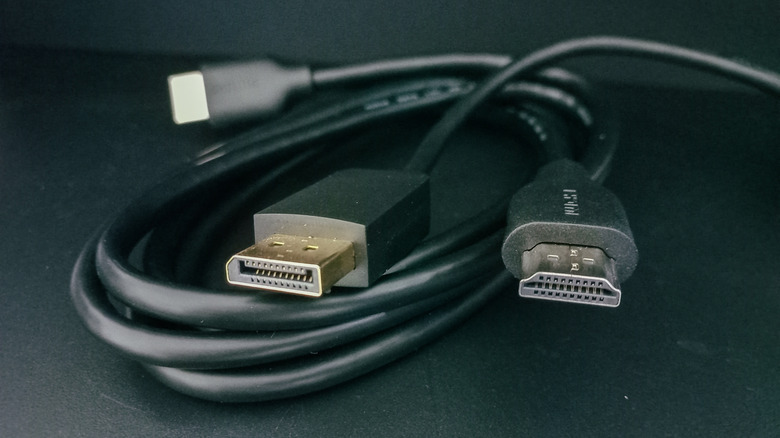
In the world of PC building, bandwidth capacity is king. If you don't have enough data flowing through the pipe, you can't hit the high resolutions or frame rates you paid for. Currently, we are seeing a transition where HDMI 2.1 and DisplayPort 2.1 are fighting for dominance, though they serve slightly different masters.
HDMI 2.1 supports a maximum bandwidth of 48 Gbps, which is plenty for uncompressed 4K resolution at 120Hz. However, if you are looking toward the future of 8K resolution or ultra-high refresh rates on professional workstations, DisplayPort 2.1 is the more powerful interface. It offers a staggering 80 Gbps of bandwidth, making it the only real choice for 16K displays or 8K at 120Hz without significant compromises.
To handle these massive data loads, both standards utilize Display Stream Compression. This allows the GPU to squeeze the video signal so it fits through the cable without a visible loss in image quality. While HDMI 2.1 is impressive, the raw headroom in the latest DisplayPort revision ensures that PC enthusiasts won't hit a bottleneck anytime soon.
| Feature | HDMI 2.1 | DisplayPort 1.4 | DisplayPort 2.1 |
|---|---|---|---|
| Max Bandwidth | 48 Gbps | 32.4 Gbps | 80 Gbps |
| Max Resolution | 8K @ 60Hz | 8K @ 30Hz | 16K @ 60Hz (with DSC) |
| VRR Support | Yes (HDMI VRR) | Yes (Adaptive-Sync) | Yes (Adaptive-Sync) |
| Audio Features | eARC / Dolby Atmos | Standard Audio | Standard Audio |
| Multi-Monitor | No native MST | Multi-Stream Transport | Multi-Stream Transport |
Gaming Performance: G-Sync, VRR, and High Refresh Rates
When readers ask me about hdmi 2.1 vs displayport 1.4 for gaming, my answer usually starts with a question: what are you plugging it into? If you are using a dedicated PC monitor, DisplayPort for gaming monitors is almost always the better path. Historically, NVIDIA G-Sync was only available over DisplayPort, and while that has changed recently with newer OLED Gaming Displays, DisplayPort remains the most stable connection for variable refresh rates on the PC side.
For competitive gamers who need 240Hz or 360Hz at 1440p, DisplayPort is often the only way to avoid color subsampling, which can make text look blurry. It also natively supports FreeSync and G-Sync over the same connection. If you are choosing cables for dual monitor pc setup, DisplayPort is even more essential because of its ability to handle extremely high data rates across multiple screens simultaneously.
However, the landscape has changed for those who game on 4K TVs. The HDMI 2.1 standard is the primary interface for modern gaming consoles like the PlayStation 5 and Xbox Series X. These consoles rely on HDMI 2.1 to deliver specialized features like Variable Refresh Rate and Dynamic HDR, which adjust the picture frame-by-frame for the best possible visual experience.
Home Theater and Audio: The eARC Advantage
While DisplayPort is the hero of the desk, HDMI is the undisputed king of the living room. One of the most common questions I get from home theater builders is: does displayport transmit audio to monitor? The answer is yes, it can carry multi-channel digital audio, but it lacks the specialized return channels that make modern soundbars work.
The real differentiator here is HDMI eARC features. The Enhanced Audio Return Channel allows your TV to send high-quality, uncompressed audio formats like Dolby Atmos back to your soundbar or A/V receiver through the same cable that carries the video. This simplifies your best display cable for ps5 home theater setup significantly, as you only need one cable between the TV and the sound system.
When comparing hdmi earc vs displayport audio features, it becomes clear that DisplayPort was never intended for the living room. It lacks the consumer electronics control protocols that allow you to use one remote to turn on your TV, receiver, and console all at once. For any setup involving surround sound and a television, stick with HDMI.
Connectivity and Productivity: USB-C and MST
For professionals and laptop users, the conversation shifts toward convenience and cable management. This is where usb-c displayport alt mode explained becomes vital. Most modern laptops, especially MacBooks and thin-and-light Windows machines, don't have a full-sized DisplayPort. Instead, they use a USB-C port that can output a DisplayPort signal.
This integration is a game-changer for professional workstations. By using a single USB-C cable, you can transmit video to a monitor, send data to the monitor's USB ports, and even charge your laptop at the same time. This is often referred to as a "one-cable setup," and it relies entirely on the DisplayPort protocol running over the USB-C connector.
Furthermore, DisplayPort supports a feature called Multi-Stream Transport. DisplayPort 1.4 and 2.1 versions support Multi-Stream Transport, which allows you to "daisy chain" monitors. You plug your PC into monitor A, then run a second cable from monitor A to monitor B. This is not natively supported by the HDMI standard, making DisplayPort the superior choice for anyone choosing cables for dual monitor pc setup where minimizing cable clutter is a priority.
Practical Buyers Guide: Cable Length and Adapters
Buying a cable should be simple, but the market is flooded with low-quality options that can cause flickering or black screens. The first thing you should look for is VESA Certification on DisplayPort cables or the Ultra High Speed HDMI label on HDMI cables. These certifications mean the cable has been tested to hit its rated bandwidth without signal degradation.
Speaking of signal degradation, HDMI generally handles longer distances better than DisplayPort. If you need to run a cable 15 feet or more to a projector or a wall-mounted TV, you will likely need an active HDMI cable or a fiber-optic version. DisplayPort signals tend to degrade quickly after 6 to 10 feet unless you spend a premium on high-end shielding.
If you find yourself using displayport to hdmi adapter for tv, be aware that these are usually one-way streets. Most passive adapters only work if you are going from a DisplayPort source (like a PC) to an HDMI display. Going the other way—connecting an HDMI console to a DisplayPort-only monitor—requires an expensive active converter that often introduces input lag.
Pro Tip: If your monitor is flickering or losing signal when you enable high refresh rates, the cable is almost always the culprit. Always check for the official hologram or QR code on the packaging to ensure you aren't using a counterfeit cable.
FAQ
Which is better for gaming HDMI or DisplayPort?
For PC gaming, DisplayPort is generally better because it offers higher bandwidth and more consistent support for G-Sync and multi-monitor setups. For console gaming on a PS5 or Xbox Series X, HDMI 2.1 is the better choice as it supports console-specific features like Auto Low Latency Mode and VRR on modern TVs.
Does DisplayPort support higher refresh rates than HDMI?
Yes, in most desktop monitor scenarios, DisplayPort supports higher refresh rates at higher resolutions. While HDMI 2.1 has closed the gap significantly, many monitors still limit their maximum refresh rate to a lower value when using the HDMI port compared to the DisplayPort input.
Is HDMI or DisplayPort better for 4K video?
Both are excellent for 4K video. However, HDMI is better if you are watching 4K content on a TV with a home theater system because it supports eARC for high-end audio formats. DisplayPort is better for 4K productivity and high-refresh 4K gaming on a desktop.
Can I use an adapter to connect HDMI to a DisplayPort monitor?
Yes, but it is complicated. Most common adapters go from DisplayPort to HDMI. To connect an HDMI source to a DisplayPort monitor, you need a specialized active adapter, which can be expensive and may not support all features like high refresh rates or HDR.
Which connection is better for a dual monitor setup?
DisplayPort is superior for dual monitor setups because it supports Multi-Stream Transport. This allows you to daisy-chain monitors together or use a single port on your laptop to drive two separate displays via a compatible hub or docking station.
Does DisplayPort carry audio like HDMI?
Yes, DisplayPort can carry high-definition digital audio just like HDMI. However, it does not support the eARC or ARC protocols found in HDMI, which are necessary for easily routing audio from a TV back to a soundbar or receiver.