Our Top Picks
- Best All-Rounder: 7-in-1 USB-C Hub with 100W PD. Provides the essential ports needed for a full desktop replacement.
- Best for Ergonomics: Wireless Mouse with 18-month battery life. Statistically proven to improve speed and reduce physical strain.
- Best for Storage: Dual-Interface 128GB Flash Drive. Bridges the gap between legacy USB-A hardware and modern USB-C Chromebooks.
- Best for Video: Bus-powered USB Ring Light. Essential for professional-grade video conferencing on Google Meet.
Essential USB gadgets for boosting Chromebook productivity include multi-port USB-C hubs, ergonomic wireless mice, and dual-interface flash drives. A USB-C hub with HDMI output allows for expanded desktop setups, while SD card adapters facilitate photography and video workflows. These plug-and-play accessories are vital for overcoming the limited port selection on many ChromeOS devices.
The landscape of personal computing has shifted dramatically toward cloud-centric workflows, and Google's operating system is at the forefront of this evolution. As of 2025, ChromeOS captured 60.1% of the global K-12 education device market, with over 38 million Chromebooks active in schools worldwide. However, this massive adoption highlights a common hardware constraint: the "thin-and-light" design philosophy often leaves users with just one or two USB-C ports. To transform these portable machines into true powerhouses, choosing the right Chromebook USB gadgets is no longer optional; it is a necessity for any serious professional or student.
1. The Multi-Port USB-C Hub: Your Connectivity Lifeline
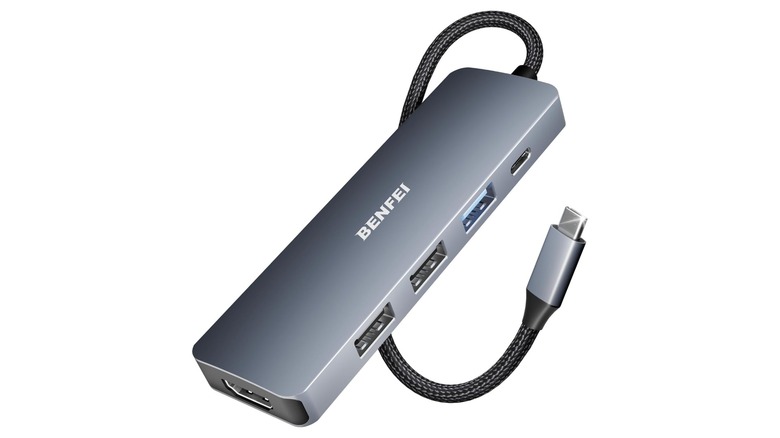
If you use a modern Chromebook, the multi-port hub is the single most important peripheral in your bag. Most mid-range and premium models have ditched the HDMI port and traditional USB-A slots to save space. A high-quality hub restores these connections, allowing you to build a mobile workstation anywhere. When searching for USB-C hubs for Chromebook productivity, the most critical feature to look for is Power Delivery (PD) passthrough.
A hub with 100W PD allows you to plug your laptop charger directly into the hub, which then sends power to your laptop while managing all your other peripherals. This keeps your workspace clean and ensures your device stays charged during intensive tasks. Furthermore, aim for a hub that supports 4K@60Hz video output. Many cheaper hubs cap the refresh rate at 30Hz, which results in a "jittery" mouse cursor and choppy window movements on an external monitor. For professionals handling data, ensure the hub offers high-speed data transfer rates of at least 5 Gbps, though 10Gbps is preferable for moving large video files quickly.
Hardware Specifications
- Upstream Port: USB-C with 100W Power Delivery support (usually 85W net to laptop)
- Video Output: HDMI 2.0 supporting 4K at 60Hz
- Data Ports: At least two USB-A 3.2 Gen 1 ports (5 Gbps)
- Construction: Aluminum housing for heat dissipation and EMI shielding to prevent 2.4GHz wireless interference
2. Ergonomic Wireless Mouse: Precision Beyond the Trackpad
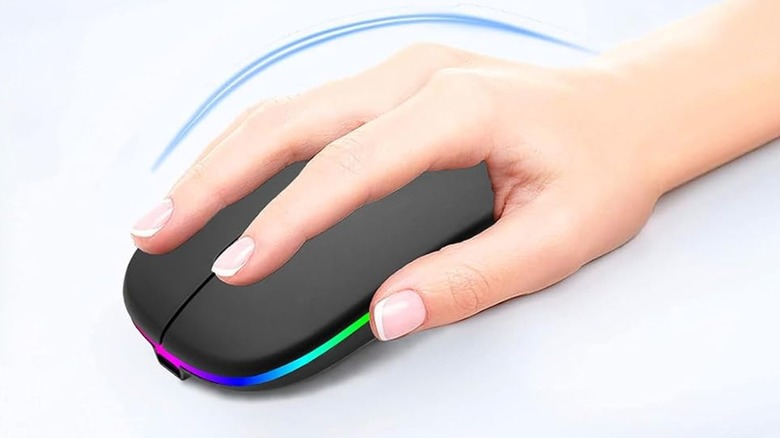
While Chromebook trackpads have improved significantly over the years, they still cannot compete with the precision and ergonomic benefits of a dedicated mouse. Research indicates that computer users are 50% more productive and 30% faster when using an external mouse compared to a laptop trackpad. For a student writing a thesis or a remote worker managing complex spreadsheets, that 30% speed increase translates to hours of saved time every week.
Beyond speed, there is a health component to consider. Studies have found that using a built-in trackpad can cause a 45% increase in neck and shoulder muscle activity compared to using an external mouse. An ergonomic wireless mouse allows your hand to rest in a more natural position, reducing the risk of repetitive strain injuries. For Chromebook users, look for "Plug & Go" models that use a small 2.4GHz USB receiver or direct Bluetooth pairing. This ensures immediate compatibility without needing to install specialized drivers, which can sometimes be a hurdle on ChromeOS. These affordable Chromebook USB accessories are often available for under $20, providing an incredible return on investment for your physical comfort.
Hardware Specifications
- Connectivity: Dual-mode (Bluetooth + 2.4GHz Wireless with USB-A receiver)
- Battery Life: 12 to 18 months on a single AA battery
- DPI: Adjustable sensitivity (e.g., 1000 to 1600 DPI) for different screen resolutions
- Compatibility: Verified plug and play wireless mice for Chromebook business use
3. Dual-Interface Flash Drives: Seamless Cross-Platform Storage
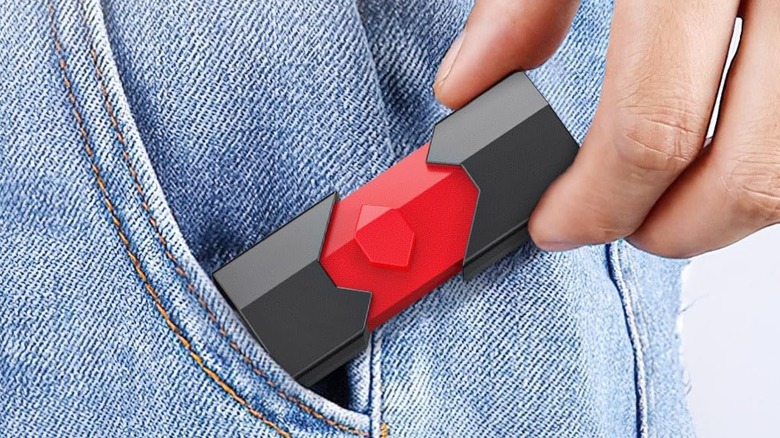
We live in a multi-device world. You might start a project on a school desktop with old-school USB-A ports and then need to finish it on your sleek, USB-C-only Chromebook at home. This is where dual interface USB flash drives for Chromebook file transfer become indispensable. These drives feature a "swivel" or "slide" design with a USB-C connector on one end and a traditional USB-A connector on the other.
When selecting storage, pay attention to the factory formatting. ChromeOS works best with exFAT or FAT32. Most modern high-capacity drives come formatted as exFAT, which allows for large file sizes (over 4GB) and works perfectly across Windows, macOS, and ChromeOS. For photographers or students using their Chromebook as a mobile workstation, a drive with 10Gbps transfer speeds can move a 20GB 4K video file in about 16 seconds, compared to several minutes on an older USB 2.0 drive.
Hardware Specifications
- Connectors: 1x USB-C and 1x USB-A (USB 3.1 or 3.2 Gen 1)
- Capacity: 64GB to 256GB is the "sweet spot" for value
- Read Speeds: Minimum 150MB/s for snappy file access
- Security: Look for models with a lanyard hole to prevent losing the tiny drive during commutes
4. USB Ring Light: Elevating Your Video Conferencing Presence
The rise of remote work and distance learning has made Google Meet a daily reality for millions. Unfortunately, the webcams on many budget-friendly Chromebooks struggle in low-light environments, leading to grainy, unprofessional video quality. A compact, bus-powered USB ring light is a simple solution to this problem. Because these lights draw power directly from your Chromebook port, you don't need to hunt for a wall outlet.
The best USB ring lights for Chromebook video conferencing offer adjustable color temperatures. Usually, you can toggle between a warm yellow (3,200k) for a cozy evening vibe and a cool white (6,500k) that mimics natural daylight. This flexibility is vital for maintaining a professional appearance regardless of the time of day. Since they are lightweight and clip onto the top of your screen or stand on a small tripod, they are perfect for mobile users who change work locations frequently.
Hardware Specifications
- Power Source: USB-A or USB-C bus-powered (no external adapter required)
- Lighting Modes: 3 color temperatures (Warm, Natural, White)
- Brightness Levels: At least 10 levels of dimming
- Mounting: Heavy-duty clip-on or compact collapsible tripod

Pro Guide: How to Choose the Right Chromebook Peripherals
Navigating the world of hardware can be tricky, especially with the variety of Chromebook models on the market. To ensure you are getting the best Chromebook peripherals for work, follow this technical checklist before you hit the "buy" button.
First, check for DisplayPort Alt Mode support. If you are buying a USB-C hub specifically for an external monitor, your Chromebook's USB-C port must support DisplayPort Alt Mode to output video. Most modern Chromebooks do, but it is worth a quick Google search of your specific model number. Second, prioritize stability. A common stability tip for multi-port hubs is to connect your power source to the hub before plugging in power-hungry peripherals like external hard drives. This ensures the system doesn't experience a momentary power drop that could disconnect your devices.
Finally, remember that the Google ecosystem thrives on plug-and-play functionality. Avoid any device that requires a ".exe" or ".dmg" driver installation file, as these will not run on ChromeOS. Stick to accessories that are advertised as "Works with Chromebook" or generic USB-class compliant devices.
Technical Comparison Table
| Gadget Category | Top Priority Feature | Recommended Speed/Power | Best For |
|---|---|---|---|
| USB-C Hub | PD Passthrough | 100W Power / 4K@60Hz | Desktop setups |
| Wireless Mouse | Ergonomic Design | 2.4GHz + Bluetooth | Long work sessions |
| Flash Drive | Dual Interface | 10Gbps (USB 3.2 Gen 2) | Cross-platform files |
| Ring Light | Adjustable Temp | 3,200K - 6,500K | Video calls & meetings |
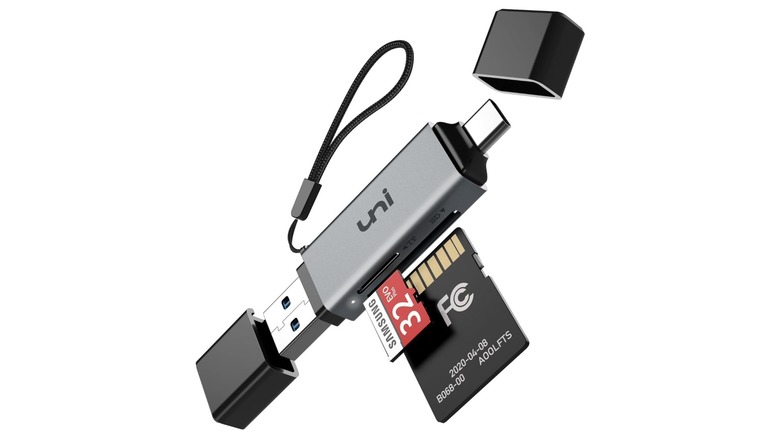
| SD Card Reader | UHS-I Support | 100MB/s | Photography workflows |
By focusing on high-quality build materials and verified compatibility, you can effectively turn a $300 laptop into a high-performance workstation. Whether you need best Chromebook USB gadgets for home office productivity or a compact kit for your backpack, these choices will ensure you aren't held back by your hardware.
FAQ
What USB devices are compatible with Chromebooks?
Most standard USB devices are compatible with Chromebooks as long as they follow "plug-and-play" standards. This includes mice, keyboards, webcams, headsets, flash drives, and external monitors. ChromeOS has built-in drivers for most generic hardware classes, so as long as the device doesn't require proprietary Windows-only software to function, it should work the moment you plug it in.
Can I use a USB hub with a Chromebook?
Yes, you can absolutely use a USB hub with a Chromebook. In fact, for devices with only one or two USB-C ports, a hub is highly recommended. Look for USB-C PD passthrough hubs for Chromebook charging to ensure you can charge your laptop while using the hub's ports. Just ensure the hub is "bus-powered" or has its own power input to handle multiple connected devices.
Do USB mice and keyboards work on ChromeOS?
Standard USB mice and keyboards work perfectly on ChromeOS. Whether they are wired via USB-A/USB-C or wireless via a 2.4GHz dongle, they are recognized instantly. Multimedia keys for volume and brightness usually work without any configuration, making them excellent Chromebook USB gadgets for anyone who finds the laptop's built-in keyboard or trackpad limiting.
Can you connect an external hard drive to a Chromebook?
Yes, external hard drives and SSDs can be connected to a Chromebook. For the best experience, ensure the drive is formatted as exFAT or FAT32, which allows for read/write access. While ChromeOS can read NTFS (Windows) formatted drives, it may sometimes have issues writing to them. For high-speed tasks, using a USB 3.0 or higher connection is recommended to avoid bottlenecks.
Do I need a special adapter for USB accessories on a Chromebook?
You only need a special adapter if your accessory's connector doesn't match the port on your Chromebook. Since most new Chromebooks only have USB-C ports, you may need a USB-C to USB-A adapter or a multi-port hub to use older peripherals. When learning how to choose the right USB-C adapter for Chromebook models, prioritize those with high build quality and support for the specific data speeds your devices require.