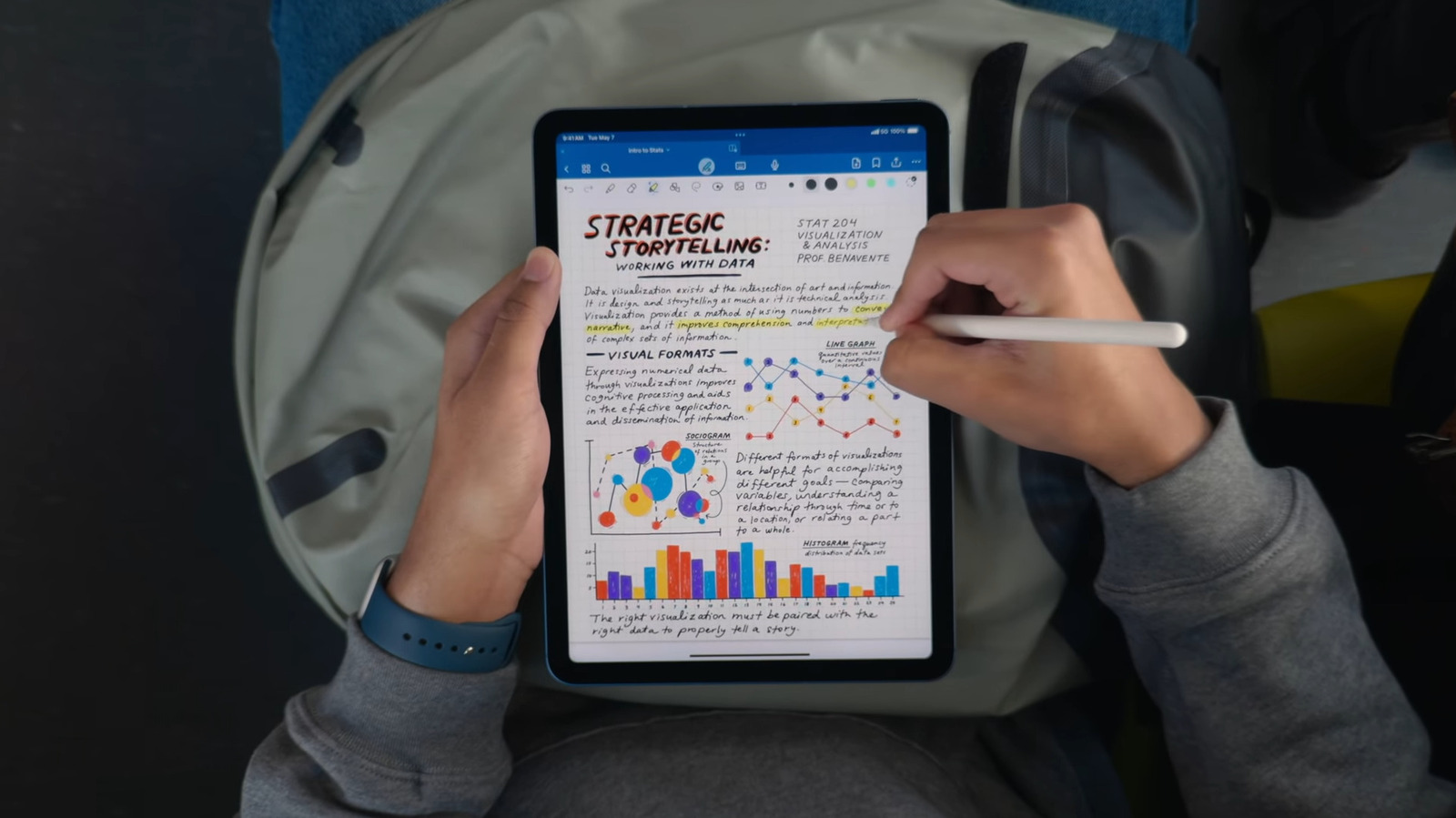
Most people treat their iPad like a big iPhone, but you're likely using it wrong. With iPadOS 26.2, your tablet is closer to a laptop replacement than ever. Here are 5 hidden powers to transform your digital workspace.
Quick Facts
- Laptop Replacement Reality: 54 percent of business professionals use the iPad to only partly replace their laptop; only 16 percent go full tablet.
- Market Trend: The high-end iPad Pro holds a 43 percent market share in the United States as users seek desktop-class power.
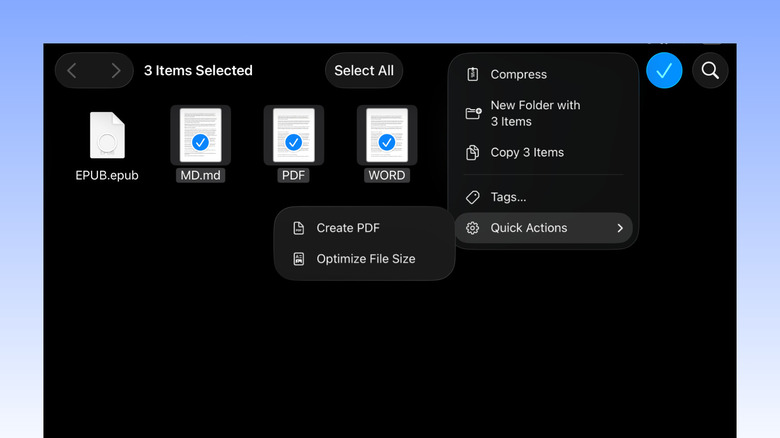
- Top Productivity Hack: Native PDF merging in the Files app eliminates the need for expensive third-party software.
- Gesture Mastery: 4-5 finger swipes are the fastest way to switch between active apps, significantly outperforming the Dock.
- Windowing Update: Stage Manager now supports managing up to 16 apps through grouped sets, allowing for complex multitasking.
To merge multiple files into a single PDF on an iPad, open the Files app and select the documents or images you wish to combine. Use the contextual menu to select the Create PDF option, which generates a new document in the same folder without requiring third-party software. This built-in tool supports various file types, including JPG, DOC, and TXT files, making it an efficient way to declutter storage and share consolidated files.
Power 1: The 'Desktop-Class' Files App
For years, the biggest complaint about the iPad was that it felt like a toy because of its limited file management. That has changed. If you are still looking at a grid of giant, colorful icons, you are missing out on the desktop-class experience that makes the iPad a true productivity machine. The Files app is no longer just a place where downloads go to die; it is a full-fledged file manager that can mimic a Mac.
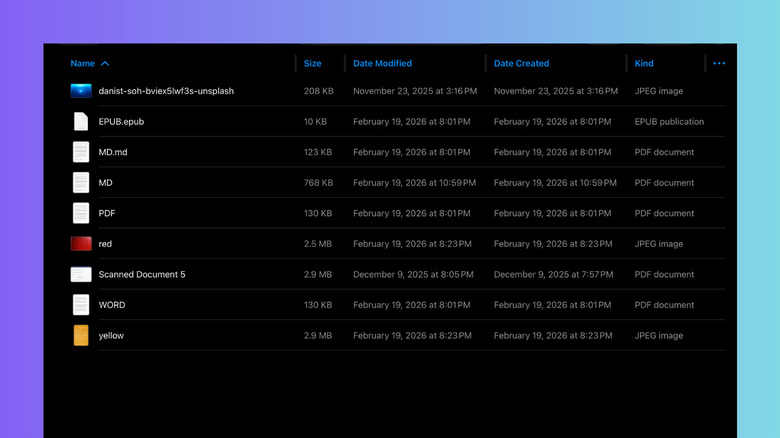
To start, you need to change your perspective—literally. Open the Files app and look for the View icon (the square with lines or dots). Tap it and select the List option. Suddenly, your files are organized in a way that makes sense for work. You get metadata columns that show file size, kind, and the date modified. This is essential for batch file processing when you are looking for the most recent version of a presentation or checking if a video file is too large to email.
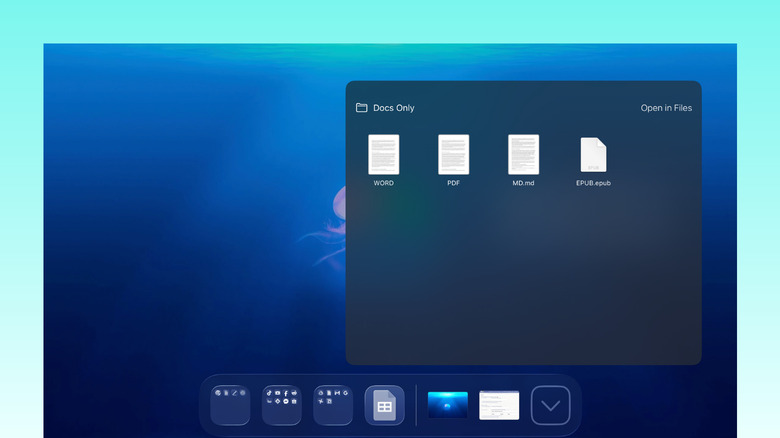
Sarah’s Tip: If you are working on a long-term project, don't keep digging through folders. You can drag and drop frequently used file folders directly onto the Dock at the bottom of your screen. This creates an instant shortcut to your active digital workspace, allowing you to jump into your work from any app.
Another often overlooked iPad Files app guide feature is the ability to connect to external servers or cloud services directly. If you have a NAS at home or use a specific corporate server, you can connect via Files > Browse > Three Dots Icon > Connect to Server. This turns your tablet into a portal for your entire paperless office setup.
Power 2: Multitasking Like a Pro
One reason users struggle with iPad productivity tips is that they try to use the device one app at a time. To truly unlock the potential of iPadOS hidden features, you have to master window management. There are two primary ways to do this: Split View and Stage Manager.
Split View is perfect for when you need two things side-by-side, like a research paper and a note-taking app. But the real "pro" move is learning how to open two windows of the same app iPad multitasking. Imagine having two different Safari tabs open side-by-side to compare prices, or two different Apple Notes windows to move information between projects. To do this, simply long-press an app icon in the Dock and select "Show All Windows," or drag a second instance of the app from the Dock onto your current screen.
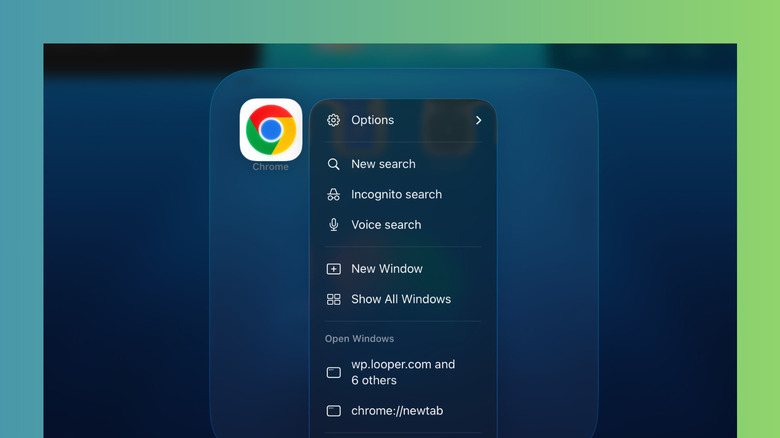
If you have a M-series iPad or a recent Pro model, Stage Manager is where the magic happens. Go to Settings > Multitasking & Gestures and enable Stage Manager. This allows you to have overlapping windows, much like a laptop. It is particularly powerful because it supports a drag-and-drop workflow where you can pull an image from a browser window directly into a Keynote slide.
| Feature | Split View | Stage Manager |
|---|---|---|
| Best For | Side-by-side reference | Heavy multitasking |
| Max Apps | 2 Apps + 1 Slide Over | Up to 4 on iPad, 16 in groups |
| External Display | Mirrored only (usually) | Full extended desktop support |
| Learning Curve | Low | Moderate |
Power 3: Secret Gesture Navigation
The most efficient iPad users rarely touch the Home button or even the Dock. They rely on iPad navigation shortcuts that use "Gesture Geography"—specific movements that become muscle memory. If you are still swiping up to go home every single time you want to switch apps, you are wasting precious seconds.
- The Four-Finger Swipe: Place four or five fingers on the screen and swipe left or right. This instantly cycles through your recently used apps. It is the fastest way to jump between a spreadsheet and a Slack conversation.
- The App Switcher Pinch: Instead of swiping up from the bottom, try pinching with five fingers. A quick pinch brings you back to the Home screen, while a slower, more deliberate pinch opens the App Switcher.
- Corner Swipes: By default, swiping up from the bottom-left corner with an Apple Pencil or finger will take a screenshot. Swiping up from the bottom-right corner triggers a Quick Note.
These iPad multi-finger navigation gestures for beginners might feel clunky at first, but once you master them, you’ll find that you are navigating your digital workspace much faster than you ever could with a mouse.
Power 4: The Apple Pencil Efficiency Hub
If you own an Apple Pencil, it shouldn't just be for drawing. It is a precision tool designed for document annotation and quick input. The most powerful tool in the Pencil's arsenal is the Quick Note.
You can quickly capture ideas on an iPad by swiping up from the bottom-right corner of the screen with an Apple Pencil or a finger to trigger a Quick Note. If the device is on the Lock Screen, tapping it once with an Apple Pencil will instantly open a new note for scribbling. These notes are automatically saved and organized within a dedicated folder in the Notes app, allowing for seamless retrieval and management of sudden inspirations or important reminders. This is a game-changer for meetings where you need to jot down a phone number or a task without fumbling to unlock your device and find an app.
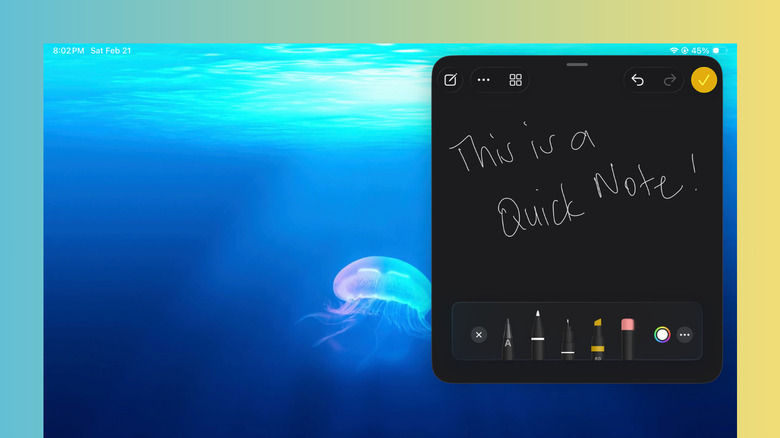
For those using iPadOS 18 or later, look out for the Image Wand. This uses on-device AI to transform your rough Apple Pencil Quick Note gestures and shortcuts into polished illustrations. If you circle a rough sketch of a chart or a lightbulb, the iPad can generate a clean version of that image that looks professional.
Hardware Note: While the iPad Mini is the king of portable note-taking, the iPad Pro’s 120Hz ProMotion display makes the Apple Pencil feel much more responsive, reducing the lag between the tip and the "ink" appearing on the screen.
Power 5: System Automation and AI
The final step in moving from a casual user to a power user involves iPadOS automation. Most people ignore the Shortcuts app, but it is the key to creating a customized laptop replacement experience.
You can set up an automation that automatically triggers Stage Manager and opens your "Work" app group (like Mail, Calendar, and Safari) the moment you connect your iPad to a specific Wi-Fi network or an external Magic Keyboard. This removes the friction of setting up your desk every morning.
Another hidden power user features gem is the "Screenshot-to-Calendar" trick. If you see a flyer for an event or an email with a date, take a screenshot. iPadOS uses advanced OCR (Optical Character Recognition) to detect the text. Tap the date in the screenshot, and you can instantly add it to your calendar without typing a single word.
Finally, don't forget about Settings > Accessibility > Touch > Back Tap. You can set your iPad to perform a specific action, like opening the Files app or triggering a Shortcut, just by double or triple-tapping the back of the device.
FAQ
What are the best hidden features of iPadOS?
Some of the best hidden features include native PDF merging in the Files app, the ability to use the iPad as a second monitor for a Mac via Sidecar, and the "Long Press" on images to instantly lift a subject from its background to use in other apps. Additionally, the ability to drag folders to the Dock for quick access transforms how you manage active projects.
What are some iPad gestures I might not know about?
Beyond basic swiping, you can use a five-finger pinch to return to the Home screen or a four-finger swipe to switch between apps. Tapping the Spacebar on an external keyboard twice can also act as a shortcut to search the entire system via Spotlight. Swiping from the corners of the screen also allows for instant screenshots or Quick Notes.
How do I use hidden Apple Pencil shortcuts?
The Apple Pencil can trigger a Quick Note by swiping up from the bottom-right corner. You can also tap the Lock Screen with the Pencil to start a note instantly. In many apps, you can use the Pencil to "Scribble," which converts your handwriting into typed text in any text field, eliminating the need for the on-screen keyboard.
What are the most useful iPad productivity hacks?
Using the Files app in List View with metadata columns is a major productivity booster. Other hacks include using Split View to run two windows of the same app, setting up Shortcuts to automate repetitive tasks, and using the "Live Text" feature to copy text directly from any photo or video frame.
How do I find secret file management tools in iPadOS?
Most "secret" tools are found in the contextual menus of the Files app. By long-pressing a file or folder, you can access tools to compress files into ZIP archives, convert images to different formats, or use the "Scan Documents" feature to create high-quality PDFs using the iPad's camera. You can also enable a Mac-like sidebar by tapping the Sidebar icon in the top left of the Files app.