Quick Facts
- Primary Goal: Transforming an Android tablet into a lag-free, high-performance external monitor for Windows.
- Top Software Choice: SuperDisplay is the industry favorite, offering a one-time $14.99 purchase and a 3-day free trial.
- Connectivity Advantage: Using a USB connection supports up to 120Hz refresh rates and eliminates the lag common with Wi-Fi setups.
- Compatibility: Works seamlessly with Android 5.0 or later and Windows 10 or 11 systems.
- Productivity Impact: Dual-monitor setups are proven to increase user efficiency by 42% to 44% depending on the task.
- Creative Bonus: Supports pressure-sensitive stylus input, essentially turning your tablet into a professional graphics display.
To use an Android tablet as a monitor, install a display driver on your Windows PC and a compatible app like SuperDisplay or Duet Display on your tablet. Connecting via a USB cable provides a high-performance, low-latency connection compared to Wi-Fi. Once the software is configured, Windows will recognize the tablet as a standard external display, allowing you to extend your desktop and manage settings through the system display menu.
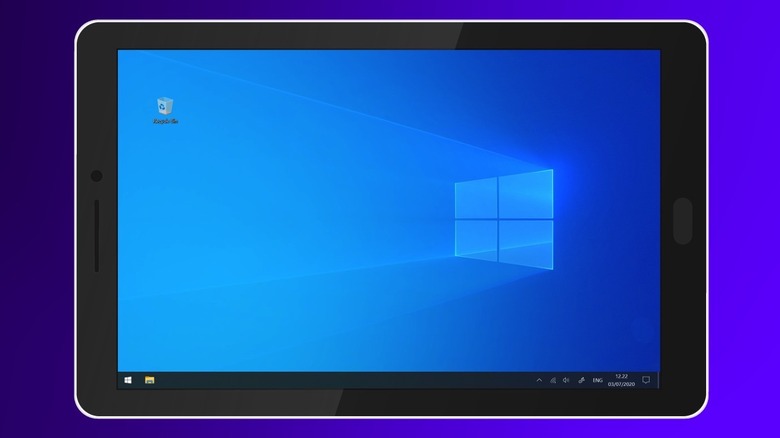
Using an Android tablet as a USB monitor allows you to repurpose older hardware into a portable workstation. This setup is particularly effective for travelers needing a dual-monitor environment without the bulk of traditional displays. Beyond screen real estate, many of these apps support pressure-sensitive stylus input, transforming the tablet into a functional graphics monitor for Windows-based creative software like Adobe Photoshop.
Why USB Beats Wi-Fi for Your Portable Workstation
We have all been there: you try to use a wireless screen mirroring app, and the cursor feels like it is moving through molasses. Wireless technology has come a long way, but for a professional portable workstation, it often falls short. The interference from other signals and the inherent limitations of Wi-Fi bandwidth lead to dropped frames and frustrating input lag. This is why a low latency usb connection for android tablet monitor setups is the gold standard for anyone serious about getting work done.
When you use tablet as second screen via USB, you are creating a direct data pipeline. This results in frame rate optimization that can reach 120Hz on supported hardware, making the experience feel as native as your primary laptop screen. Whether you are dragging windows across the desktop or scrolling through long documents, the responsiveness is night and day compared to wireless alternatives.
Beyond the technical performance, there is the undeniable benefit of multitasking efficiency. Research conducted by the University of Utah found that users with dual-monitor setups can experience a productivity boost of up to 44% for text editing and 29% for spreadsheet tasks compared to using a single screen. When you add more screen real estate, you stop hunting for tabs and start finishing projects. In fact, an industry survey by Jon Peddie Research reported that the average productivity increase for professionals using multiple displays is approximately 42%.
This is not just about having more pixels; it is about workspace ergonomics. Being able to keep your Slack or email open on your tablet while you focus on your main work on the laptop screen reduces cognitive load. According to software developer Mavenlink, 73% of businesses lose at least one hour of productivity per day per employee because of the time spent toggling between different applications. Repurposing old android tablet as portable pc monitor is a simple, cost-effective way to reclaim that hour.
Step-by-Step: Setting Up SuperDisplay for Windows
If you are ready to stop squinting at a single screen, SuperDisplay is my top recommendation. It is designed specifically for Windows and Android, focusing on performance above all else. Here is how to use android tablet as second monitor via usb using this specific tool.
- Download the Windows Display Driver: Visit the official SuperDisplay website on your PC and download the Windows display driver. This small piece of software tells your computer how to treat your tablet as a legitimate monitor rather than just a storage device. Follow the installation prompts and restart your computer if requested.
- Install the Android App: Head to the Google Play Store on your tablet and download the SuperDisplay app. You can try it for free for three days to ensure it works with your specific hardware before committing to the one-time purchase.
- Enable USB Debugging: For many tablets, simply plugging them in will work. However, to ensure a stable low latency usb connection for android tablet monitor use, you might need to enable USB Debugging. Go to Settings > About Tablet, tap "Build Number" seven times to unlock Developer Options, and then toggle on USB Debugging.
- Physical USB-C Connectivity: Connect your tablet to your laptop using a high-quality USB-C or USB-A to USB-C cable. While some older cables only support charging, you need one that handles high-speed data transfer to maintain the best frame rate.
- Adjust Windows Display Settings: Once connected, open the app on your tablet. Windows should chime, recognizing a new display. Right-click on your desktop, select "Display Settings," and choose "Extend these displays." You can then drag the virtual monitor icon to match where your tablet sits physically on your desk.
Pro Tip: If your tablet has a high-refresh-rate screen (like 120Hz), make sure to go into the "Advanced Display Settings" in Windows and manually set the refresh rate to match. This makes the experience feel incredibly fluid.
Beyond Monitoring: Android Tablet as a Graphics Tablet
One of the most overlooked features of using an Android tablet as monitor is the ability to leverage the hardware's touch and pen capabilities. If you own a device with an active stylus, like a Samsung Galaxy Tab with an S-Pen, you are sitting on a professional-grade creative tool.
When you use the SuperDisplay app for Windows, it passes through pressure-sensitive stylus data. This essentially turns your device into an android tablet as graphics tablet for windows photoshop or Illustrator. Instead of buying a separate, expensive drawing monitor like a Wacom Cintiq, you can use your existing tablet. The GPU hardware acceleration in modern tablets ensures that your brush strokes appear without delay, which is critical for digital artists and designers.
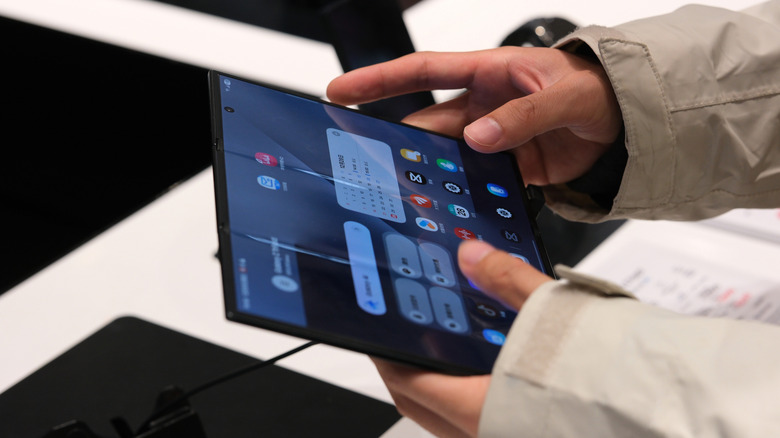
The multitasking efficiency here is massive. You can have your tools and layers on your main laptop screen while using the entire surface of the tablet for your canvas. Because it is a USB connection, the pressure sensitivity is translated accurately, allowing for thick and thin lines based on how hard you press. This is a game-changer for anyone doing photo retouching or digital illustration on the go.
Troubleshooting and Optimization: SuperDisplay vs Duet Display
While SuperDisplay is my favorite for its simplicity and performance, it is worth comparing it to other market leaders like Duet Display. Choosing the right screen mirroring software depends on your specific needs and your budget.
| Feature | SuperDisplay | Duet Display |
|---|---|---|
| Price | $14.99 (One-time) | Subscription-based ($24+/year) |
| Connectivity | USB & Wi-Fi | USB, Wi-Fi, & Remote Desktop |
| Stylus Support | Pressure-sensitive included | Requires higher-tier subscription |
| Platform | Windows & Android only | Windows, Mac, iOS, Android |
SuperDisplay vs Duet Display for android tablets usually comes down to the pricing model. If you only use Windows and Android, SuperDisplay is the clear winner because of its one-time fee and superior frame rate optimization. Duet Display is better if you live in a cross-platform world, moving between MacBooks and Android tablets frequently.
If you encounter issues, the first thing to check is the cable. A cheap charging cable will often cause the connection to drop or result in significant input lag. Always use a cable rated for USB 3.0 or higher. Additionally, check your Windows GPU settings. Sometimes, forcing the display driver to run on your dedicated graphics card (if your laptop has one) can solve stuttering issues.
FAQ
How can I use my Android tablet as a second monitor for my PC?
To use your tablet as a second screen, you need to install a display driver on your Windows PC and a companion app on your Android tablet. Using a dedicated app like SuperDisplay allows your PC to treat the tablet as a standard plug-and-play monitor. Once connected via USB, you simply go to your Windows Display Settings to extend your desktop onto the tablet.
What is the best app to turn an Android tablet into a monitor?
SuperDisplay is widely considered the best app for this purpose due to its low latency, support for 120Hz refresh rates, and one-time purchase price. It offers the most stable experience for Windows users. Duet Display is a strong alternative if you require cross-platform support for macOS or need to access your computer remotely.
Can I use an Android tablet as a monitor via USB?
Yes, using a USB connection is actually the recommended method for the best performance. While many apps offer Wi-Fi connectivity, a USB cable significantly reduces lag and prevents interference issues. This makes it possible to use the tablet for high-precision tasks like video editing or digital drawing without the frustration of delay.
Is there a way to use a tablet as a monitor without Wi-Fi?
Absolutely. By using a USB-C or micro-USB cable, you can establish a direct data link between your PC and tablet. This bypasses the need for a local network or internet connection entirely, which is perfect for working in cafes, on planes, or in any environment where Wi-Fi is unreliable or unavailable.
Does using a tablet as a second screen cause input lag?
When using a Wi-Fi connection, you will likely notice some input lag, especially with fast mouse movements. However, when you use a high-quality USB cable and software optimized for low latency, the lag becomes virtually imperceptible. Most users find that a wired setup feels just as responsive as a traditional desktop monitor.
Repurposing your hardware is one of the smartest tech moves you can make. Whether you are using a brand-new Galaxy Tab or an older device you found in a drawer, turning that screen into a dedicated workspace tool is a win for both your wallet and your productivity. Give it a try—you might find that your portable workstation isn't complete without that second screen.