Quick Facts
- 2026 Availability: Primary address changes are now native for most eligible personal accounts, eliminating the need to start from scratch.
- Cooldown Period: For security and stability, Google limits these primary updates to once every 12 months.
- Professional Impact: Recent data shows that 76% of recruiters and hiring managers dismiss resumes immediately if they feature an unprofessional email address.
- Data Safety: Your Google Drive files, Google Photos, and existing mail history are fully preserved during the transition.
- The Alias System: Your old address automatically becomes an alternate alias, ensuring you never miss a message sent to your previous identity.
- Corporate Adoption: Gmail remains the industry standard, with approximately 90% of startups and 60% of mid-sized companies in the US utilizing it for business management.
To change your Gmail username, log into your Google Account, navigate to the Personal Info section, and select your email under Contact Info. If your account is eligible, select the option to Change Google Account email, enter your new desired username, and verify your identity to update your primary address without creating a completely new account. This process allows you to modify your identity while keeping your full account history and data intact.
Why Your Gmail Username Matters: Branding and Professionalism
As someone who has spent years benchmarking hardware and optimizing workflows, I have seen how the small details often dictate the overall success of a system. The same logic applies to your digital identity. In the early days of the internet, having a quirky or eccentric email address was a rite of passage. However, as of 2025, Gmail has grown to over 1.8 billion active users worldwide. In this crowded landscape, your email address is often the first "spec sheet" a potential employer or client reads.
If you are still using a handle created in high school, you are likely working against yourself. Professional communication requires a clear, identifiable brand. When you use a professional name for job search purposes, you are signaling that you understand modern business etiquette. It is essentially the difference between showing up to a meeting in a custom-tailored suit versus a graphic tee from a decade ago. Both serve a purpose, but only one belongs in the boardroom.
It is also important to understand exactly what we are changing. Many users confuse their display name with their actual username. Here is a quick breakdown to help you differentiate:
| Feature | Display Name | Email Address (Username) |
|---|---|---|
| What it is | The name appearing in the "From" field | Your unique @gmail.com identifier |
| Usage | Cosmetic identification | Your login credential and routing ID |
| Frequency | Can be changed frequently | Restricted by a twelve-month limit |
| Impact | Affects how your name looks in the inbox | Affects branding and account synchronization |
Making the Gmail email alias transition ensures that you maintain the professional edge needed in 2026 without the headache of managing a dozen different accounts.
Before You Begin: The Safety Checklist and Eligibility
Before we dive into the settings, we need to talk about system stability. Just as you wouldn't overclock a CPU without checking your cooling solution, you shouldn't modify Google account email settings without understanding the constraints.
First, Google enforces a cooldown period. While you can change your Gmail username if your account meets the criteria, you are generally limited to one change every 12 months. Furthermore, there is a lifetime cap of three changes for most users to prevent identity spoofing and spam. If you try to change it and the option is grayed out, you likely need to perform a google account email change eligibility check 2026 by looking at your account age and recent security activity.
Warning for Chromebook and Remote Desktop Users
If you use a Chromebook or rely on Chrome Remote Desktop, proceed with caution. Your primary email address is the "anchor" for your device encryption. Changing your username may require you to sign out and back in on all hardware. In some cases, you may need to Powerwash your Chromebook to sync the new primary address correctly. Always ensure you have your backup codes or a secondary 2FA method ready before initiating the change.
Additionally, if you are using a legacy G Suite account or a managed Google Workspace account provided by an employer, you likely cannot modify Gmail address without new account access being granted by your IT administrator. This guide focuses on personal @gmail.com accounts.
Step-by-Step: Changing Your Gmail Username (Desktop & Mobile)
The process is streamlined for 2026, but the UI path requires precision. Whether you are on a high-end desktop or a mobile device, the goal is to reach the central identity hub of your Google profile.
Method 1: Desktop Browser (Recommended)
- Open your browser and navigate to the Google Account portal (myaccount.google.com).
- On the left-hand navigation rail, click on Personal info.
- Scroll down to the Contact info section and click on the Email row.
- Look for the Google Account email section. If your account is eligible, you will see an arrow or an Edit icon next to your address.
- Select Change Google Account email. You will be prompted to re-enter your password for security.
- Enter your new professional username. Google will check for availability in real-time.
- Confirm the change. You will receive a verification link at your new address or a backup notification.
Method 2: Mobile App (Android & iOS)
- Open the Gmail app or the Google app on your device.
- Tap your Profile Picture in the top right corner and select Manage your Google Account.
- Tap the Personal info tab at the top.
- Under Contact info, tap on Email.
- Tap on Google Account email.
- Follow the on-screen prompts to update your address.
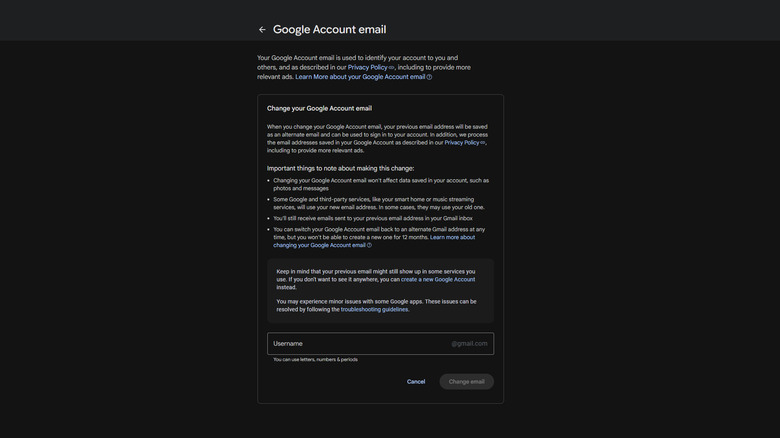
One of the biggest concerns users have is data integrity. I can confirm that you can update gmail username without losing google drive and photos history. Because you are modifying the existing account metadata rather than migrating to a new "box," your files remain exactly where they are. Your login credentials for the new address will be the same as your old one, though you may need to re-authenticate on some third-party apps that use Google Sign-in.
Post-Transition: Managing Aliases and Modern Inbox Optimization
Once the change is live, your old address doesn't just disappear into the digital void. It undergoes a Gmail email alias transition. Your former username becomes an alternate email address linked to your account. This is a massive win for productivity because any mail sent to your old "unprofessional" address will still land in your current inbox.
In 2026, we can take this a step further using Gemini AI integration. I recommend setting up a specific filter for mail arriving via your old alias. You can prompt Gemini to "Summarize all incoming mail sent to [old address] once a week" so you can slowly transition your subscriptions and contacts to the new identity without missing anything critical.
If you find that your desired name is taken, don't forget the "dot trick." Gmail ignores periods in usernames. While it doesn't change your actual login ID for the sake of creating a "new" account, using dots can help with email branding on business cards or resumes. For example, "ryankim@gmail.com" and "ryan.kim@gmail.com" are seen as the same account by Google, but the latter often looks cleaner in professional print.
Finally, take a moment to update your signature and set up an auto-reply on your account for the first 30 days. A simple message stating, "My email address has been updated to [new address]. Please update your records," goes a long way in completing your professional transition.
FAQ
Can I change my Gmail email address?
Yes, most personal Google accounts are now eligible to change their primary email address directly through the account settings. However, this is subject to eligibility requirements such as account age and whether the account is managed by an organization.
Can I edit my current Gmail username without starting over?
You can indeed modify your primary username without creating a brand-new account. This allows you to keep all your emails, contacts, and Google Drive files while simply updating the address people use to contact you.
Will changing my Gmail address delete my existing emails?
No, your existing data remains untouched. Because you are updating the identity of the existing account rather than starting a new one, your entire history, including Google Photos and Drive, stays fully accessible under the new username.
Why is the option to change my Gmail address unavailable?
The option might be grayed out if you have changed your address within the last 12 months, if you are using a Workspace account managed by an employer/school, or if your account has recently undergone significant security changes.
Is there a limit on how many times I can change my name in Gmail?
Google typically limits primary email address changes to once every 12 months to prevent abuse. There is also a general lifetime limit of three changes for most accounts to maintain system integrity and security.