Quick Facts
- Launch Date: A phased rollout for Google Meet CarPlay began on March 23, 2026, with full availability expected shortly after.
- Format: The integration is strictly audio-only, disabling all video feeds to ensure safety.
- Requirements: Users must have an iPhone running iOS 17 or newer with the latest app version installed.
- Connectivity: Supports both wired and wireless vehicle infotainment system connections.
- Account Support: Available for personal accounts, Google Workspace customers, and Individual subscribers.
- Safety Features: Interactive elements like chat and polls are restricted unless the vehicle is parked.
Google Meet CarPlay integration is here, transforming your vehicle into a mobile office without compromising safety. This audio-centric experience allows professionals to join calls via a single tap on their infotainment system. Whether you are using a personal account or Google Workspace tools, staying connected during your commute has never been easier or safer.
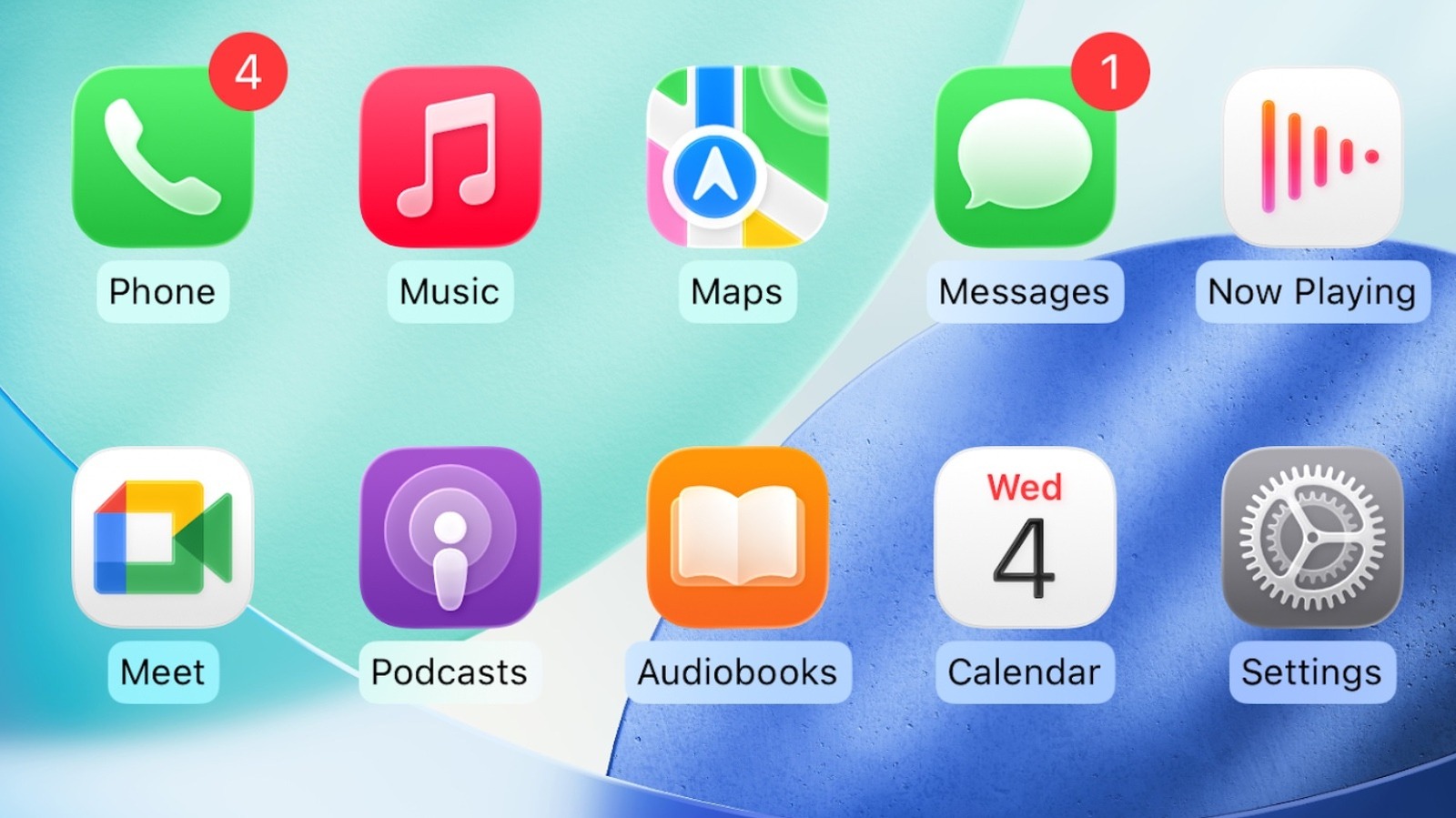
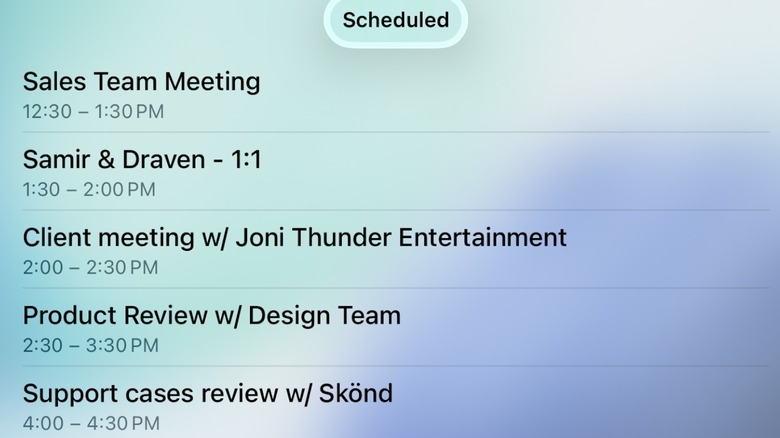
To use Google Meet on Apple CarPlay, ensure the Meet app is installed and logged into your account on your iPhone. Once connected to your vehicle's infotainment system, the Meet icon will appear on the dashboard, allowing you to view upcoming scheduled meetings and join calls with a single tap.
Setting Up Google Meet Apple CarPlay
For many of us, the morning commute is the only quiet time we have before the day accelerates. With the latest update, that time can now be used for conference call management without the fumbling and danger of holding a mobile device. However, before you hit the road, there are specific requirements for Google Meet Apple CarPlay integration that you need to check.
The most critical step is ensuring your hardware is up to date. You will need an iPhone running iOS 17 or newer. If you are holding onto an older model or haven't updated your software in a while, the app simply won't bridge to your car display. Next, head to the App Store and verify that you are running the latest version of the Google Meet app. This isn't just a recommendation; the CarPlay functionality is baked into recent builds specifically to support this hands-free communication.
Once your software is ready, the Google Meet Apple CarPlay setup is relatively automatic. When you plug your iPhone into your car's USB port or connect via wireless CarPlay, the app icon should populate on your home screen. If it does not appear immediately, do not panic. Google has stated that the rollout may take up to 15 days for all users to see the feature. If you still troubleshoot Google Meet not showing on CarPlay after a few weeks, check your CarPlay settings on your iPhone under Settings > General > CarPlay to ensure the app isn't hidden from your active dashboard layout.
The beauty of this setup is that it respects your existing mobile productivity workflow. You don't need to re-login or configure a separate vehicle profile. As long as your iPhone is authenticated, your vehicle becomes a seamless extension of your professional connectivity.
Joining and Managing Meetings from the Dashboard
The user interface for Google Meet on your in-car dashboard display is intentionally sparse. When you open the app on your dash, you are greeted with a list of your upcoming appointments. This is achieved through real-time calendar synchronization, which pulls meetings directly from your Google Calendar. You won't see every single email or chat notification; instead, the focus is entirely on your schedule.
The joining experience is built for speed. Google has optimized this for the driver by allowing a single tap to join. Unlike the mobile or desktop experience, there is no green room where you check your hair or test your lighting. Since the system is audio-only, those steps are redundant. You tap the meeting title, and you are immediately patched into the audio stream.
While you are in the meeting, the controls are large and easy to hit without taking your eyes off the road. You can mute and unmute your microphone or end the call using the touch screen or, in many modern vehicles, your steering wheel buttons. This level of integration ensures that Google Meet CarPlay audio meetings feel like a native part of your car, much like a traditional phone call.
Managing these calls on the go is about more than just joining. The app intelligently handles transitions. If you start a call on your phone while walking to your car, it will automatically switch to the vehicle infotainment system the moment the CarPlay connection is established. This fluidity is what we look for in modern smart device ecosystems—technology that moves with us rather than forcing us to stop and restart.
Safety First: Understanding Audio-Only Limitations
As a mobile tech editor, I often see features that prioritize "more" over "better." However, Google’s approach here is refreshing because it prioritizes safety. The distracted driving prevention logic is built into the very core of this integration. By making Google Meet CarPlay an audio-only experience, Google removes the temptation to look at a colleague's shared screen or check if your own camera is framed correctly.
When you are in a meeting, both your camera and the incoming video feeds from other participants are automatically disabled. You won't even see the profile pictures of the people speaking; the screen remains dedicated to call controls and participant names. Furthermore, screen sharing is completely blocked. If a colleague starts presenting a deck, you will continue to hear the audio, but your car screen will not show the slides.
To help you understand what you can and cannot do while driving, here is a breakdown of the feature set:
| Feature | Available While Driving | Required Action to Unlock |
|---|---|---|
| Audio Participation | Yes | None (Hands-free) |
| Mute/Unmute Controls | Yes | Touch screen or steering wheel |
| View Scheduled Meetings | Yes | None |
| Incoming Video Feeds | No | Disabled for safety |
| Outgoing Camera Feed | No | Disabled for safety |
| View Shared Screens | No | Disabled for safety |
| Chat and Polls | No | Must park and use iPhone |
| Admit/Remove Guests | No | Must park and use iPhone |
There is also a distinction in how Google Meet Apple CarPlay workspace vs personal account features work. While the basic audio functionality is the same, Workspace users may notice that certain enterprise-level security features, such as requiring a knock to enter, are handled differently to keep the driver's hands off the phone. If a meeting requires a password or a complex entry sequence, it is always best to join before you put the car in gear.
The park-to-unlock philosophy is a vital part of joining Google Meet calls safely while driving. If you need to participate in a Q&A via chat or vote in a poll, you will need to pull over. Once the vehicle is stationary and you access your iPhone, the full suite of Google Workspace tools becomes available again. This hardware-enforced limitation is a small price to pay for the peace of mind that comes with staying focused on the road.
FAQ
Can I use Google Meet on Apple CarPlay?
Yes, you can use Google Meet on Apple CarPlay provided your iPhone is running iOS 17 or later and you have the most recent version of the Google Meet app installed. The integration allows for audio-only participation in meetings directly from your vehicle's dashboard.
How do I join a Google Meet call from my car?
To join a call, connect your iPhone to your car via a wired or wireless CarPlay connection. Open the Google Meet app on the CarPlay dashboard, where you will see a list of your upcoming meetings. Simply tap the meeting you wish to join, and the system will immediately connect you to the audio stream.
Does Google Meet support video on CarPlay?
Google Meet does not support video on CarPlay. To prevent distracted driving, both your camera and the video feeds of other participants are strictly disabled. You will only be able to hear the audio and see basic call controls on your car's screen.
Why is Google Meet not appearing on my CarPlay screen?
If the icon is missing, first ensure your iPhone is updated to iOS 17 or newer and the Meet app is updated. Also, check your iPhone settings under Settings > General > CarPlay > [Your Car] > Customize to ensure Google Meet is allowed. Note that the feature rollout began in late March 2026 and may take up to 15 days to reach all users.
How do I mute my microphone in Google Meet while using CarPlay?
You can mute your microphone by tapping the mute icon clearly displayed on the CarPlay touch screen during an active call. In many vehicles, you can also use the integrated steering wheel buttons to control the microphone, allowing for a completely hands-free experience.