Quick Facts
- 8GB RAM: This is the non-negotiable minimum for 2026. Avoid any 4GB model regardless of the price, as ChromeOS multitasking now demands more memory than ever.
- CPU Red Line: Stay away from the Intel Celeron N-series and MediaTek Kompanio 520. These chips offer poor performance for anything beyond a single browser tab.
- Software Gap: Most professional applications are restricted to web-based versions or underpowered Android ports, which lack the deep feature sets of desktop software.
- The AUE Trap: Every device has an Auto Update Expiration date. Buying a discounted older model often means you are purchasing a device with a shorter functional lifespan.
- Screen Brightness: Look for a minimum of 250 nits for indoor use. Many budget models settle for 200 nits, which is virtually unusable in a well-lit room.
- Repairability Crisis: Many budget Chromebooks are designed as disposable tech, making professional repairs often more expensive than a full replacement.
Chromebook limitations for professional use primarily stem from the inability to run full desktop versions of software like Adobe Creative Suite, specialized CAD tools, or advanced Excel macros. While web-based versions exist, they often lack the depth of features found on Windows or macOS. Additionally, entry-level hardware with Intel Celeron processors and limited RAM can struggle with resource-intensive multitasking and high-resolution video editing.
The Hardware Trap: Why Budget Specs Fail in 2026
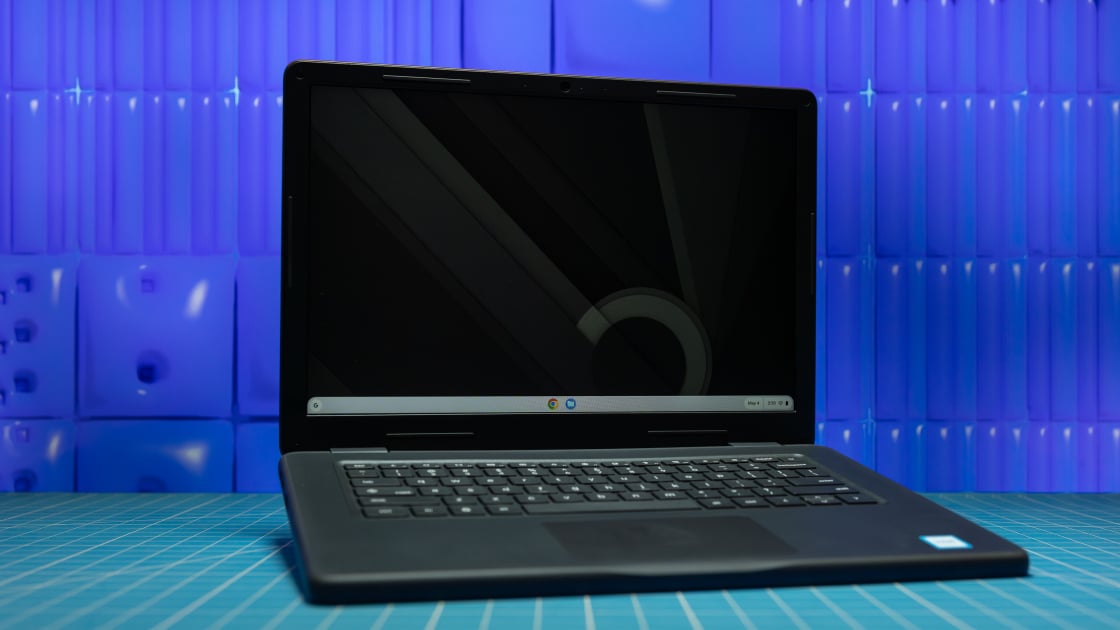
When you walk into a big-box retailer, the $200 price tag on a shiny new Chromebook looks like a steal. But as someone who has tested hundreds of machines, I can tell you that these budget specs are a performance ceiling that you will hit within the first hour of use. The core issue lies in the ChromeOS architecture. While it is marketed as a lightweight operating system, modern web applications like Google Meet, Slack, and complex Sheets have become resource-intensive workflows that cripple low-end silicon.
The most common offender is the Intel Celeron N-series processor. These chips are often paired with eMMC storage, which is significantly slower than the NVMe SSDs found in entry-level Windows machines. In practice, this means your machine will stutter when switching between more than five tabs. Furthermore, 4GB of RAM is no longer sufficient. By 2026, the 8GB RAM threshold is the baseline for functional multitasking. If you buy a 4GB machine today, you are essentially buying a brick that will struggle to handle the next three years of system updates.
Rule of Thumb: If it has an Intel Celeron N-series chip and 4GB of RAM, it belongs in a classroom for a ten-year-old, not on your desk for professional work.
Software Bottlenecks: Web Tools vs. Native Apps
The transition from native desktop software to SaaS-based workflows has been a boon for ChromeOS, but there is a persistent software feature gap that professional users cannot ignore. For instance, chromebook excel limitations are a major hurdle. If your work involves complex VBA macros, Power Pivot, or massive datasets that require local processing power, the web version of Excel will let you down. It is a stripped-back experience that lacks the granular control power users require.
Similarly, Adobe Creative Suite remains the elephant in the room. While Photoshop on the web has improved, it is not a replacement for the local app when dealing with multi-layered RAW files. For those in creative fields, chromebook video editing hardware limitations are particularly frustrating. Without a discrete GPU and specialized drivers, rendering video is a slow, painful process. Even everyday tools like Zoom have issues; zoom limitations on chromebook often include the inability to record locally or use advanced background effects without significant system lag.
| Feature | Chromebook (Budget) | Windows Laptop (Budget) |
|---|---|---|
| Software Support | Web Apps & Android Ports | Full Desktop Applications |
| Office Suite | Limited Web Version | Full Native Version (Macros) |
| Media Editing | Basic Web Tools | Adobe CC / DaVinci Resolve |
| Multitasking | Struggles with 10+ tabs | Handles multiple local apps |
| File Management | Cloud-first (Slow Local Sync) | Robust Local Directory |
The Longevity Risk: AUE Dates and Repairability
One of the less-talked-about chromebook advantages and disadvantages is the Auto Update Expiration (AUE) date. Every Chromebook has a "death date" where Google stops providing security and OS updates. If you buy a model that has been sitting on a shelf for a year, you have already lost a chunk of its life. Unlike a Windows laptop, which can often be kept alive with Linux or older OS versions, a Chromebook after its AUE is a security risk.
Furthermore, the physical construction of these budget units is a concern. A report by the U.S. PIRG Education Fund found that school Chromebooks historically averaged a lifespan of only four years, often due to the lack of standardized spare parts. When a hinge snaps or a screen cracks on a budget model, the repair costs frequently exceed the value of the device itself. Research indicates that some Chromebook models score as low as 3.3 out of 20 on repairability scales, which is abysmal compared to the average of 9 out of 20 for many premium Windows laptops.
Offline Reality: Why the Cloud Isn't Always Enough
The marketing for ChromeOS paints a picture of a seamless cloud-active life. However, chromebook offline workflow limitations become apparent the moment your Wi-Fi signal drops. While Google Docs and some Android apps have offline modes, they are often buggy or require foresight to enable. If you are on a flight without Wi-Fi, many third-party tools simply won't load.
The eMMC storage constraints also mean you have limited room to store large files locally. Most budget models cap out at 64GB or 128GB of storage. This creates a dependency on a stable network that Windows laptops, with their larger NVMe drives, simply don't have. If you work in an area with spotty connectivity, the lack of native application support and heavy reliance on the cloud can turn a productive afternoon into a series of loading wheels.
The Verdict: Chromebook vs. Windows for Students 2026
When deciding between a chromebook vs laptop for students, the answer depends entirely on the grade level and major. For K-12 students, Chromebooks are often the superior choice because they are easy for IT departments to manage and meet basic educational technology needs like Google Classroom. They are affordable, and the long battery life lasts through a school day.
However, for higher education, the chromebook vs windows laptop for college students 2026 debate leans heavily toward Windows or Mac. College students often need to run specialized legacy software, lockdown browsers for exams, or tools like MATLAB and AutoCAD. Limitations of a chromebook in these environments can be a major academic hurdle. If you are entering an engineering, finance, or digital arts program, the productivity software parity simply isn't there yet.
Hardware Red Lines for 2026:
- Avoid anything less than 1080p resolution.
- Avoid TN panels; insist on IPS for better viewing angles.
- Avoid any device without at least one USB-C port for charging and data.
- Avoid 64GB eMMC if you ever plan on downloading offline content.
FAQ
What are the limitations of using a Chromebook?
The primary limitations include the inability to install standard Windows or macOS software, a heavy reliance on a constant internet connection, and hardware that is generally underpowered for tasks like video editing or gaming. You are essentially limited to what can be done inside a Chrome browser or through the Google Play Store.
What can a laptop do that a Chromebook cannot?
A traditional Windows or Mac laptop can run native professional software like the full Adobe Creative Cloud, specialized engineering software, and advanced versions of Microsoft Office. They also offer better local file management, more robust offline capabilities, and generally higher-end hardware components for high-intensity tasks.
What cannot be run on a Chromebook?
You cannot run executable files (.exe) or DMG files. This includes many specialized tools for accounting, industry-specific CAD software, and legacy desktop applications. While some Android apps can work, they are often not optimized for a mouse-and-keyboard interface and may lack features found in their desktop counterparts.
Can I get Word and Excel on a Chromebook?
Yes, but you are limited to the web-based versions or the Android app versions. These are useful for basic editing and drafting but lack the advanced features like complex macros, extensive data modeling, and specific formatting tools found in the full desktop versions on Windows.
Why are Chromebooks not popular?
Chromebooks are actually very popular in the education and fleet management sectors due to their low cost and ease of centralized management. However, they remain less popular among power users and professionals because they cannot handle heavy workloads and are seen as "disposable" tech due to their AUE dates and low repairability.