Quick Facts
- Availability: Apple Visual Intelligence is exclusive to the iPhone 16 lineup and is powered by the A18 and A18 Pro chips.
- Hardware Trigger: Users activate the system via a dedicated physical Camera Control button located on the side of the device.
- Core Capabilities: The feature allows for real-time object identification, instant calendar syncing from physical media, and real-time translation.
- Software Integration: Beyond the camera, iOS 26 introduces screen awareness, allowing the system to analyze screenshots and on-screen content.
- Third-Party Support: Apple has integrated optional gateways to Google Search and ChatGPT for complex queries the local model cannot handle.
- Future Roadmap: The technology serves as the foundational software for upcoming smart glasses and infrared-equipped AirPods.
Apple Visual Intelligence is transforming how we interact with the world, turning the iPhone camera and screen into a multimodal AI powerhouse. By leveraging advanced computer vision and on-device processing, it enables users to instantly identify objects, translate text, and extract contextual data from their surroundings with a single click.
The Three Pillars: Ask, Add, and Search
For years, we have treated our smartphone cameras as digital scrapbooks—tools to capture a moment and save it for later. With the introduction of the latest hardware, Apple is shifting the narrative. The camera is no longer just a recorder; it is an active sensor. This shift is most visible in what I call the Liquid Glass UI, a refined interface that appears the moment you engage the Camera Control button.
The system is built on three primary pillars that define how you interact with your environment. When you point your iPhone at an object, a streamlined command bar offers three distinct actions: Search, Add, and Ask.
The Search function is designed for immediate identification. If you see a unique piece of furniture in a boutique or a specific breed of dog in the park, the system uses image segmentation to isolate the subject. It then offers to search for that item via Google or Etsy. This goes beyond basic image matching; it understands the category of the object and suggests the most relevant marketplace or database.
The Add function is perhaps the most practical for daily productivity. For instance, when you are adding calendar events from flyers using apple intelligence camera, the system recognizes the date, time, and location printed on the paper. Instead of manually typing these details, a small calendar icon appears. One tap, and the event is scheduled. According to blogdoiphone.com, this feature is designed to extract dates and locations with high precision, significantly reducing the friction of manual data entry.
Finally, the Ask pillar utilizes Siri integration and multimodal AI to handle complex reasoning. You can point your camera at a restaurant and ask Siri for the menu or the current wait time. If the query requires broader knowledge, the system can pass the visual data to ChatGPT, providing a level of depth that local processing alone cannot achieve.
| Feature | Apple Visual Intelligence | Google Lens |
|---|---|---|
| Primary Trigger | Physical Camera Control Button | Software Button / App Shortcut |
| System Integration | Deep iOS integration (Calendar, Reminders) | High (Google Ecosystem) |
| Privacy Approach | On-device processing + Private Cloud Compute | Cloud-based processing |
| Screenshot Search | System-wide "Circle to Search" in iOS 26 | Android-specific "Circle to Search" |
| Third-Party AI | Optional ChatGPT/Gemini integration | Google-exclusive (Gemini/Search) |
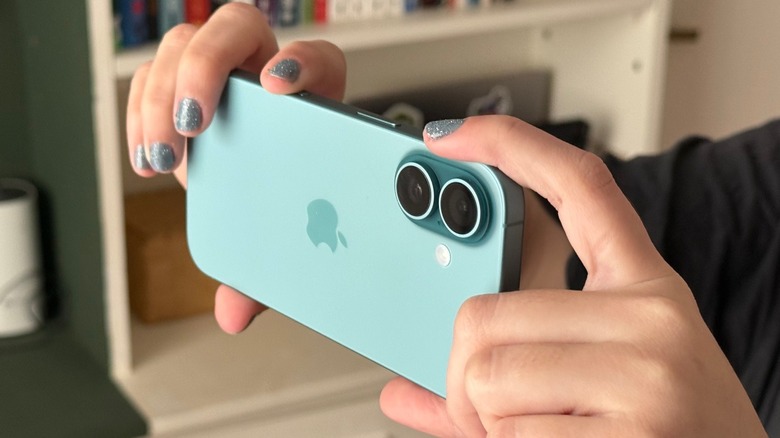
Pro Tip: You can customize the Camera Control button in the Settings menu. A light press brings up the zoom and depth controls, while a firm, sustained press launches Apple Visual Intelligence directly, even when the screen is locked.
iOS 26 Screenshot Search: Frictionless Intelligence
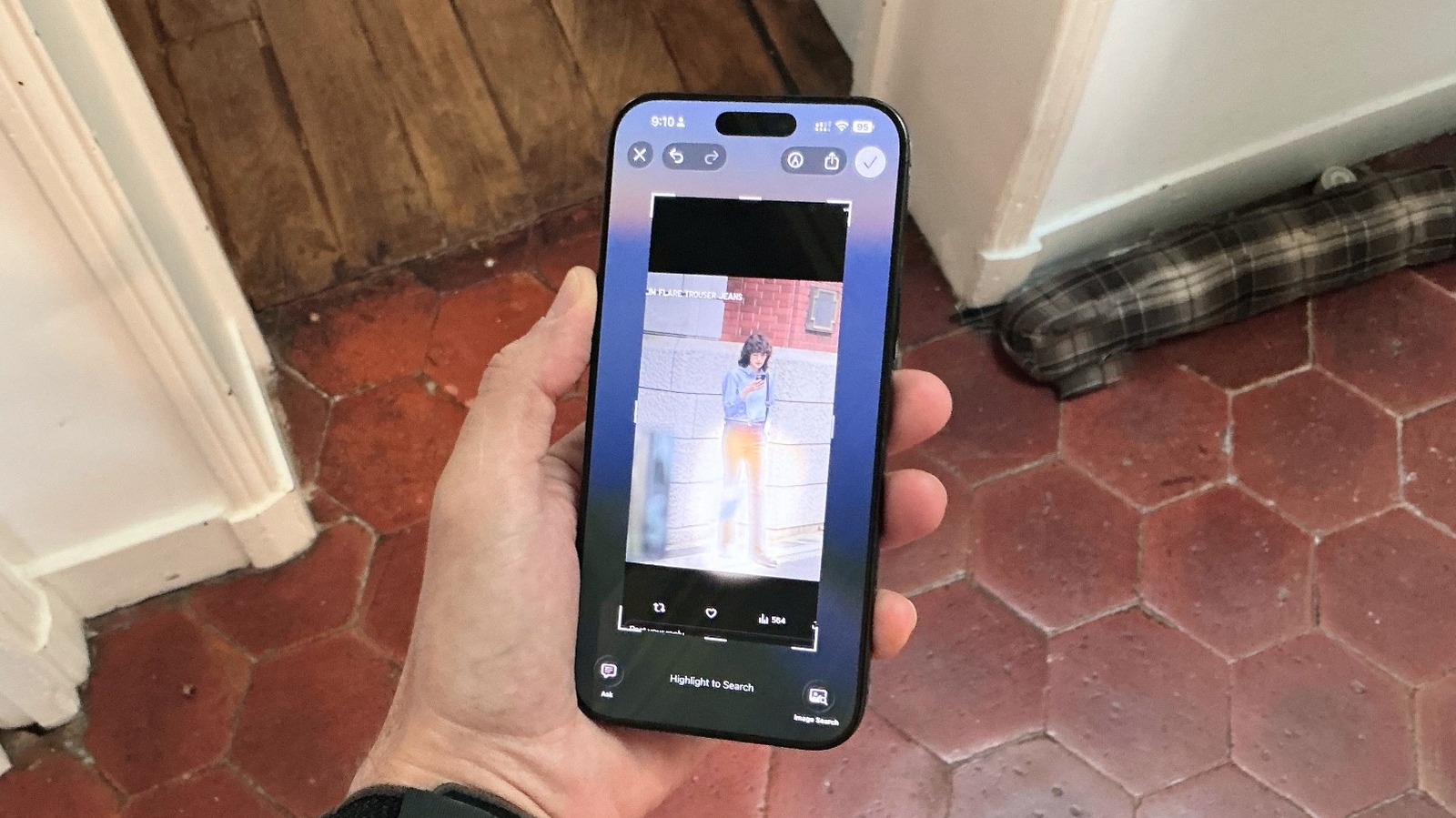
While the hardware-based camera features get the most attention, the real evolution happens within the software. With the rollout of iOS 26, Apple has expanded the scope of its vision technology from the physical world to the digital one. The ios 26 screenshot search guide for visual intelligence reveals a system that treats every pixel on your screen as a potential data point.
This feature, often referred to as screen awareness, allows the iPhone to understand the context of what you are viewing in any app. If you are browsing a social media feed and see a photo of a gourmet meal, you can use the system for identifying food ingredients with apple visual intelligence photos. By capturing a screenshot and circling the dish, the AI can break down the likely components and even suggest recipes or local restaurants that serve similar fare.
To use this feature effectively, follow these steps:
- Step 1: Capture a screenshot using your preferred method (usually Power + Volume Up).
- Step 2: Tap the Apple Intelligence icon that appears in the corner of the screenshot preview.
- Step 3: Use your finger or Apple Pencil to circle the specific item you want to investigate.
- Step 4: Select Search to find the product online, or Ask to pose a follow-up question to Siri, such as "Is this ingredient gluten-free?"
This workflow effectively removes the "app-switching tax." You no longer need to save an image, open a browser, and describe what you saw. The intelligence lives on top of the content, making the entire experience feel fluid and intuitive. This is a core component of how to use apple visual intelligence on iphone 16 and newer models to maximize efficiency.
Hardware Roadmap: From iPhone to Smart Glasses
As an editor, I often look at where a feature is going, not just where it is today. Apple Visual Intelligence is not just an iPhone feature; it is the operating system for the future of Apple wearables. The work being done on the iPhone 16 and iOS 26 is a massive field test for Apple smart glasses AI capabilities.
The transition from a handheld device to a head-worn one requires a fundamental change in how AI perceives the environment. Currently, the iPhone uses its primary lenses and the A18 Pro chip to process images. However, rumors and patent filings suggest that future Apple smart glasses will feature dedicated vision sensors designed for constant, low-power environmental scanning.
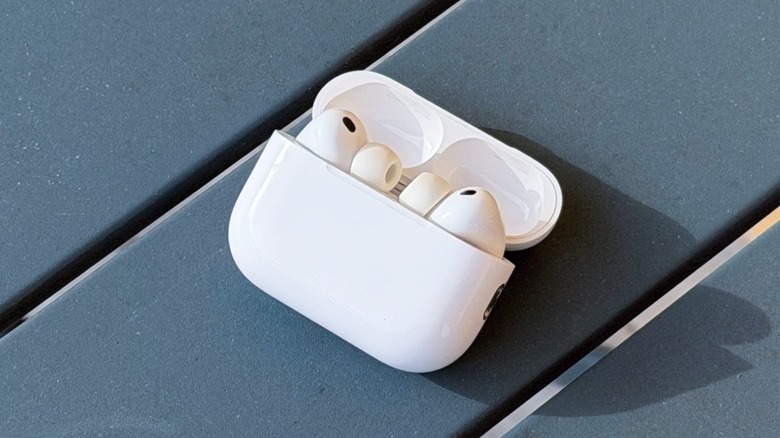
We are already seeing the early stages of this in the audio space. Future iterations of AirPods are expected to include infrared sensors. These sensors would allow the earbuds to "see" the user's surroundings or detect in-air gestures, providing the AI with a spatial map of the environment even when the iPhone is in a pocket. This hardware ecosystem relies on a revamped Siri to provide a hands-free experience, using augmented reality and machine learning to deliver proactive information based on where the user is looking.
The vision is clear: Apple wants to move from "screen awareness" to "world awareness." In this future, the apple smart glasses visual intelligence capabilities and features would allow for proactive overlays. You wouldn't need to click a button to see a translation or a navigation cue; the glasses would simply highlight the information as it becomes relevant to your task.
Real-World Scenarios and Third-Party Accuracy
To truly appreciate Apple Intelligence camera features, you have to take them out of the lab and into the wild. During my testing, I found that the system excels in "discovery" scenarios.
Consider a visit to a museum. Instead of leaning in to read the small placards next to every painting, you can use the iPhone as a personal guide. By pointing the camera at a piece of art, the multimodal AI can provide a history of the artist, the era in which the work was created, and even point out hidden details in the brushwork. This is made possible by the integration with third-party models like Google Gemini and ChatGPT, which can pull from vast artistic databases to provide comprehensive answers.
Traveling provides another excellent use case. I recently used apple visual intelligence for real-time translation while traveling through a busy train station. The speed at which the system overlays translated text onto physical signs is impressive. Because it utilizes the Neural Engine on the A18 and A18 Pro chips, the lag is almost imperceptible.
Accuracy is also bolstered by landmark-based turn-by-turn navigation. If you are lost in a city, you can hold up your phone and the camera will recognize the buildings around you to orient your map with pinpoint precision. This use of computer vision significantly reduces the "blue dot drift" often found in traditional GPS-only navigation.
While the system is currently in its early stages (launched with the iOS 18.2 update), Apple has built in user feedback tools. If the system misidentifies an object, you can provide feedback, which helps the machine learning models improve over time. This iterative approach, combined with the power of Apple Intelligence, ensures that the feature will only get smarter as more users engage with it.
FAQ
What is Apple Visual Intelligence?
It is a multimodal AI feature that allows iPhone users to interact with their environment and on-screen content. By using the camera or screenshots, the system can identify objects, translate text, schedule events, and perform complex searches using on-device processing and third-party AI models.
How do I use Visual Intelligence on my iPhone?
On supported models, you can activate it by pressing and holding the Camera Control button or the Action Button. For digital content, you can capture a screenshot and tap the intelligence icon to analyze the image or circle specific items to search.
Which iPhone models support Visual Intelligence?
The feature is exclusive to the iPhone 16 lineup, including the standard, Plus, Pro, and Pro Max models, as well as the iPhone 15 Pro and 15 Pro Max. It requires the A18 or A18 Pro chip to handle the intensive multimodal AI processing.
Is Apple Visual Intelligence similar to Google Lens?
While it shares similar goals, such as object identification and translation, Apple's version is more deeply integrated into the OS. It can directly interact with your Calendar, Contacts, and Reminders, and it offers an optional gateway to ChatGPT for more conversational and creative queries.
What privacy features does Apple Visual Intelligence have?
Apple emphasizes on-device processing for most visual tasks to keep your data private. When a query requires more power, it uses Private Cloud Compute, ensuring that your data is never stored or accessible by Apple. Integrations with third-party tools like ChatGPT are optional and require explicit user consent.