Quick Facts
- Primary Solution: Most alexa issues are resolved by moving your device to a 5GHz frequency band to avoid signal interference.
- Connectivity Stats: Approximately 87.59% of smart home owners identify connectivity as their most frequent technical hurdle.
- Recognition Fix: If your Echo smart speaker ignores you, retraining your Voice ID profile in the app settings fixes 90% of speech errors.
- Privacy Tip: Disabling Amazon Sidewalk can reclaim local bandwidth and improve your overall network security.
- Annoyance Factor: Around 27% of digital assistant users report that the assistant not understanding requests is their biggest daily frustration.
- Visual Aid: A solid red light ring almost always means the microphone is manually muted, not that the alexa broken hardware needs replacing.
Facing alexa issues today? Whether your alexa is broken or just acting weird, this alexa troubleshooting guide covers the top 10 fixes for a smoother smart home. Most alexa issues stem from Wi-Fi signal interference or outdated Voice ID profiles. To fix these alexa troubleshooting problems, power cycle your Echo and router, then switch to a 5GHz frequency band to minimize interference from other household devices.
1. Visual Diagnostics: Decoding the Alexa Light Ring
Before you assume your alexa broken device needs a trip to the recycling bin, look at the light ring. Most people panic when they see a glowing color they don't recognize, but these are actually visual breadcrumbs designed to help with alexa troubleshooting. According to a 2025 survey of smart home technology owners, nearly 88% of users face technical hiccups, yet many of these can be diagnosed just by looking at the speaker.
If you see a solid red light, relax—it just means the microphone is muted. If you see a spinning orange light, the device is in setup mode and likely lost its connection to your account or the internet. Understanding these cues prevents the frustration of "accidental summoning," a problem cited by 29% of frustrated voice search users.
| Light Color | Meaning & Action |
|---|---|
| Solid Red | Microphone is muted. Press the Mic button to turn it back on. |
| Spinning Orange | Device is in Setup Mode. Use the app to reconnect to Wi-Fi. |
| Pulsing Yellow | You have a message or notification. Say "What are my notifications?" |
| Spinning Blue | Processing a command. If it spins forever, check your internet. |
| Solid Purple | Do Not Disturb mode is active or there is a Wi-Fi configuration error. |
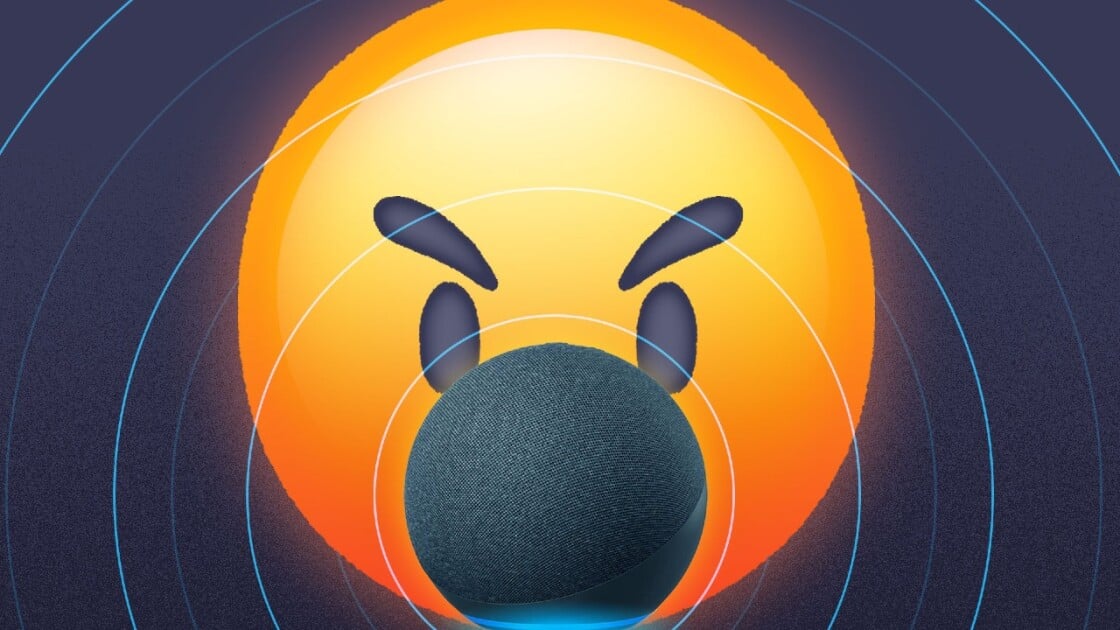
If you find that your device is frequently showing a purple light or refusing to connect, you might need to dive into your Alexa History logs to see if the device is misinterpreting ambient noise as a command.
2. Fixing Alexa WiFi Connection Issues
One of the most persistent alexa issues involves the device dropping off the network. You might be listening to a podcast when the audio suddenly cuts out, or you ask for the weather and get a chime followed by "I'm having trouble connecting to the internet." This is rarely a hardware failure and almost always a result of signal interference.
Many older routers default smart home devices to the 2.4GHz band. While this band has a longer range, it is incredibly crowded. Your microwave, baby monitor, and even your neighbor's Bluetooth speakers all live on 2.4GHz. To resolve your alexa wifi connection issues, try moving your Echo smart speaker to the 5GHz frequency band. This band is faster and much less prone to interference from household electronics.
If the connection remains unstable, practice the 30-second power cycling rule. Unplug both your router and your device. Wait 30 seconds, plug the router back in, and once the internet is fully restored, plug in the speaker. This forced handshake often clears up IP conflicts that cause alexa issues today.
3. Resolving Voice Recognition Problems
It is incredibly frustrating to ask a question only to be met with "I'm sorry, I don't know that one" or a complete lack of response. Research by YouGov conducted between 2024 and 2025 found that 27% of users identify "not understanding requests" as the primary challenge with digital assistants.
To tackle alexa voice recognition problems, the first step is to retrain your Voice ID profile. Go to Settings > Your Profile & Family > Voice ID in the app. Spend two minutes reading the prompts aloud in the room where you use the device most. This helps the AI filter out your specific acoustics and background noise.
If the speaker still fails to respond correctly, you can use a diagnostic command. Simply say 'Alexa, tell me what you heard' to understand how the device is transcribing your voice. If it is consistently getting words wrong, consider a wake word customization. Changing the wake word from "Alexa" to "Echo" or "Computer" can sometimes reduce false triggers or improve sensitivity if you have a name that sounds similar to the default.
4. Stopping "By the Way" and Unprompted Suggestions
Nothing ruins a seamless smart home experience like a speaker that talks too much. You ask for the time, and it follows up with, "By the way, did you know I can order cat food?" These unprompted suggestions are a major source of friction for long-term users.
To stop alexa unprompted suggestions, you need to enable Brief Mode. This setting replaces many of the verbal confirmations with a simple, short tone. You can find this under Settings > Voice Responses. While you are there, I highly recommend enabling Whisper Mode. This allows you to whisper a command late at night and receive a whispered response back, preventing the speaker from waking the whole house.
For those "Things to Try" notifications that pop up on screen-based devices like the Echo Show, you must dive into the "Home Content" settings on the device itself. Disabling these individual toggles will clear your home screen of unwanted ads and suggestions, leaving only the information you actually want to see.
5. Troubleshooting the Alexa App and Connectivity Today
Sometimes the hardware is fine, but you encounter issues with alexa app performance. The app can become sluggish, fail to discover new devices, or crash during setup. If you are wondering if Amazon is having alexa issues today, your first stop should be a third-party status checker to see if there is a regional outage.
If the problem is local, follow this tiered troubleshooting protocol:
- Force stop the app in your phone settings.
- Sign out and sign back in to refresh your credentials.
- Check for an app update.
- As a last resort, uninstall and reinstall the app.
One hidden drain on app performance and network speed is Amazon Sidewalk. This feature shares a small portion of your internet bandwidth with neighbors to help lost devices find their way home. While the intent is community-oriented, many users prefer to opt-out to ensure their bandwidth is dedicated solely to their own alexa troubleshooting needs. You can disable this in the app under Settings > Account Settings > Amazon Sidewalk.
6. Music Streaming and Spotify Issues
Music is the primary reason people use smart speakers, yet spotify alexa issues are surprisingly common. Symptoms include music stopping after one song, the speaker playing the wrong playlist, or the app saying it is playing when the speaker is silent.
The most effective fix for music-related alexa troubleshooting is to "unlink and relink."
- Open the app and go to Settings.
- Select Music & Podcasts.
- Find your streaming service (like Spotify) and tap "Disable Skill."
- Wait a moment, then tap "Enable to Use" and re-enter your login details.
This refreshes the token between Amazon and the third-party provider. Additionally, if the volume is inconsistent, check the "Alarms & Timers" versus "Media" volume sliders. Often, users think their music is too quiet because they previously lowered the media volume, but the alarm volume remains high. These are controlled independently within the app device settings.
7. Managing Privacy and Accidental Summons
Privacy remains a top concern, and it is one of the main reasons why some voice search users report frustration. If you feel like your device is listening when it shouldn't, you can take control of your data. The Alexa History logs keep a record of every voice command. Regularly clearing these through the Privacy menu in the app ensures your data doesn't sit on servers indefinitely.
Accidental summoning often happens because of "wake word" confusion from the TV or a conversation. If your Echo is positioned too close to a TV or a soundbar, it will constantly trigger. Moving the device just three feet away from other speakers can significantly reduce these errors. If you find the device's behavior is becoming erratic, a simple power cycling—unplugging it for 10 seconds—is often enough to clear the temporary cache and restore normal operation.
FAQ
Why is Alexa suddenly not working?
If your device stops responding abruptly, it is usually due to a lost Wi-Fi connection or a power issue. Check the light ring; if it is pulsing red or purple, your Echo smart speaker has lost its link to the internet. Verify your router status and ensure your device is within range of a strong signal, preferably on the 5GHz frequency band.
Why is my Alexa acting weird?
Unusual behavior, such as unprompted talking or slow responses, often stems from software glitches or background noise interference. To fix this, check your Alexa History logs in the app to see what the device thought it heard. Enabling Brief Mode and retraining your Voice ID profile can also eliminate many of the "weird" quirks like unnecessary "By the way" suggestions.
How do you reboot your Alexa?
To reboot your speaker, simply unplug the power adapter from the wall outlet or the back of the device. Wait at least 10 seconds to allow the internal capacitors to discharge completely. Plug it back in and wait about a minute for the device to reconnect to the Wi-Fi and the Amazon servers. This is different from a factory reset and does not erase your settings.
Is Amazon currently having issues with Alexa?
While major outages are rare, they do happen. If multiple devices in your home are unresponsive despite having a working internet connection, check a site like DownDetector or the official Amazon Twitter/X support handle. These platforms provide real-time updates on server-side alexa issues today.
Why are people getting rid of Alexa?
Privacy concerns and "feature creep" (like unwanted advertisements or suggestions) are the top reasons some users move away from smart speakers. However, most of these issues can be mitigated by disabling Amazon Sidewalk, turning off "Things to Try" notifications, and regularly deleting voice recordings in the privacy settings. Mastering these alexa troubleshooting steps often turns a frustrating experience into a seamless one.