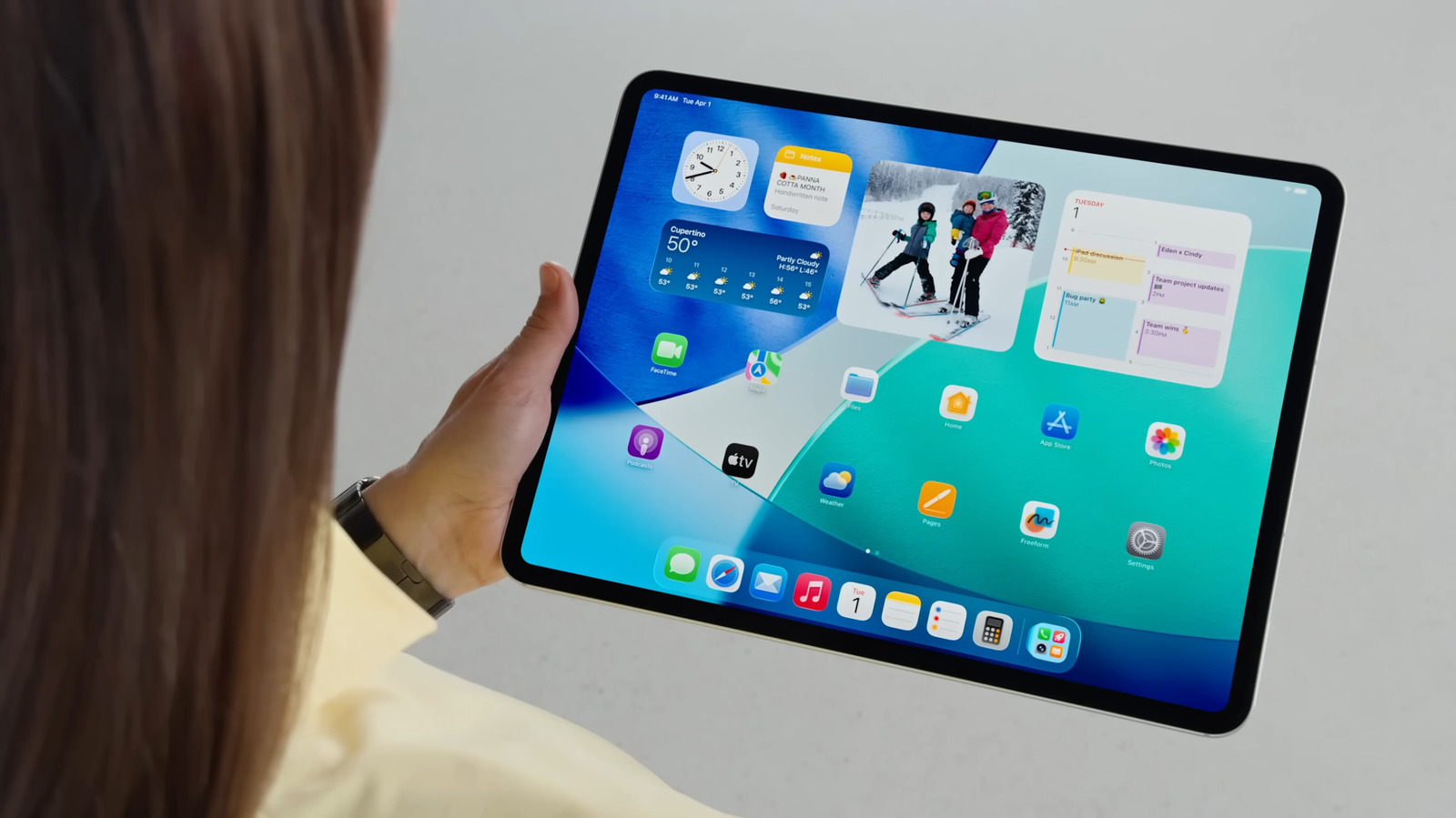
For years, the iPad was often viewed as a "bridge" device—somewhere between the portability of a smartphone and the power of a laptop. However, as iPadOS has matured, that narrative has shifted. Today, the tablet is a desktop-class machine capable of handling intensive professional workflows. One of the most significant leaps in this evolution has been the introduction of interactive iPad widgets. These aren't just static windows showing data; they are mini-apps that live on your screen, allowing you to execute tasks without ever launching the full application.
Enhance your daily output with powerful iPad productivity widgets that turn your Home Screen into a command center. By utilizing interactive iPad widgets, you can reduce app-switching friction and focus on deep work. As the global iPad productivity app market is projected to grow to USD 44.81 billion by 2035, mastering iPad Home Screen customization is no longer optional—it's a competitive advantage for professionals looking to maximize their efficiency.
Quick Facts
- Market Growth: Projected value of USD 44.81 billion by 2035 at a compound annual growth rate of 12 percent.
- The 2-Second Rule: High-efficiency widgets should provide value or allow an action within 2-3 seconds of glancing.
- Interactive Support: Full iPadOS support enables one-tap task completion and habit tracking.
- System Monitoring: The native Batteries widget can track up to 6 different Apple peripherals simultaneously.
- Pricing Models: Offers a balance between one-time purchases like Things 3 and subscription-based services like Microsoft 365.
- Workflow Impact: Reduces app-switching fatigue and cognitive load by centralizing essential data.
The best iPad productivity widgets like Productive, FocusPomo, and Todoist optimize workflows by allowing users to manage tasks and monitor system status directly from the Home Screen without opening apps, significantly reducing cognitive load.
Productive: Mastering Habit Tracking with Interaction
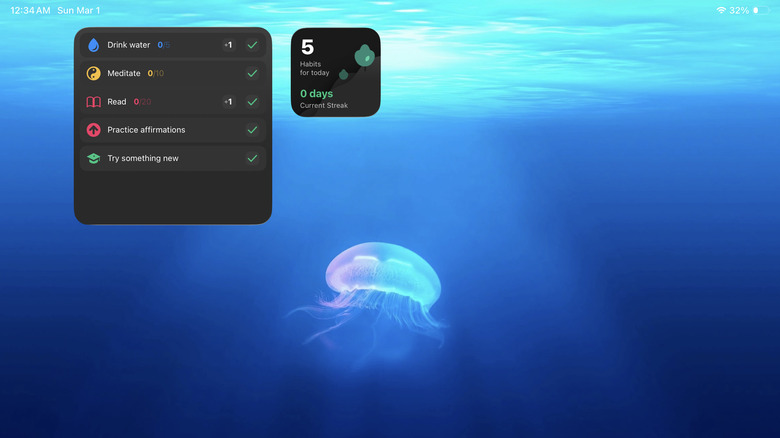
The key to long-term success is consistency, but tracking your daily habits can often feel like a chore. This is where Productive shines. It is arguably the best habit tracker widgets for iPad Home Screen because it treats habit formation as a seamless part of your interface rather than a separate destination. In the past, if you wanted to log that you drank a glass of water or finished your morning reading, you had to unlock your iPad, find the app, and navigate to the specific habit.
With interactive iPad widgets, that friction is gone. Productive offers a variety of sizes, but the large widget is a power user's dream. It can display up to seven habits at once, showing your current streaks and progress. The real magic happens with the one-tap interaction model. You can check off a habit directly from the Home Screen. This immediate feedback loop is essential for habit tracking because it aligns with the "2-Second Rule"—if it takes more than two seconds to log an action, you are significantly less likely to do it over time.
For those focusing on iPad workflow optimization, Productive also allows for real-time updates across devices. If you log a habit on your Apple Watch or iPhone, the iPad widget reflects that change instantly. This ensures your command center always provides an accurate snapshot of your daily goals.
FocusPomo: Time Blocking and Pomodoro Stacks
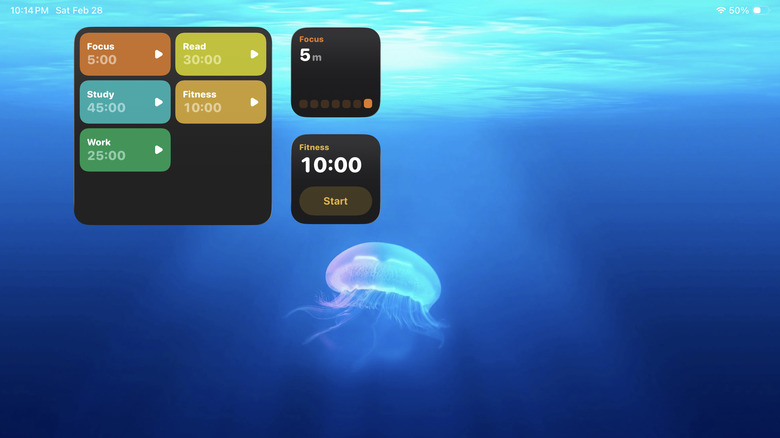
In an era of constant notifications, deep work has become a luxury. FocusPomo addresses this by bringing the Pomodoro Technique directly to your iPad Home Screen customization strategy. This isn't just a timer; it’s a tool for active time blocking. The FocusPomo Plus version is particularly impressive, supporting up to eight simultaneous focus modes, allowing you to toggle between "Writing," "Coding," "Meetings," or "Research" with a simple tap.
The interactive Pomodoro timer widgets for iPad provided by FocusPomo are designed to keep you in the zone. When you start a session, the widget provides a live countdown. If you need to pause or end a session early, you can do so directly from the widget. This prevents the "app-switching rabbit hole"—the phenomenon where you open an app to perform a quick task but end up distracted by other features or data within that app.
By integrating FocusPomo into your setup, you are essentially creating a dedicated focus station. I recommend placing this widget in a Smart Stack (which we will discuss later) so that it only appears during your scheduled work hours. This level of contextual awareness is what separates a standard tablet from a professional workstation.
Native Batteries & System Monitoring: Managing the Ecosystem
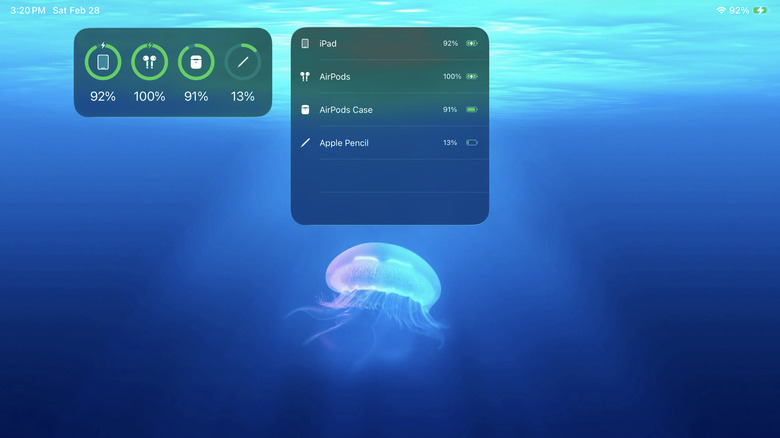
One of the most overlooked aspects of a desktop-class experience is peripheral management. If you use an iPad Pro or Air for work, you likely have an Apple Pencil and a Magic Keyboard. There is nothing more disruptive to a creative flow than an Apple Pencil dying in the middle of a design session. This is why the native Batteries widget is a foundational element of any iPad productivity widgets setup.
This widget provides glanceable data on up to six peripherals, including your AirPods, Apple Watch, and even connected Bluetooth keyboards from third parties. Instead of digging through the Settings menu or the Control Center, you can see the health of your entire ecosystem at a glance.
Furthermore, integrating system monitoring into your Home Screen helps prevent hardware downtime. By knowing your Magic Keyboard is at 10% battery before you leave for a coffee shop meeting, you can save yourself a major headache. For power users, I suggest placing the medium-sized Batteries widget on the Today View (the swipe-right screen) to keep it accessible but out of the main visual space of your primary Home Screen.
Google Chrome: Shortcuts for High-Speed Navigation
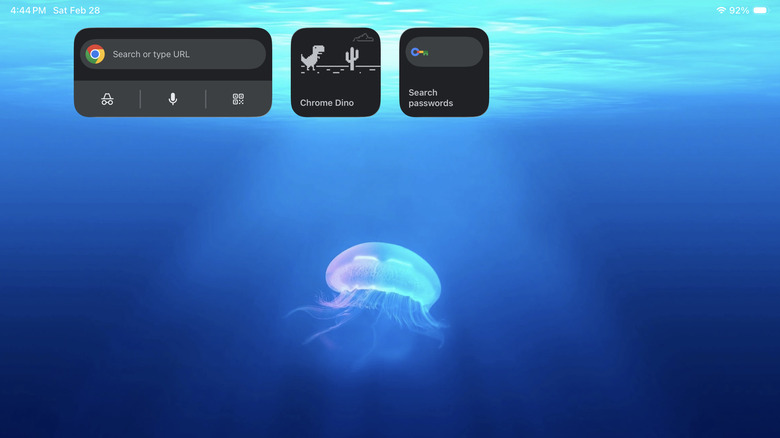
While Safari is the default, many professionals rely on Google Chrome for its cross-platform syncing and robust extensions. The Chrome widget is a masterclass in how to set up interactive widgets for iPad productivity. It doesn’t just show you your bookmarks; it provides immediate access to core browser functions.
The widget includes shortcuts for a standard search, an Incognito tab, and voice search. However, the most valuable feature for professionals is the direct access to the Password Manager. In a high-speed workflow, every second saved on a login screen counts. By tapping the shortcut, you are taken directly to your credentials, reducing the steps required to access secure portals.
Using Chrome widgets also enhances multitasking. If you are working in a Split View and realize you need to do a quick Incognito search to check a live website without cached data, the widget on your Home Screen makes that transition instantaneous. It’s about building a workflow where the software stays out of the way of your intent.
Things 3 & Smart Stacks: The GTD Command Center
For many, task management is the heart of productivity. Things 3 has long been the gold standard for Get Things Done (GTD) enthusiasts, and its implementation of iPad productivity widgets is flawless. The Things 3 widget allows for rapid task capture and organization without the clutter found in more complex project management tools.
The real power move, however, is combining Things 3 with Smart Stacks. iPad widget stacks for efficient task management allow you to layer multiple widgets on top of each other in the same screen real estate. Your iPad uses on-device intelligence to rotate these widgets based on your activity, location, and time of day. For example, your stack might show your "Work" project from Things 3 during the morning, switch to FocusPomo during your core work hours, and rotate to your Productive habit tracker in the evening.
This dynamic approach to iPad Home Screen customization ensures that your iPad is always providing the most relevant information without overwhelming you with data. It creates a "Glanceable" environment where your tablet anticipates your needs rather than forcing you to go hunting for tools.
Step-by-Step: Optimizing Your Workflow with Lock Screen Widgets
The productivity doesn't stop at the Home Screen. iPadOS now allows for significant Lock Screen customization, which is perfect for maintaining contextual awareness even when your device is "off." This is particularly useful for tracking Apple device battery levels with iPad widgets or checking your next appointment.
- Enter Edit Mode: Long-press on your Lock Screen while the iPad is unlocked.
- Select Customize: Tap the "Customize" button at the bottom, then choose "Lock Screen."
- Add Widgets: On the left side (in landscape) or below the clock (in portrait), tap the widget area to open the gallery.
- Choose Productivity Tools: Select widgets that offer real-time updates. I recommend a system monitoring widget for battery levels and a calendar widget for your next meeting.
- Link Focus Modes: For advanced users, you can link specific Lock Screens to Focus Modes (like "Work" or "Sleep"). This means when you enter your "Work" Focus, your Lock Screen automatically changes to display your task list and Pomodoro timer.
Optimizing iPad workflow with Lock Screen widgets ensures that you stay informed without being tempted to dive into time-wasting apps like social media. It creates a barrier between "checking info" and "consuming content."
FAQ
What are the best iPad widgets for productivity?
The best widgets generally include task managers like Things 3 or Todoist, habit trackers like Productive, and focus tools like FocusPomo. Native widgets like Calendar and Batteries are also essential for a complete workflow.
How do I add productivity widgets to my iPad home screen?
Long-press any empty area on your Home Screen until the apps start to jiggle. Tap the plus icon in the top-left corner to browse the widget gallery. From there, select your desired app, choose a widget size, and tap "Add Widget."
Can you put widgets on the iPad lock screen?
Yes, you can customize the iPad Lock Screen by long-pressing it and selecting "Customize." This allows you to add a column of widgets in landscape mode or a row of smaller widgets in portrait mode.
Do iPad widgets drain the battery life?
Modern iPadOS widgets are highly optimized. They do not run constantly in the background; instead, they receive periodic updates from the system. Unless a widget is poorly coded or performing constant GPS tracking, the battery impact is negligible.
How do I create a widget stack on my iPad?
To create a stack, simply drag one widget of the same size on top of another. You can then swipe through them manually or enable Smart Rotate to let the iPad choose which widget to show based on your usage patterns.
The transition of the iPad into a true productivity powerhouse is as much about the software environment as it is about the hardware. By carefully selecting and placing interactive iPad widgets, you move beyond mere app usage and into the realm of workflow ecosystems. Start by adding one or two widgets this week—perhaps a habit tracker or a task list—and observe how much time you save by avoiding the constant "tap and wait" of opening full applications. Your iPad is ready to be a command center; you just need to set the dials.